
The Patient Health Check-In sends the PHQ-9 and GAD-7 questionnaires to a patient before or during a visit. The form contains 16 required questions, takes about three minutes, and saves the completed screening to the patient chart.
SAFETY: Any PHQ-9 item 9 answer above zero requires same-day provider follow-up. The automated task supports the response workflow but never replaces direct clinical or emergency procedures.
When The Check-In Is Sent
Automatic Send For A First Recorded Visit
1. Complete the normal appointment arrival workflow.
2. When the patient’s first recorded visit changes to Arrived, the system checks for an email address.
3. If an email is present, the system creates the screening request and task order, then sends the secure invitation.
4. Returning patients are not automatically sent a check-in.
5. If no email is present, add or correct the email and use the manual procedure.
Manual Send Or Resend
1. Open the appointment detail.
2. Open the ellipsis action menu.
3. Select Send Health Check-In.
4. Confirm the success message and ask the patient to check spam or junk if needed.
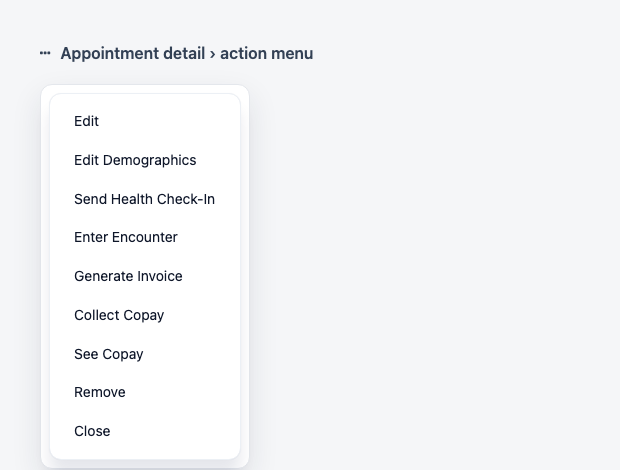
Resending a pending or opened screening reuses the open request and sends a new secure invitation. Sending after completion creates a new request and task.
Patient Experience
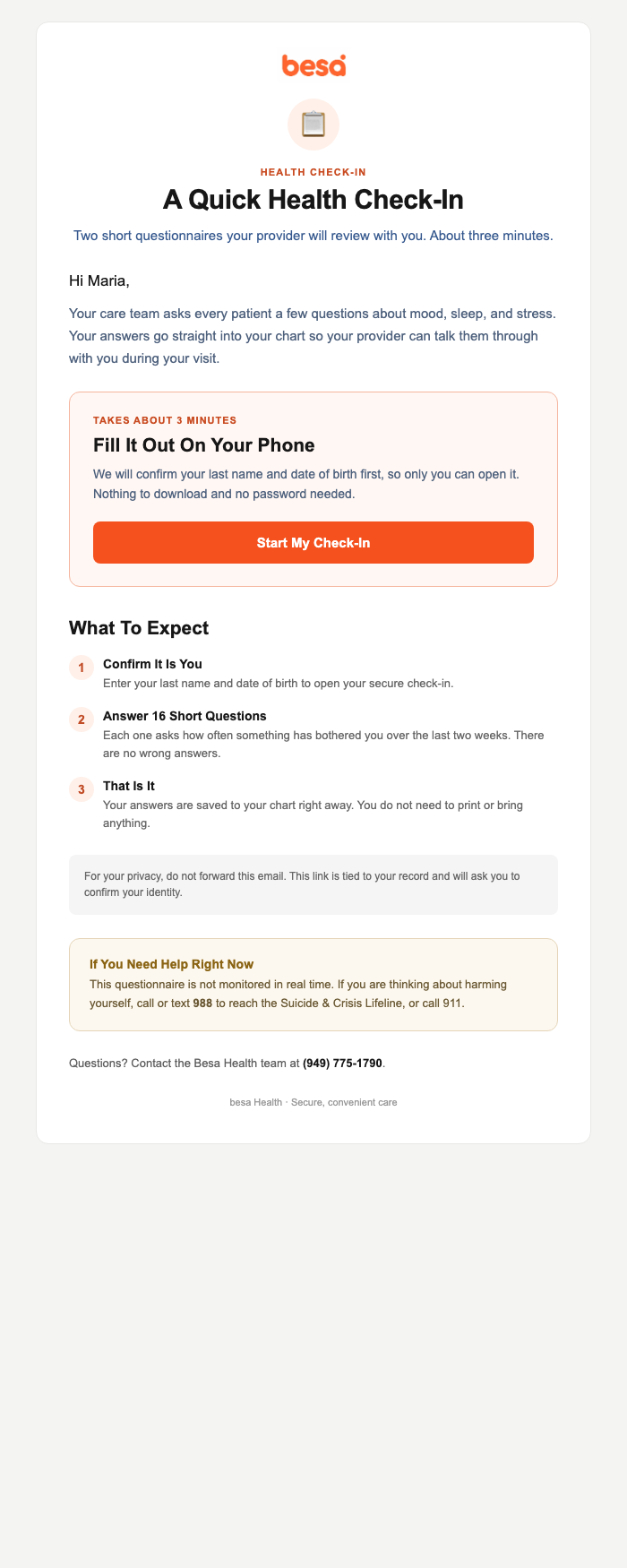
1. The patient opens the email and selects Start My Check-In.
2. The secure patient web-order flow asks for last name and date of birth.
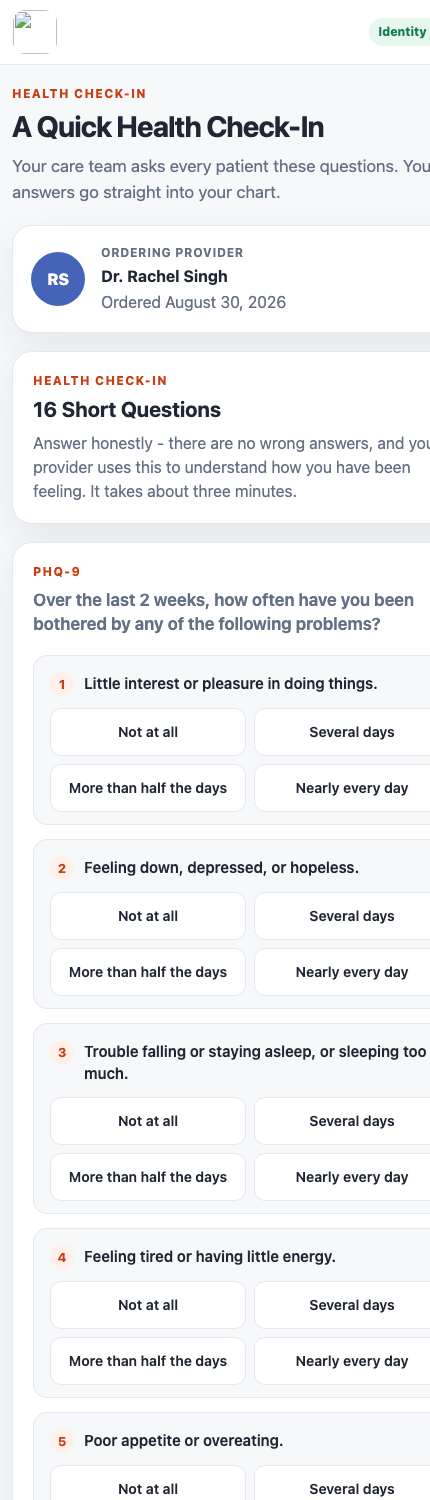
3. After identity verification, the patient answers 9 PHQ-9 and 7 GAD-7 questions.
4. The difficulty question is optional. All other questions are required.
5. If a required response is missing, the item turns red and the page moves to the first unanswered question.
After Submission
• The server validates every answer and calculates both scores from the stored responses.
• The screening and linked task order change to Completed.
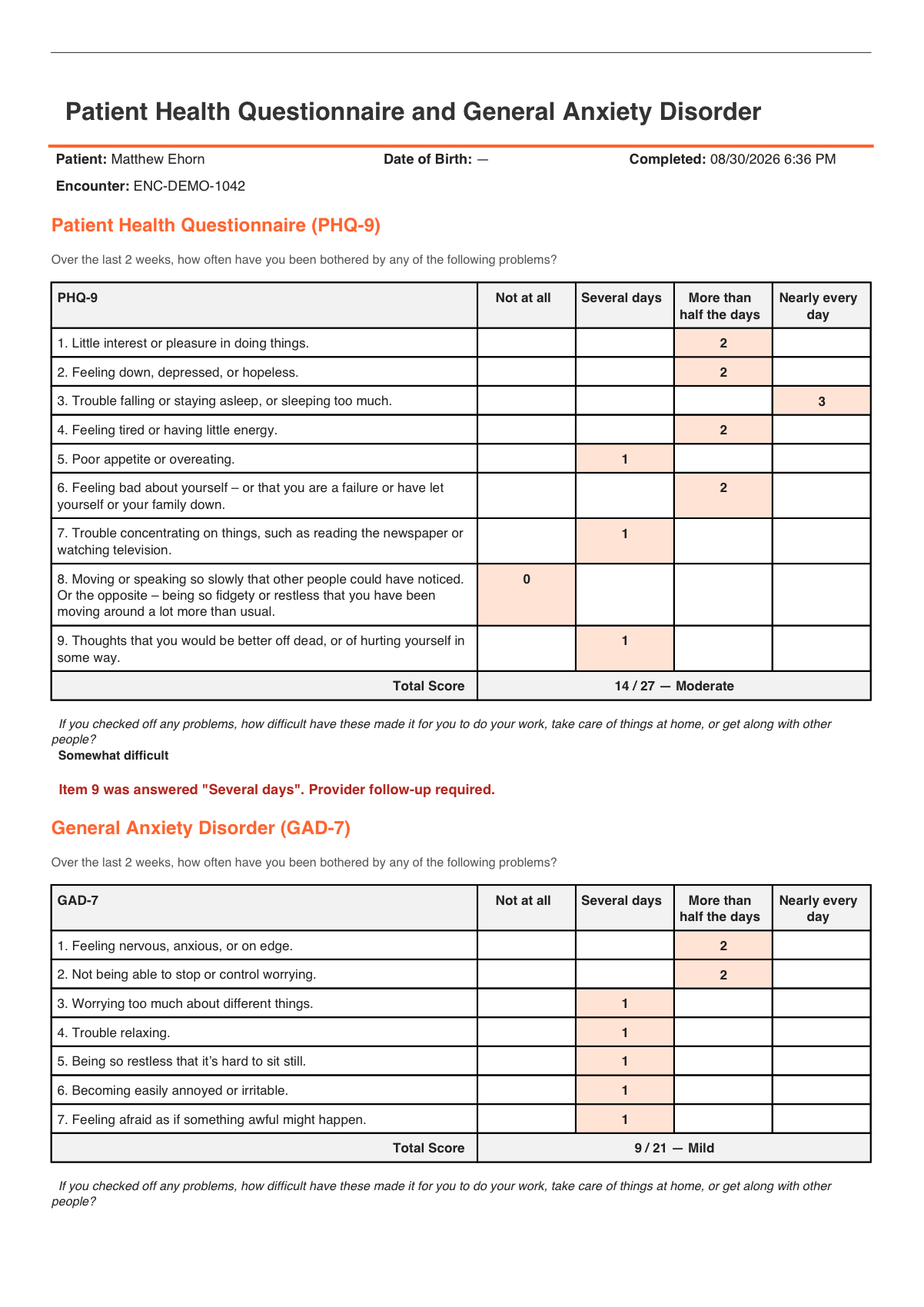
• A PDF named PHQ9-GAD7-MM-DD-YYYY is saved in patient documents with the encounter number.
• Opening the same link again shows the completed state; duplicate submission is rejected.
Score Labels
• PHQ-9: 0–4 Minimal, 5–9 Mild, 10–14 Moderate, 15–19 Moderately severe, 20–27 Severe.
• GAD-7: 0–4 Minimal, 5–9 Mild, 10–14 Moderate, 15–21 Severe.
A score of 10 or more is marked clinically significant in the screening summary. Clinical interpretation remains the provider’s responsibility.
PHQ-9 Item 9 Safety Workflow
1. The system flags any item 9 answer above zero.
2. It creates a pending, same-day, high-priority task named Positive depression screening - review today.
3. The task includes the answer, completion time, PHQ-9 total and severity, and instructs the reviewer to speak with the patient before the patient leaves.
4. The assignee receives the existing task-created push notification.
Reviewer assignment falls back in this order: visit provider, appointment provider, staff member who manually sent the screening, any clinic provider, then clinic provider-support user.
Statuses Staff May See
• Not Started: Email sent; patient has not opened the form.
• In Progress: Patient opened the screening.
• Completed: Form submitted and scored.
• Expired: Request is no longer available.
• Cancelled: Request was cancelled.
Troubleshooting
No Email Address
Add or correct the patient email, save the record, and send again from the appointment action menu.
Email Not Received
Confirm the email address, check spam or junk, then resend from the same appointment. An open request is reused.
Patient Cannot Verify Identity
Confirm the patient is using the newest invitation and that last name and date of birth match the patient record exactly. Never bypass identity verification or share another patient’s link.
Completed But PDF Is Missing
Confirm the screening and task order show Completed. Do not repeat the screening solely because the PDF is missing. Contact Support or Engineering with the appointment and encounter reference for log review.
Comments (0)