
Most of all visits, especially the first visit for a new Patient, will have an order attached to check what may be happening. Mostly this will be for an image order, or a lab order. Take a look below at how this process works.
📚Resources Needed
🚀 Tips & Tricks
- The providers should be booking a follow up visit to review the order results with the Patient within a month.
- For Synergy diagnostic imaging you will need to call them and tell them to fax us the results. Or they upload it to the EHR themselves.
- As a nice little perk for the provider, when you upload the results, you can shoot them a message letting them know.
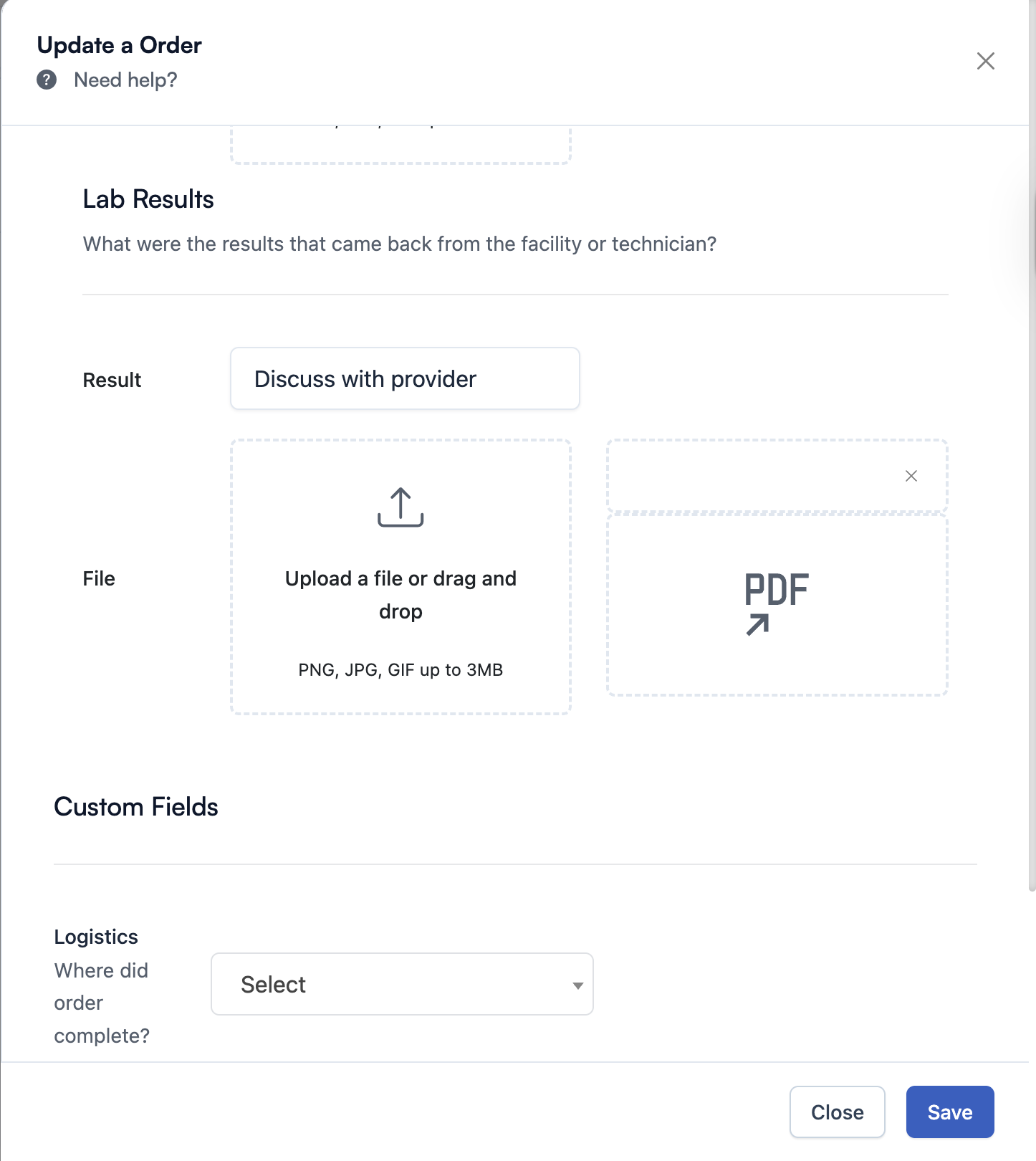
- In the Results text field, always put, “Discuss with provider”
📘 Instructions
Here’s some of the main actions you will need to perform
- Ideally, every single week we are searching all the pending lab and image orders to see if the results came in.
- No matter what, when you start each day, you should look at what appointments are listed and which may be scheduled to review order results.
- You can see what orders still need results uploaded by looking at the status and also by seeing that there is no attachment added to the order. If results are added, you’ll see the PDF label above the order.
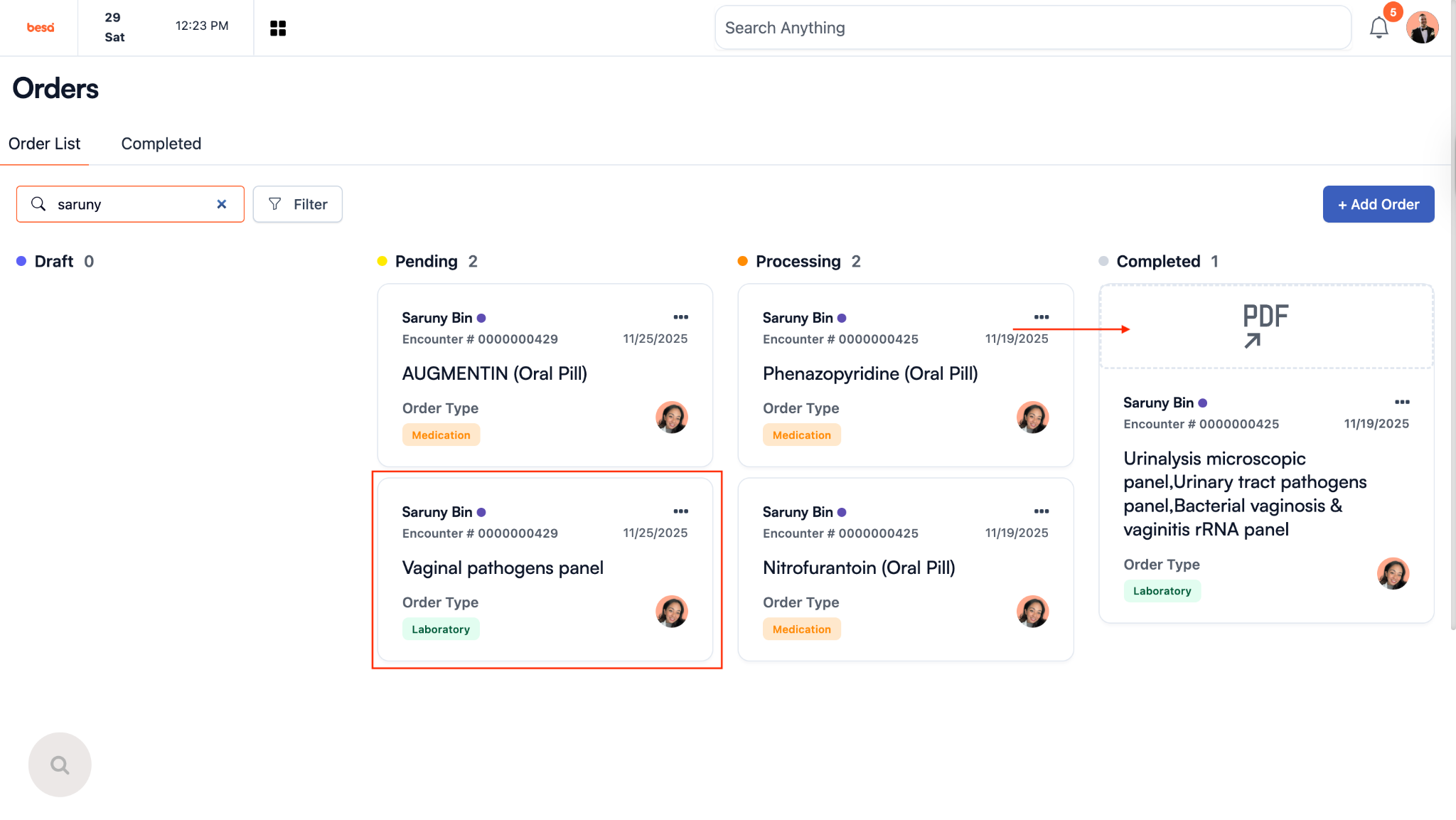
- To get the results for a lab, you will need to login to LabCorp.
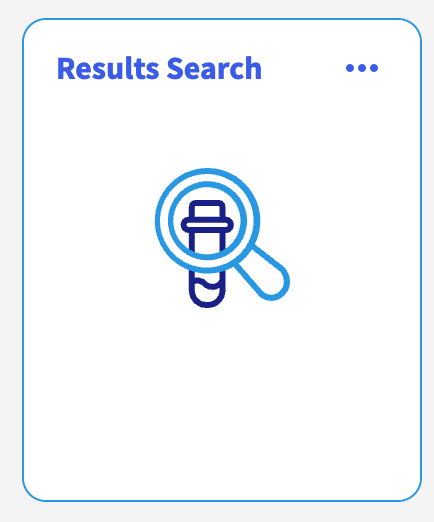
- Click on the Results Search card.
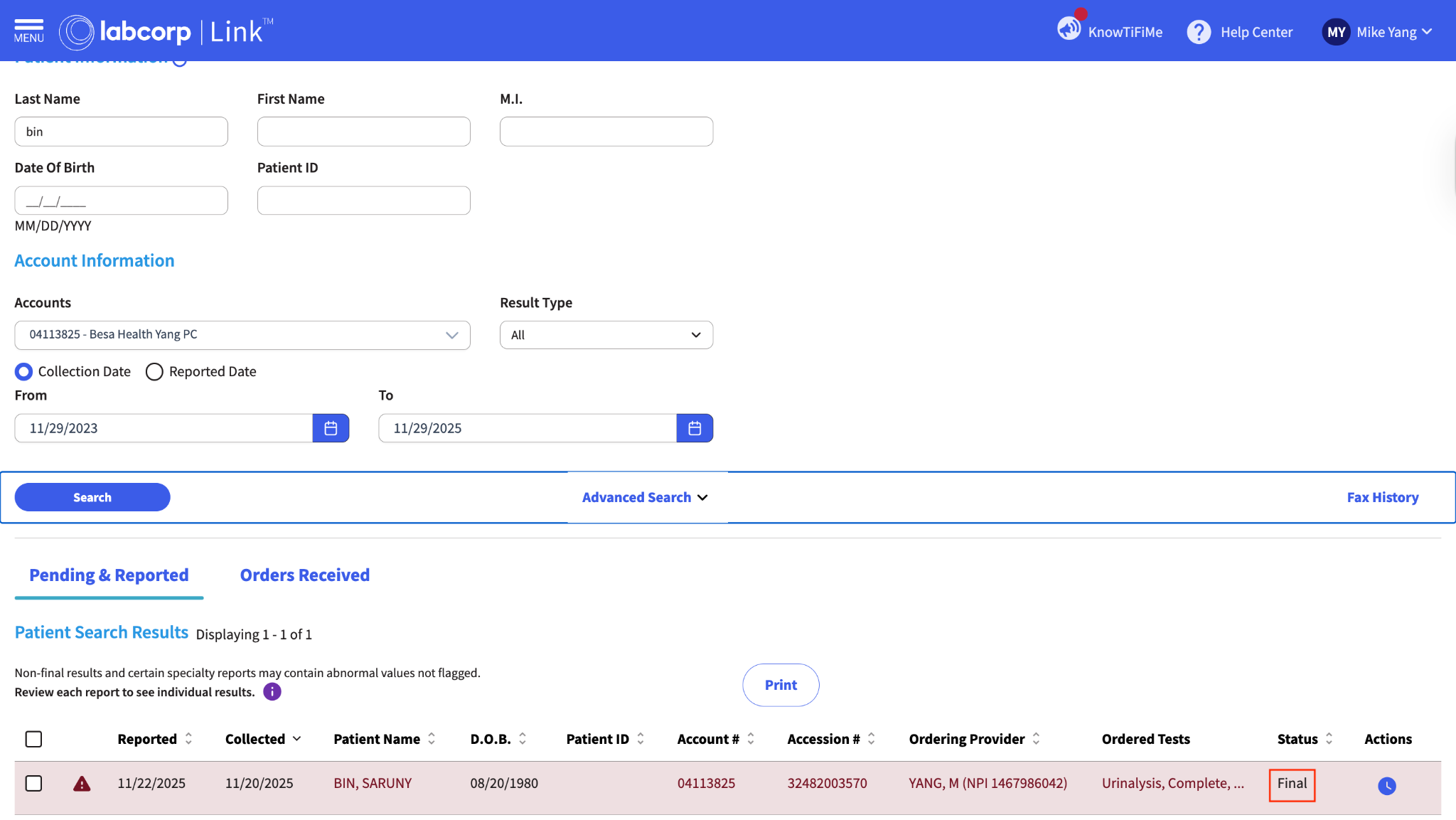
- Search the Patient by last name. When the row shows, you’ll see the text that says status FINAL. That is required. If it is preliminary, we still need to wait. Click on the row to show the detail page.
- Click Print.
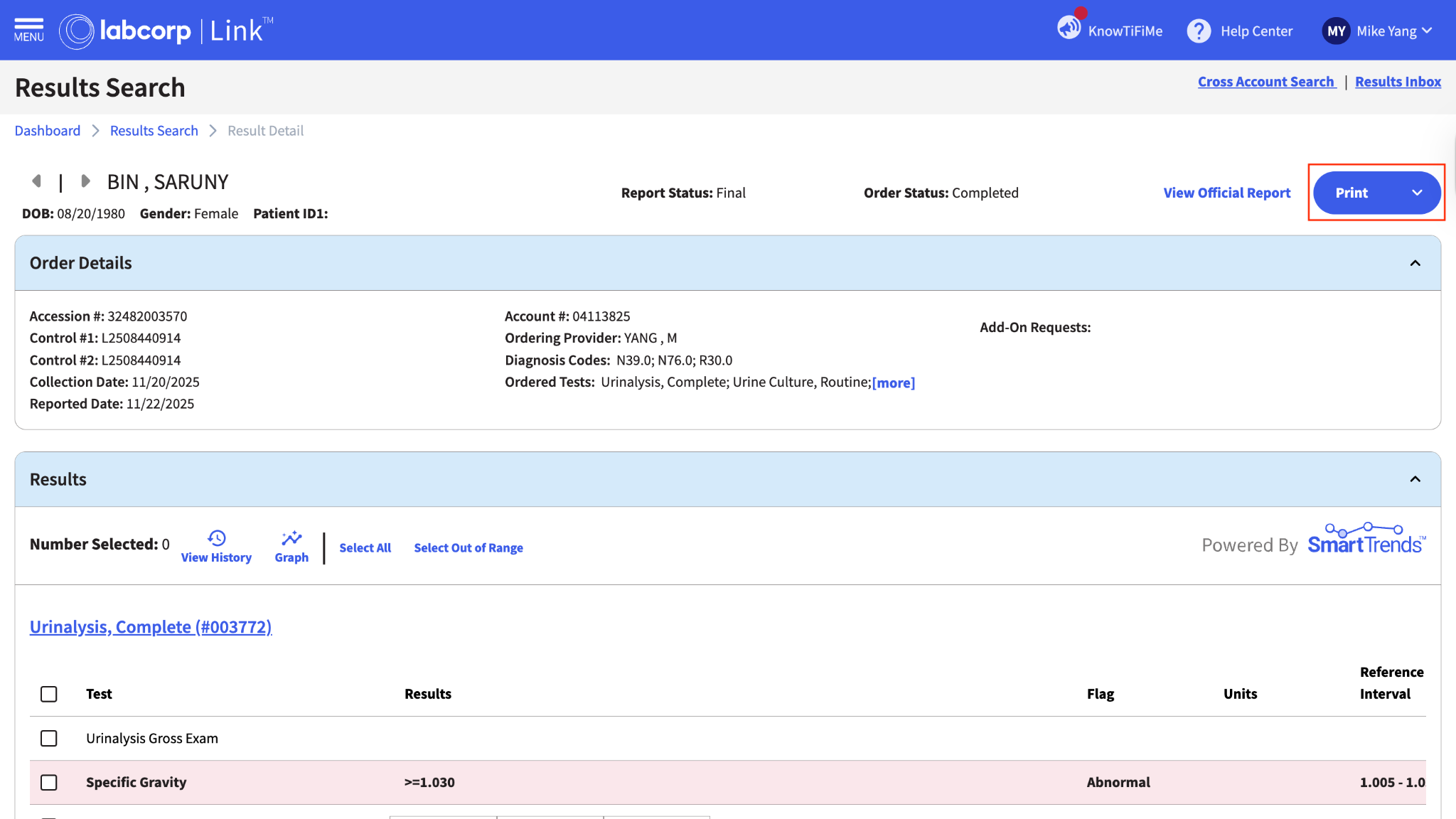
- After saving the file, go back to the order you’re working from and select Edit.
- Scroll down to the Results area and upload the document you just saved. In the Results text input put Discuss with provider.
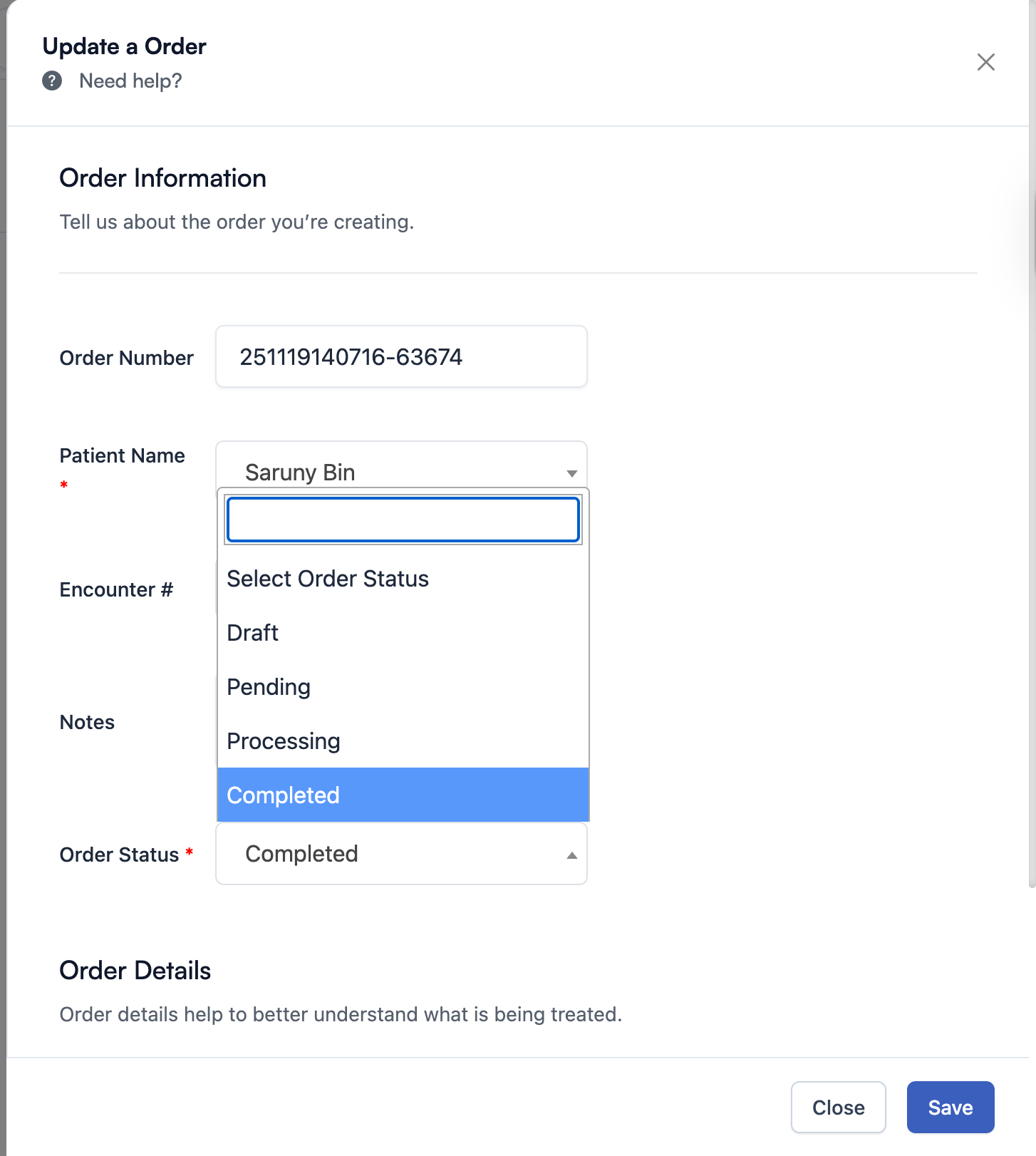
- Scroll up to the top and change the status of the order to Completed.
- Double check that the pdf is uploaded, text says Discuss with provider, and the status is Completed. If you satisfied these 3 things, Click SAVE!
- To get the results for an image, you will need to login to Radnet.
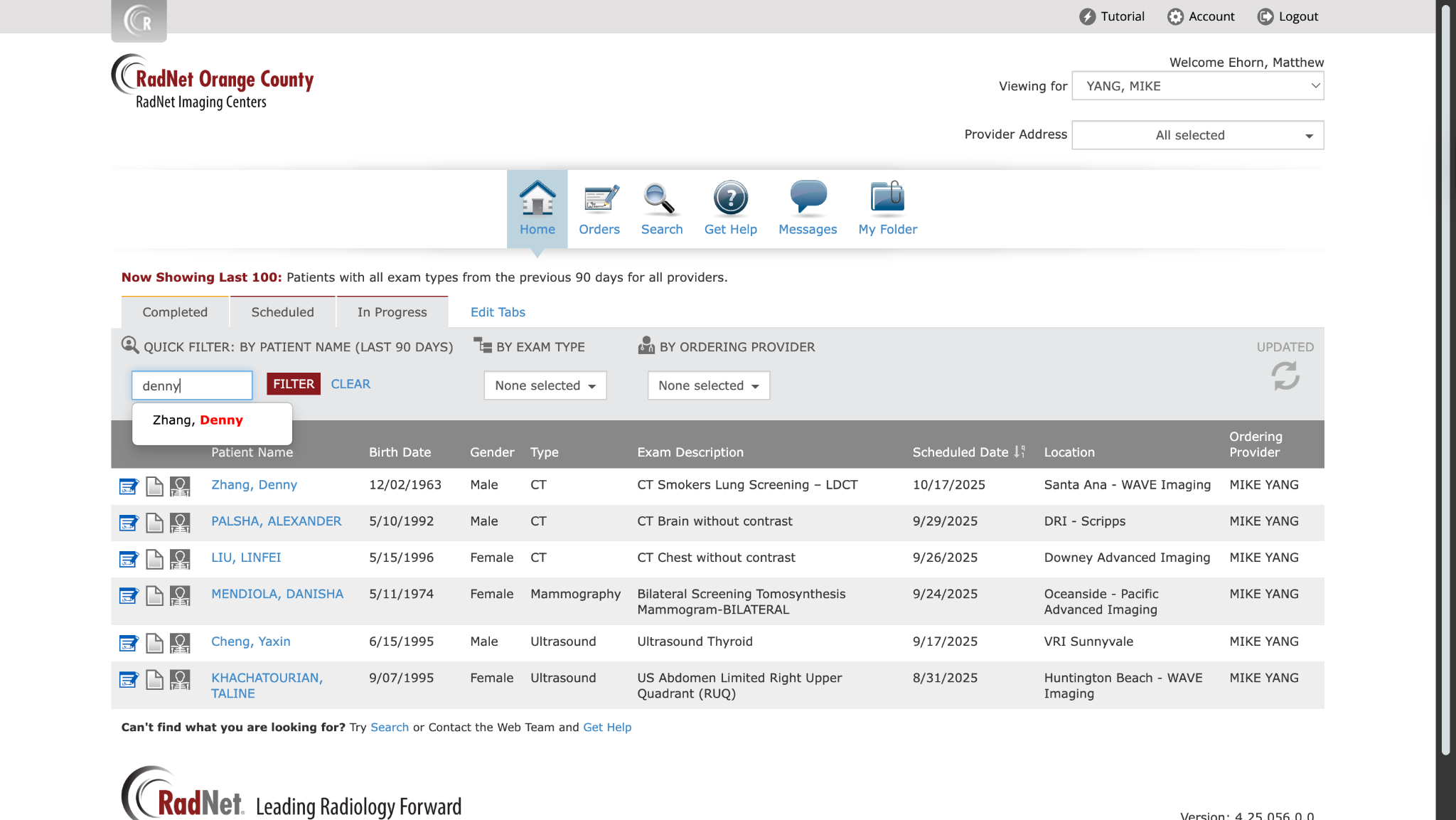
- Search the Patients name.
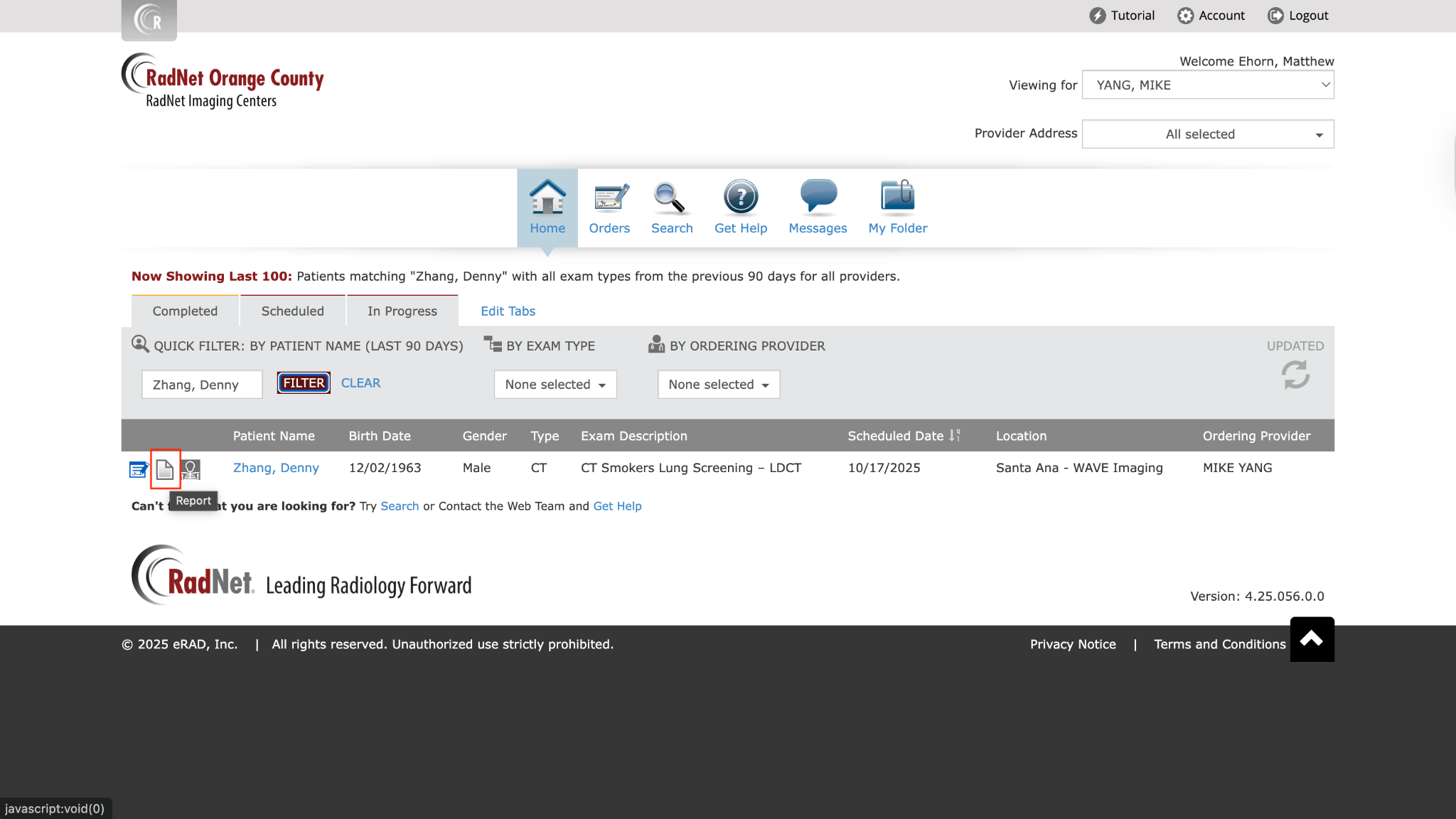
- Click on the Report to pull up the PDF in your browser. Save the file.
- After saving the file, go back to the order you’re working from and select Edit.
- Scroll down to the Results area and upload the document you just saved. In the Results text input put Discuss with provider.
- Scroll up to the top and change the status of the order to Completed.
- After saving the file, go back to the order you’re working from and select Edit.
- Scroll down to the Results area and upload the document you just saved. In the Results text input put Discuss with provider.
- Scroll up to the top and change the status of the order to Completed.
- Double check that the pdf is uploaded, text says Discuss with provider, and the status is Completed. If you satisfied these 3 things, Click SAVE!
- For Synergy imaging orders, give them a call at (949) 324-5808 or email them at dispatch@synergyxray.com
- Ask them to fax us the results (833-549-1518) or add them in the EHR themselves as they have access.
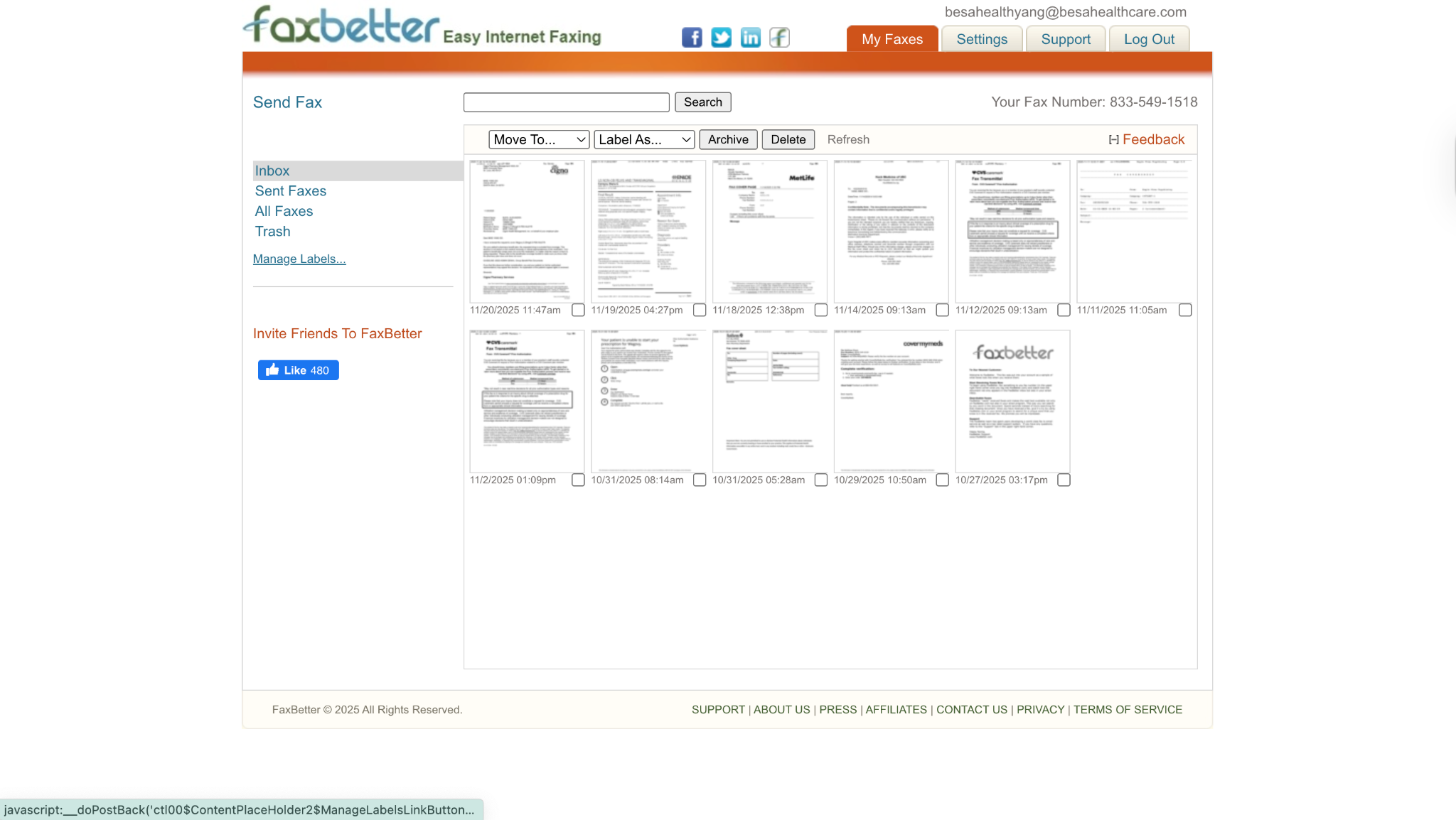
- If they faxed us the results, you will get an email that the fax came in.
- Login to Faxbetter and look for the results. When you find them, download it.
- After saving the file, go back to the order you’re working from and select Edit.
- Scroll down to the Results area and upload the document you just saved. In the Results text input put Discuss with provider.
- Scroll up to the top and change the status of the order to Completed.
- Double check that the pdf is uploaded, text says Discuss with provider, and the status is Completed. If you satisfied these 3 things, Click SAVE!
Comments (0)