
For all virtual visits we require a card on file in order to confirm their appointment. The reason being, we are paying per appointment for each visit that is booked and there’s a lot of cases where the Patient no shows the appointment. This puts a little more value on the visit fior the Patient. Look below at how we’re going to handle this:
📚Resources Needed
🚀 Tips & Tricks
- There is an email the Patient gets a few minutes after the appointment is booked to add a card on file in order to confirm the appointment.
- The card on file link times out after a little bit. If it does they will get an error message. We will need to resend them the card on file link.
- If we receive an email saying to cancel the Patients appointment due to no card on file, please call the Patient to let them know that is needed.
📘 Instructions
Here’s some of the main actions that occur and you may need to perform regarding card on file.
- When a Patient gets added to our system and an appointment scheduled, after 4 minutes the Patient will receive an email saying to add a card on file in order to confirm appointment. Here’s what they get:
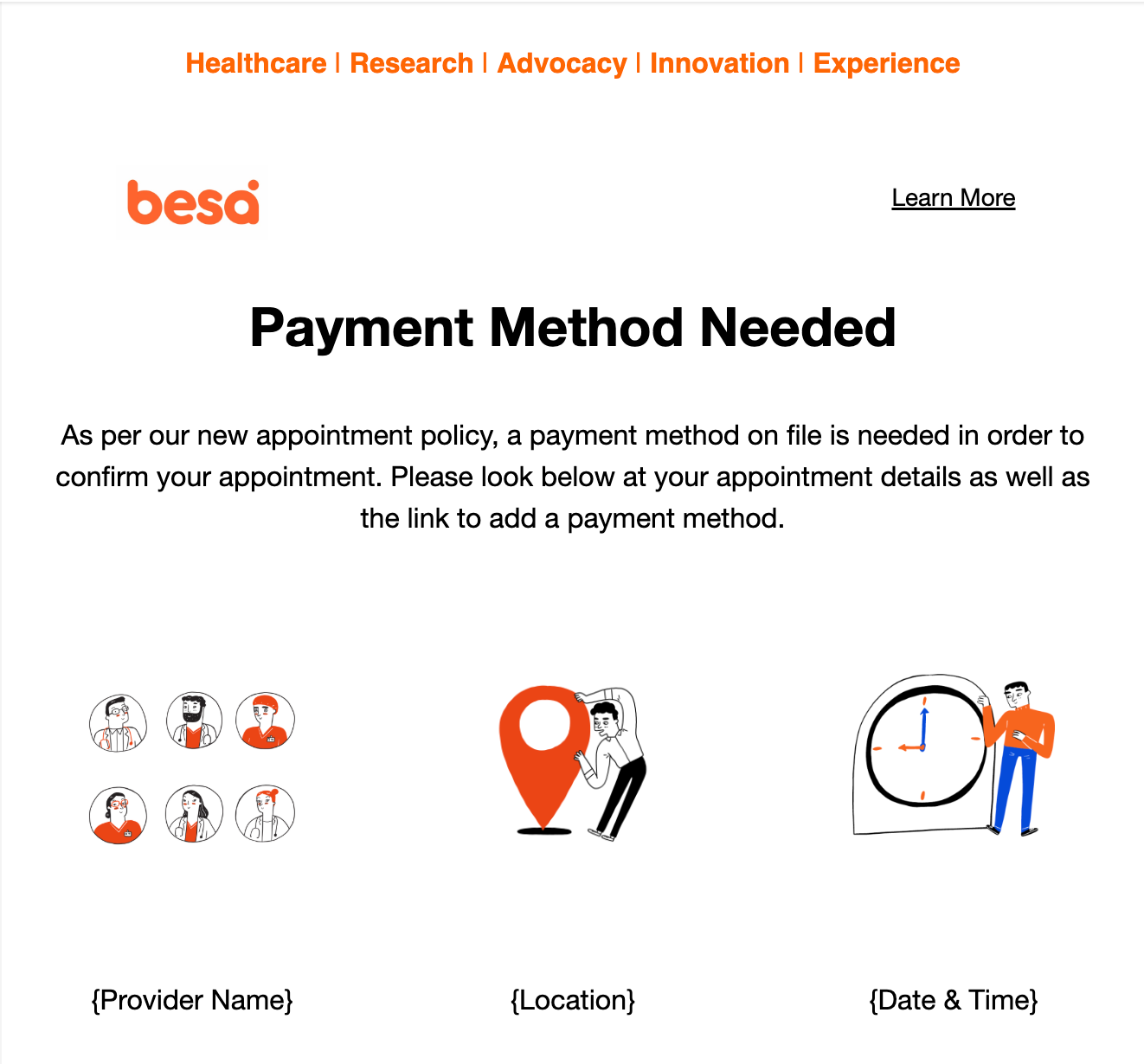
- There’s a few automated messages that we send based on if the Patient had added their card or not. If not, we send them reminders in a few different ways.
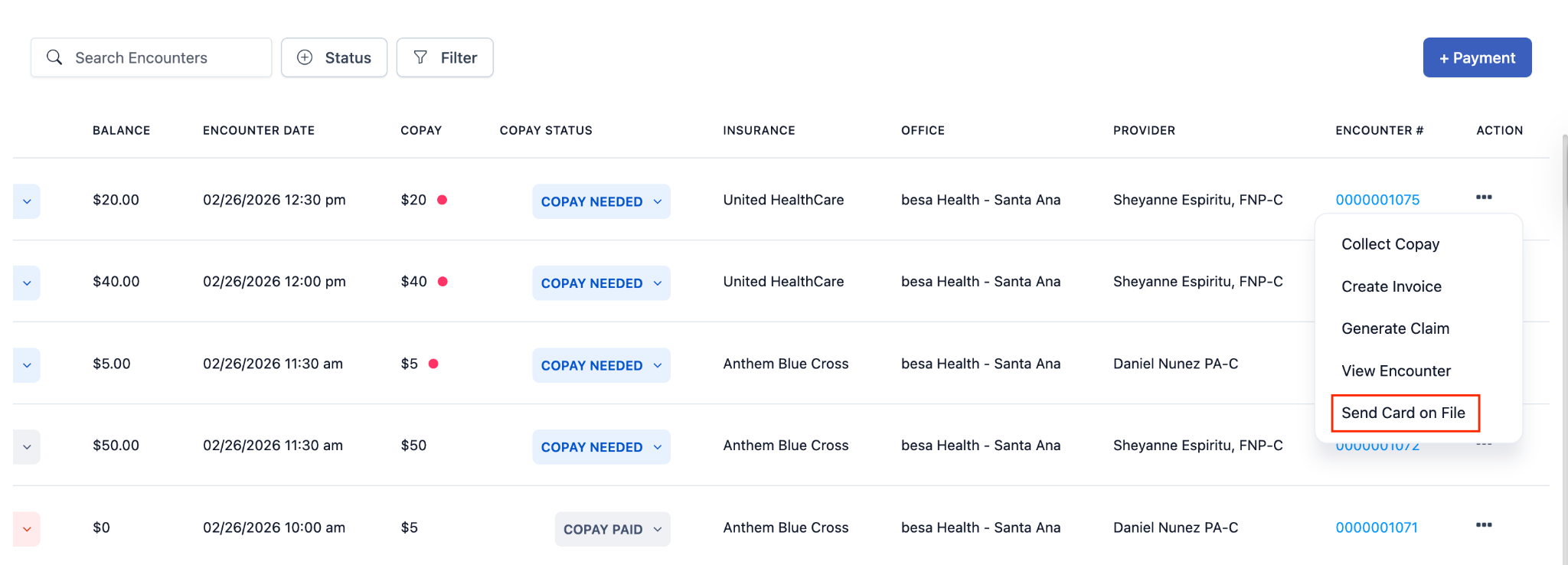
- In the case the Patient contacts us saying that their link expired you can resend it by clicking on the billing page > Find the Patient > Click the action icon > Send card on file
- If the Patient does not add a card on file within 20 hours of booking the appointment, or 4 hours before the appointment (Whichever comes first) we will receive the following email.
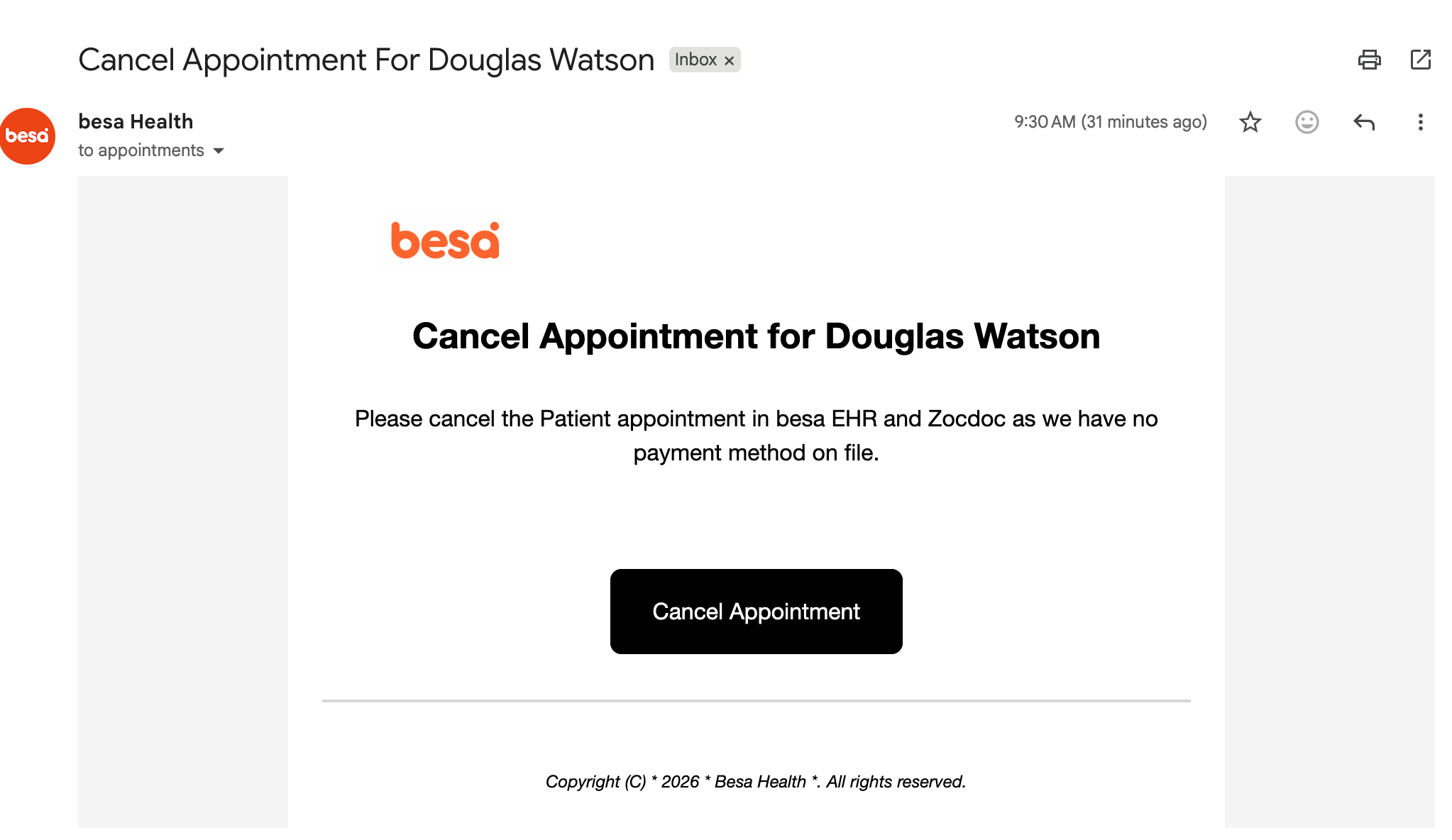
- When this comes in we will need to call the Patient to let them know they are missing information to confirm the appointment.
You can use the following script when calling:
“Hi, this is [Name] from besa Health. I’m calling to confirm your upcoming telehealth appointment. Since this is your first visit, we do require a card on file to secure and confirm the appointment. If you would like, I can send it to you again. If there’s anything else I can help out with as well while we are on the call, I would be happy to.”
- If you can maybe squeeze in the patient app and for them to get setup there.
6. If you cannot reach them, or they do not put a card on file, please cancel the appointment in both besa and Zocdoc so we can try to get another visit scheduled. For Zocdoc, cancel the appointment the following way:
Open the appointment from your Zocdoc calendar.
Choose to cancel the appointment.
Check the box indicating the patient agreed to the change.
Select the cancellation reason that reflects that the patient requested the cancellation (not that the practice could not reach them or could not see them).
This article is intended to help us reduce no-show and late cancellation appointments. Let's make sure to watch this diligently so we are always available to help someone when there's a free slot.
Comments (0)