
Just because we submitted a claim to the insurance, it doesn’t mean much of anything. They can still reject, pay, send to another carrier, and many other things. Because of this it is important to check each week the status of the claim to know what next steps we need to do. Take a look below at how to do this.
📚Resources Needed
🚀 Tips & Tricks
- Every week we should be checking claims to see what happened with them.
- This article proceeds Submitting Claim to UHC
- In the case that there is ever an amount in Patient Responsibility that is more than what we would have collected, we need to send an invoice to the Patient for it.
- As a result of this check we may have to do the following tasks:
- Change status to paid
- Invoice the Patient
- Re-submit
- Send claim somewhere else
- Always check your work!
📘 Instructions
Make sure not to forget one of these steps.
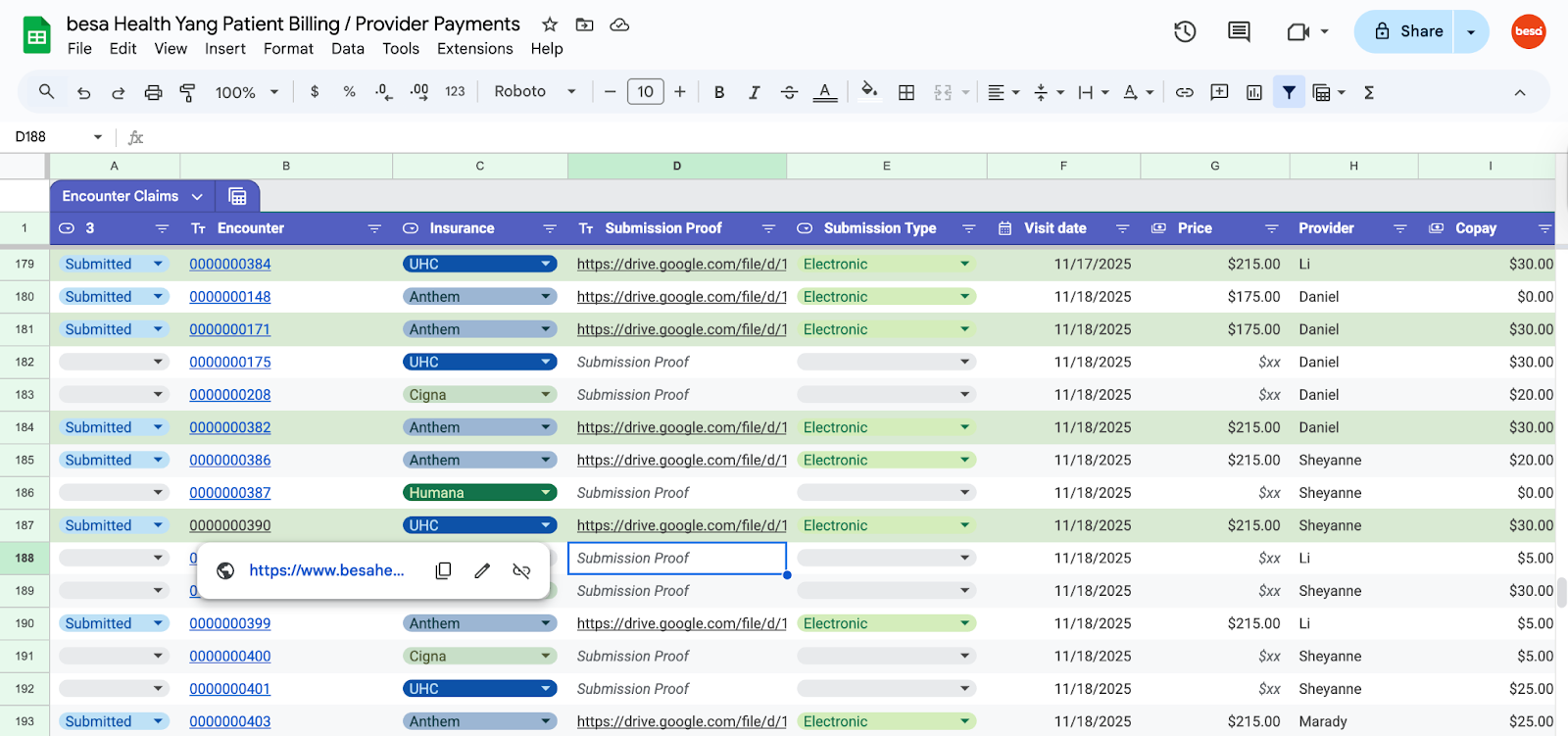
- Pull up the Patient Billing Page and look at what claims have been submitted 1 week prior and older.
- Pull up the EHR Billing page > Claims tab and search the encounter number you’re looking into so it is there.
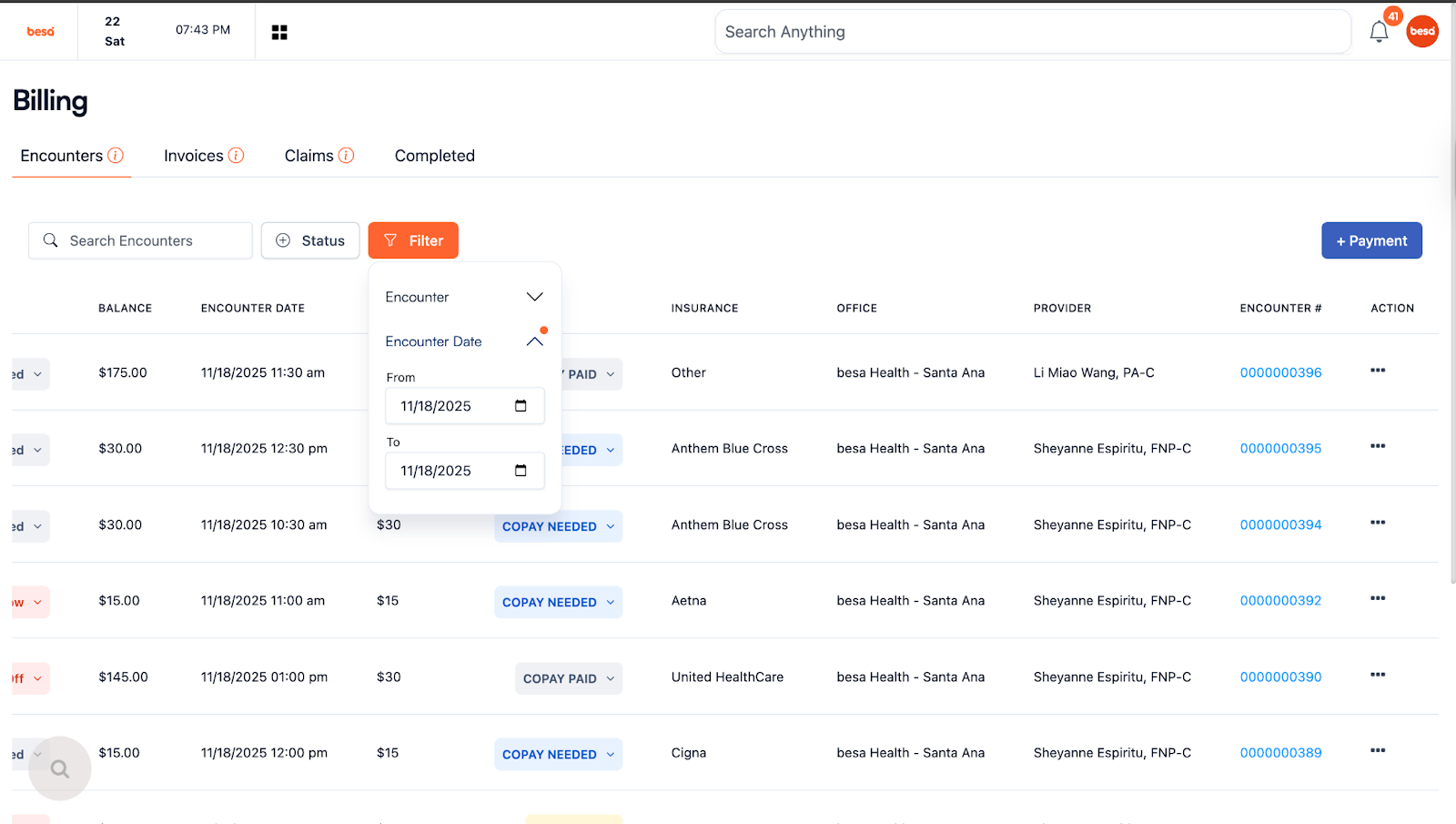
⚠️If you do not see the claim there, it is because no claim was submitted it would have to be submitted first.
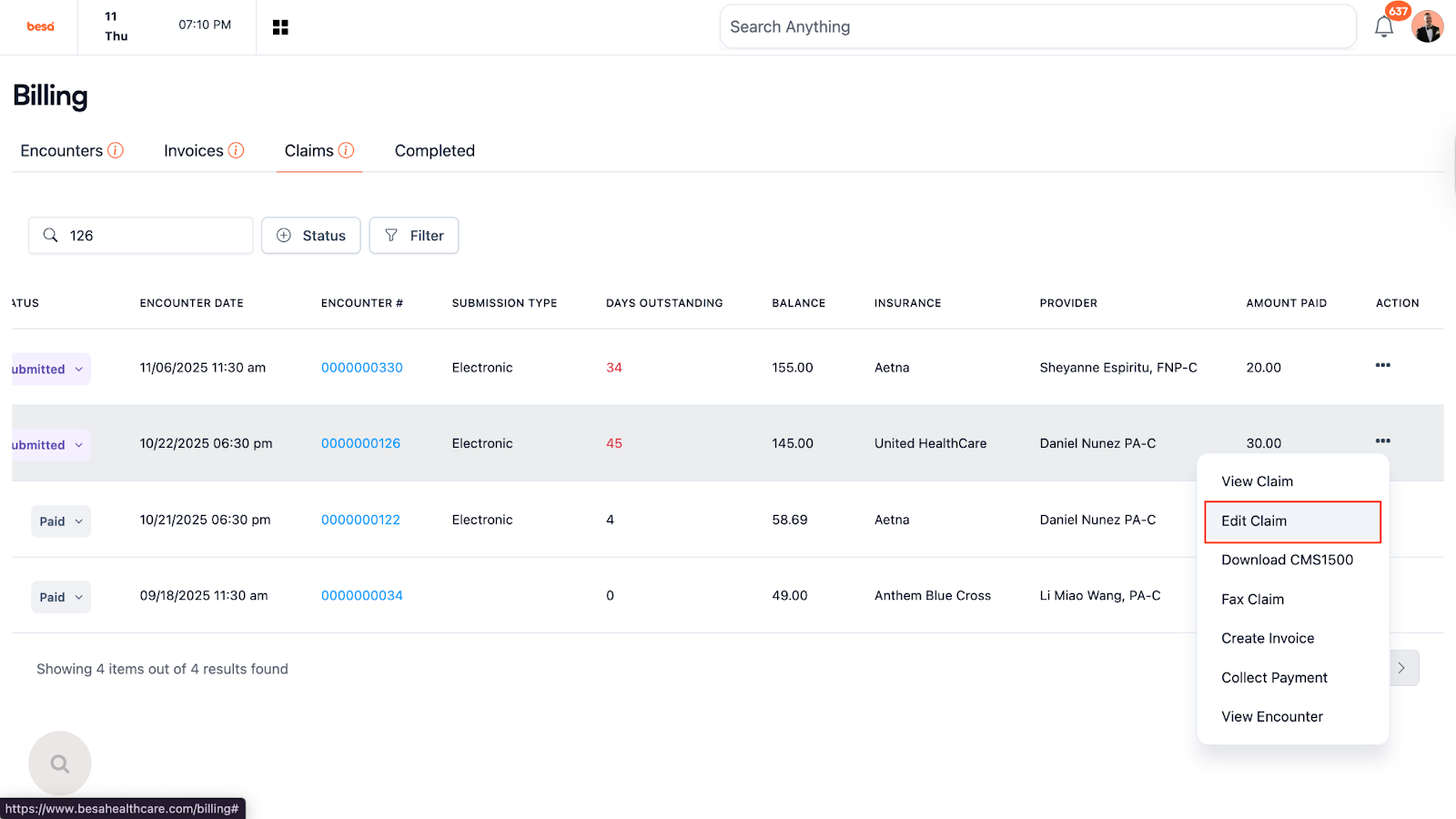
- From the Billings Page > Claim tab, click on Edit Claim in the action icon to pull up the Patients insurance info.
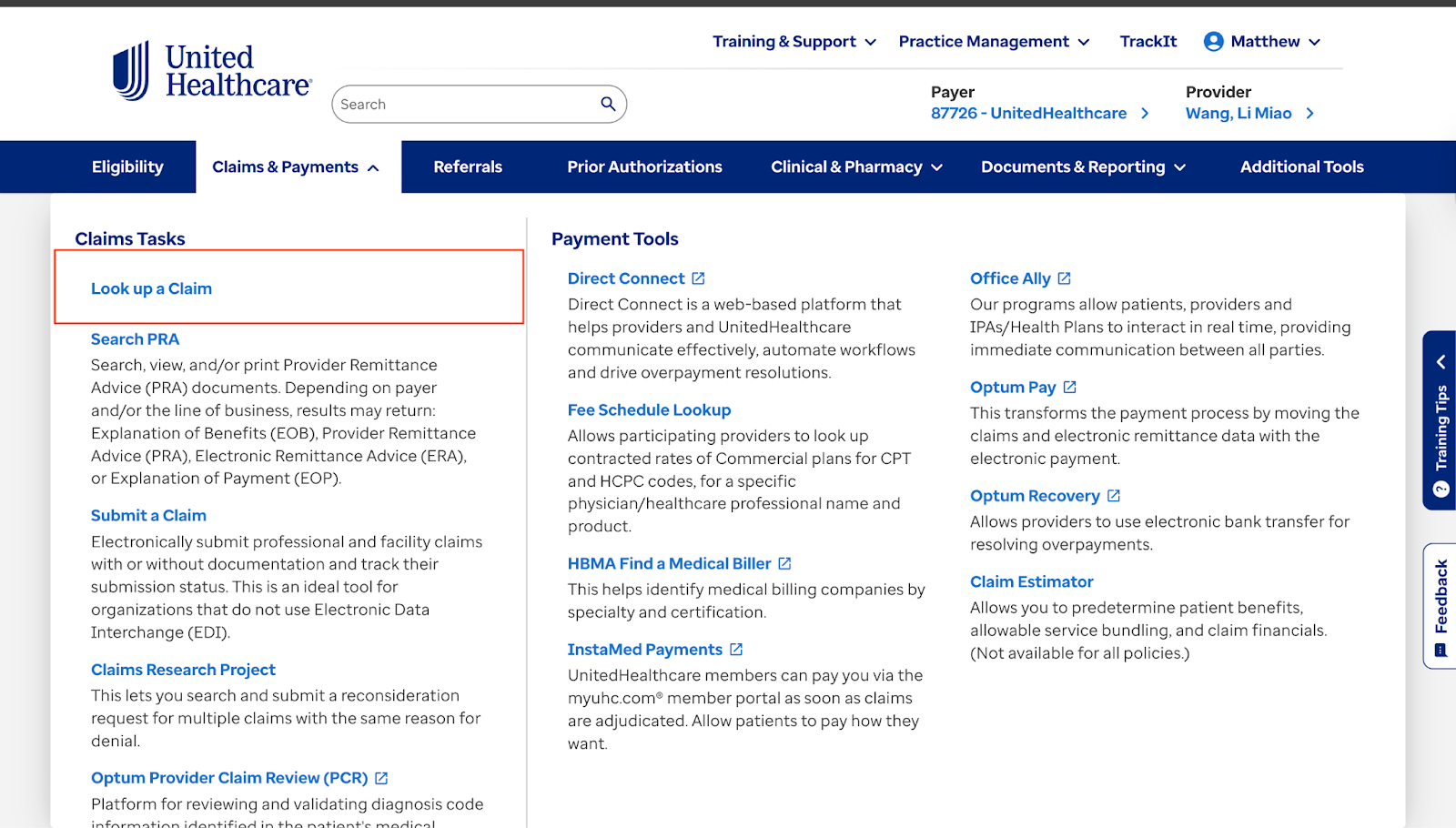
- Go into the UHC Portal to check the status of the claim. Select Look up a Claim
- Using the claim information in the EHR, look up the claim to see what has happened.
- When the results show, click on the Claim Number to pull the details.
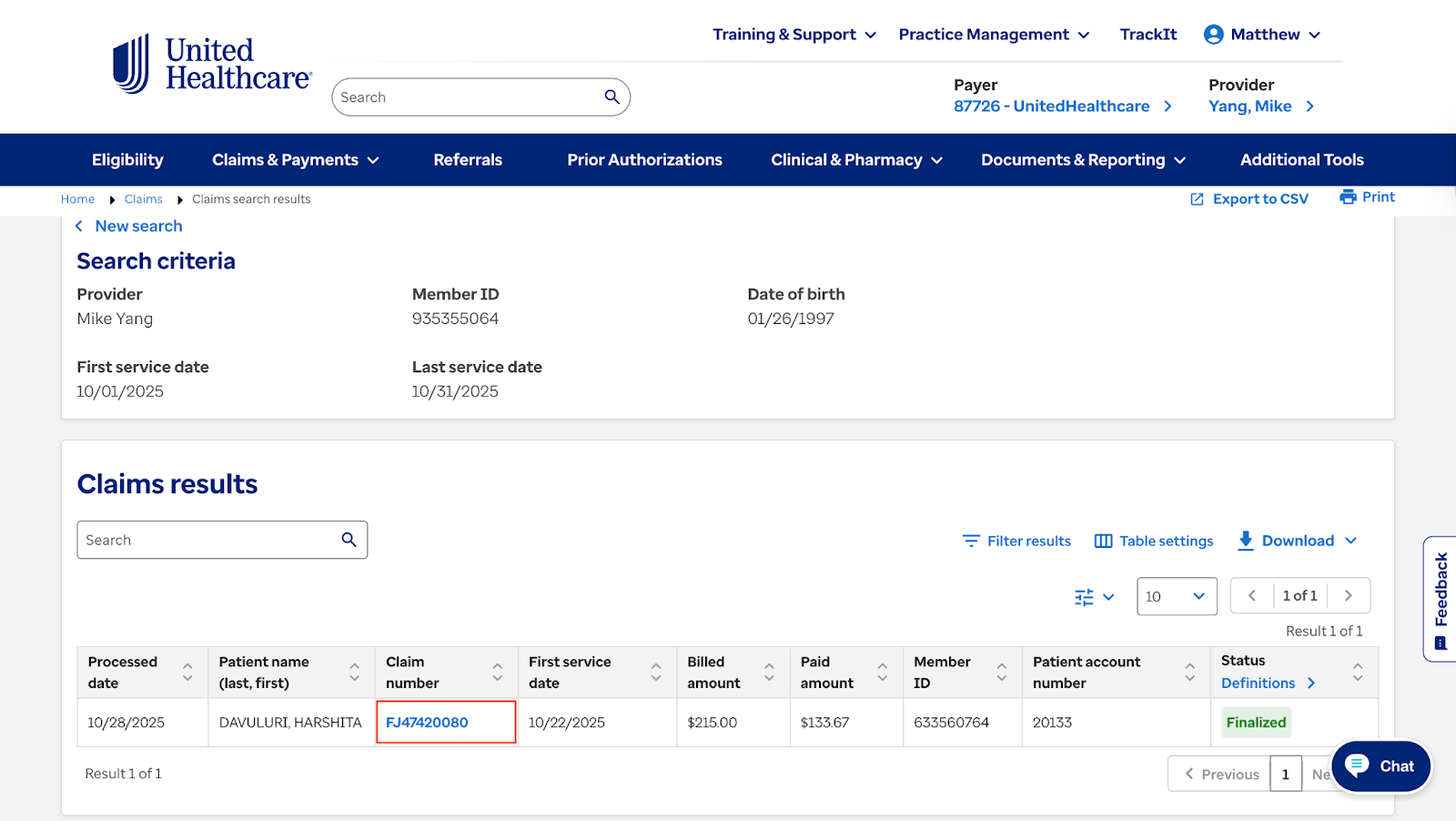
⚠️If for some reason the claim does not pull up, search the Patients eligibility, then click the Find a Claim button.
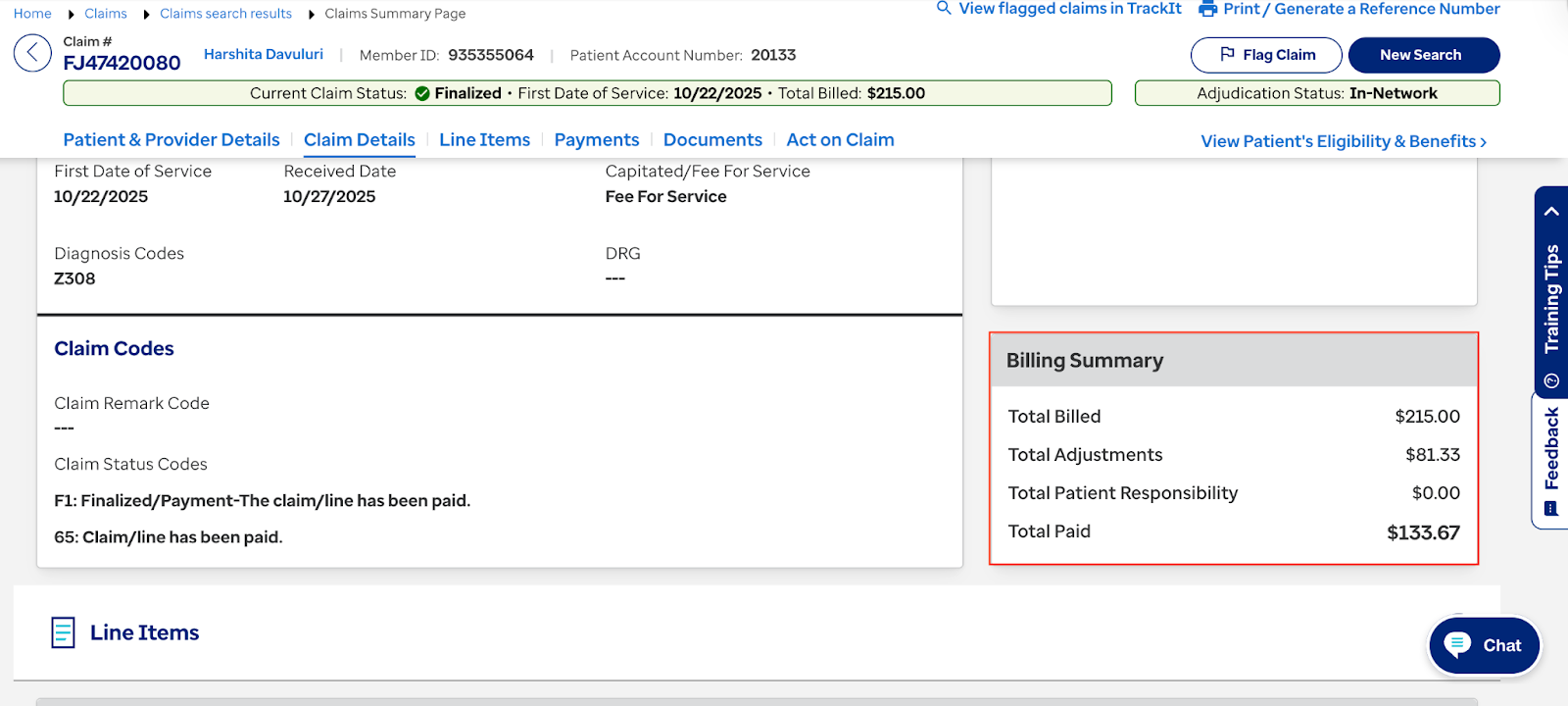
- In this specific example you can see that the claim has been FINALIZED. If it is Pending we will move on.
- Look at the EOB to see what all is happening with this claim as every claim is different.
- Looking at the benefits Summary, we can see here that UHC paid us $133.67 for this visit.
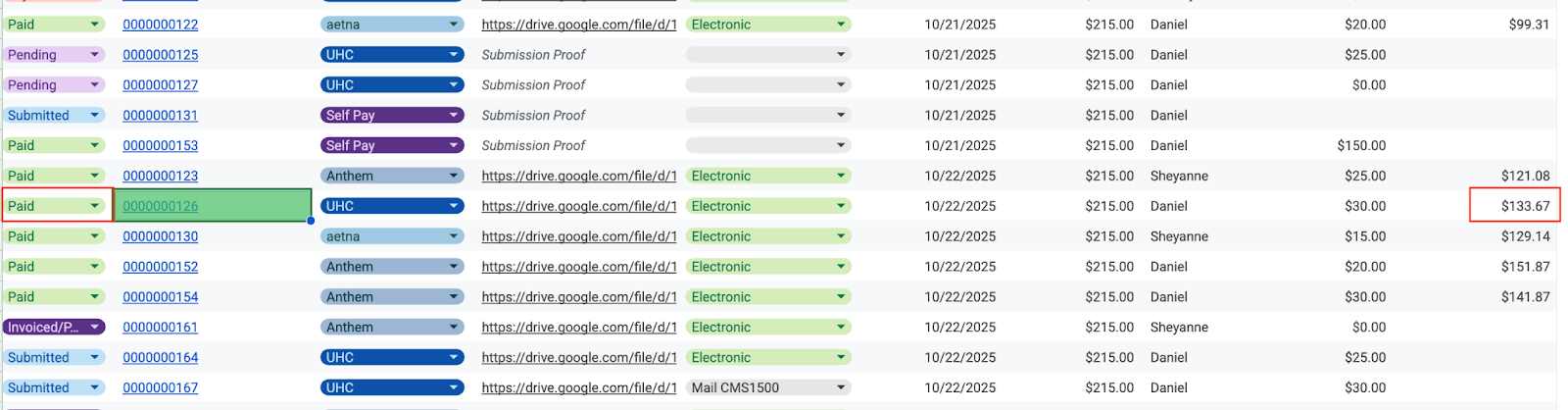
- Go back to the Patient Billing Spreadsheet and enter in the info listed. In this example:
- Status = Paid
-
Insurance Paid = 133.67
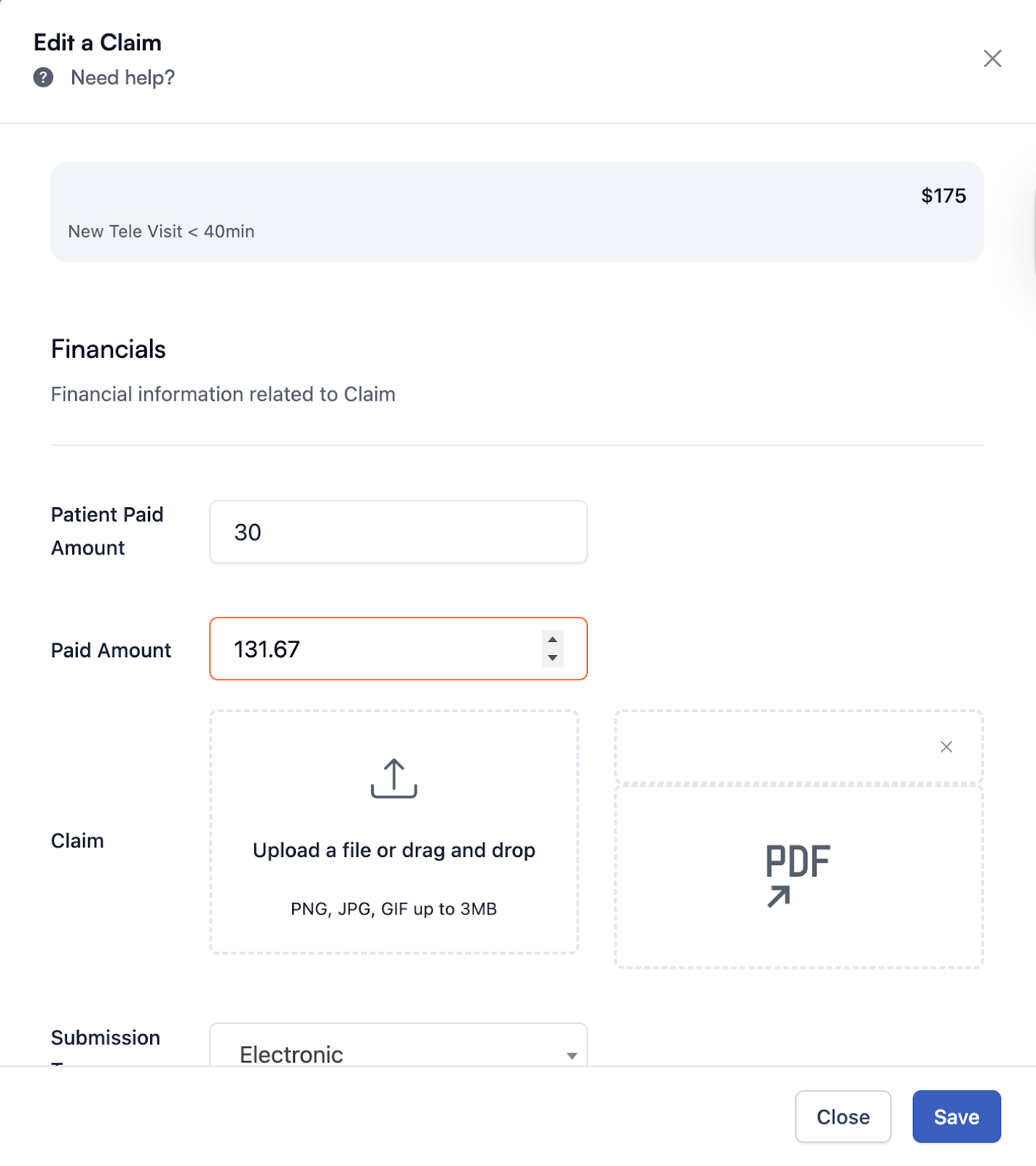
- Now, go to the Billings Page > Claim tab, where you had the Patient claim listed and fill in the following fields and press Save:
-
Paid Amount = 133.67
-
Paid Amount = 133.67
- Change the status to Paid.
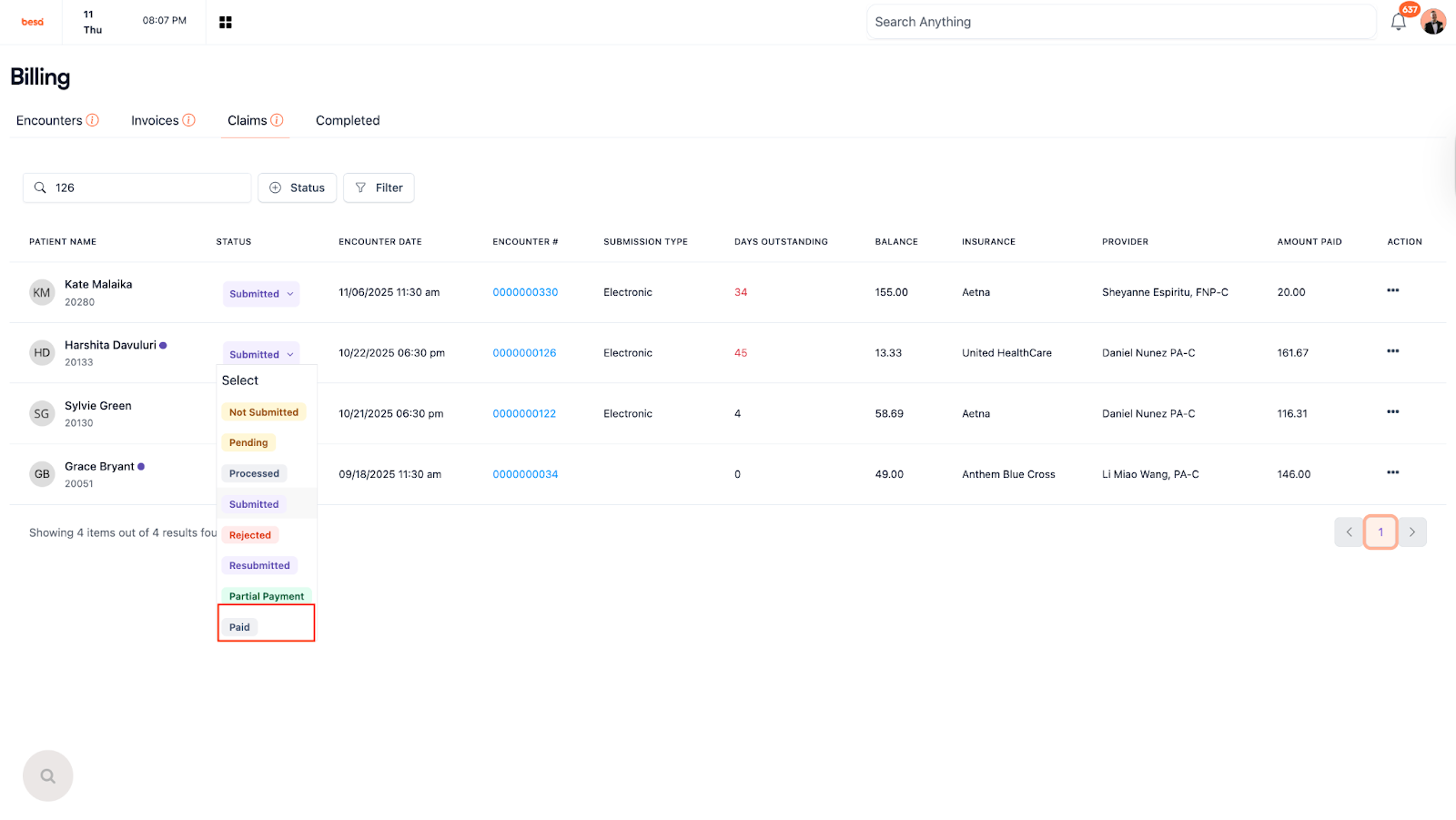
- This is how it will look when you’re done.

- Here is a quick video that goes through this.
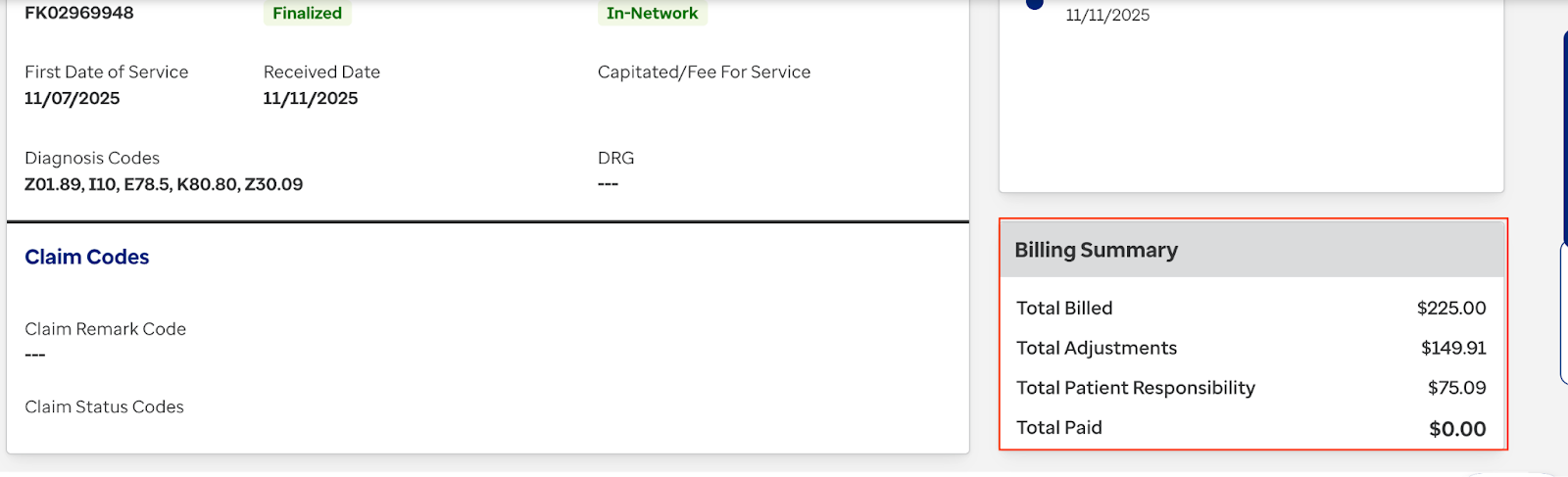
⚠️In the case that there is ever an amount in Patient Responsibility that is more than what we would have collected, we need to send an invoice to the Patient for it.
- We will know that we need to invoice the Patient when you see something like this with a Patient amount that does not match what they paid and/or when the insurance company didn’t pay anything:
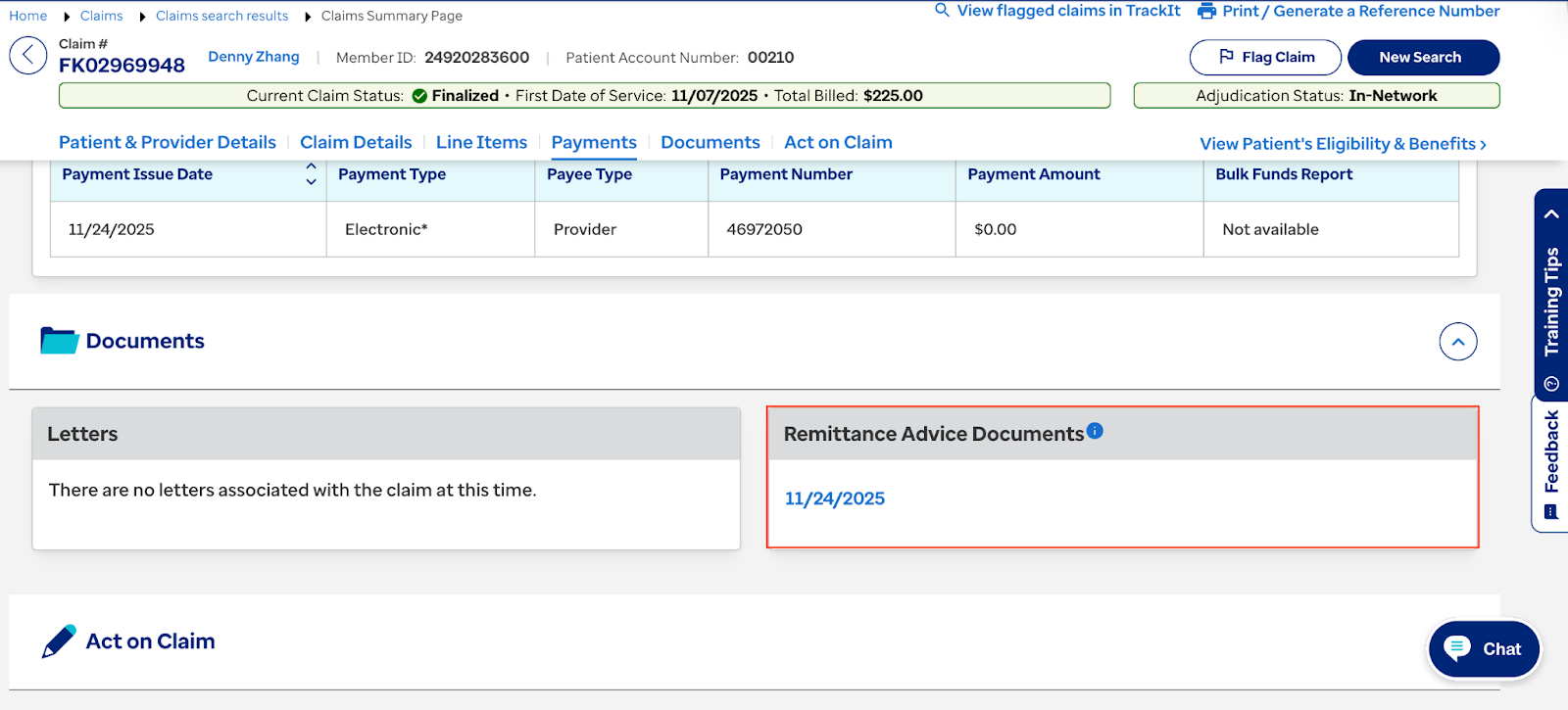
- From the UHC EOB page, scroll down until you see the Remittance Advice Documents section. Click to download it. Make sure it has the correct Patients info.
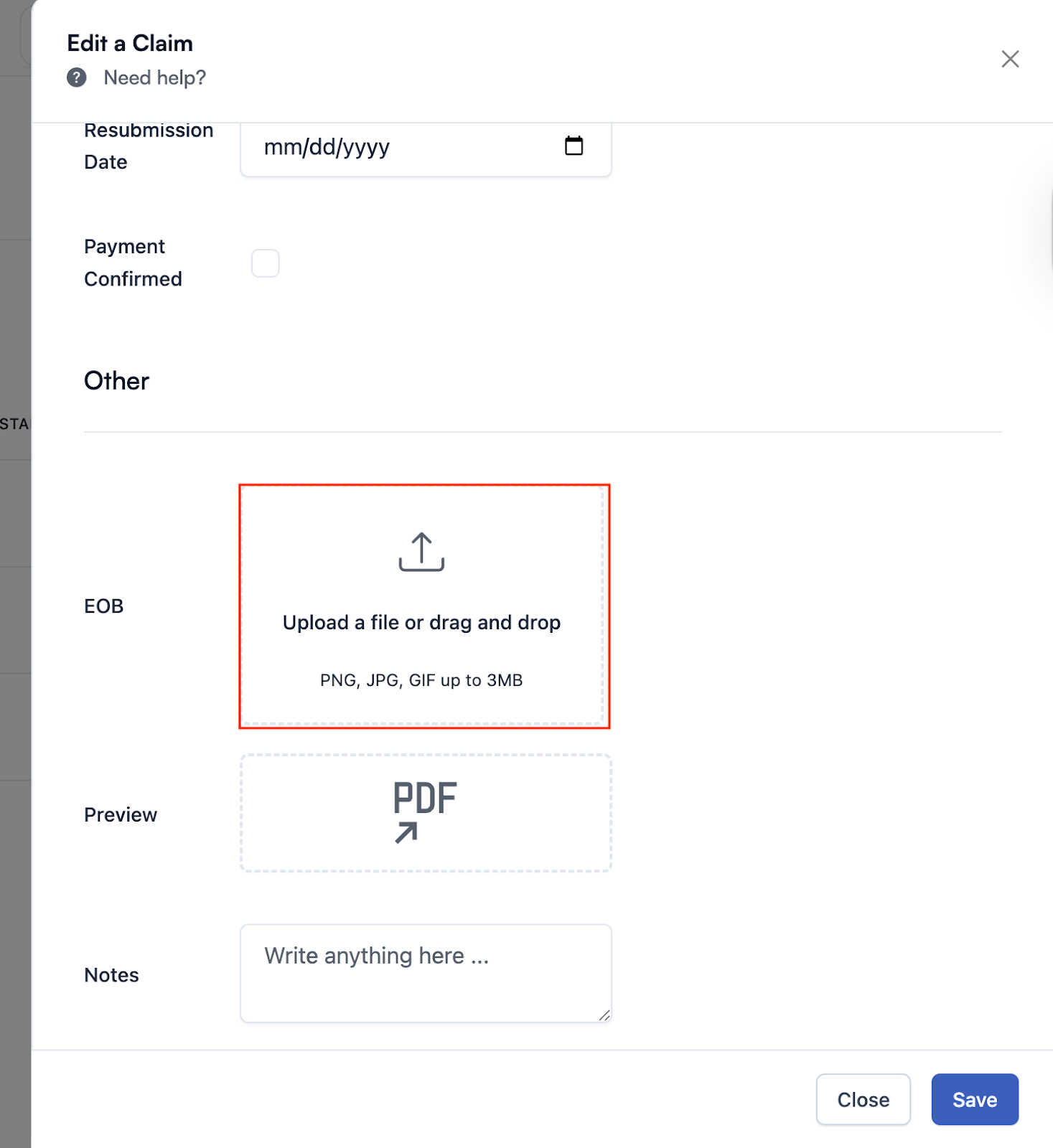
- Now, go to the Billings Page > Claim tab, where you had the Patient claim listed and do the following and click Save:
-
EOB = Upload document
-
EOB = Upload document
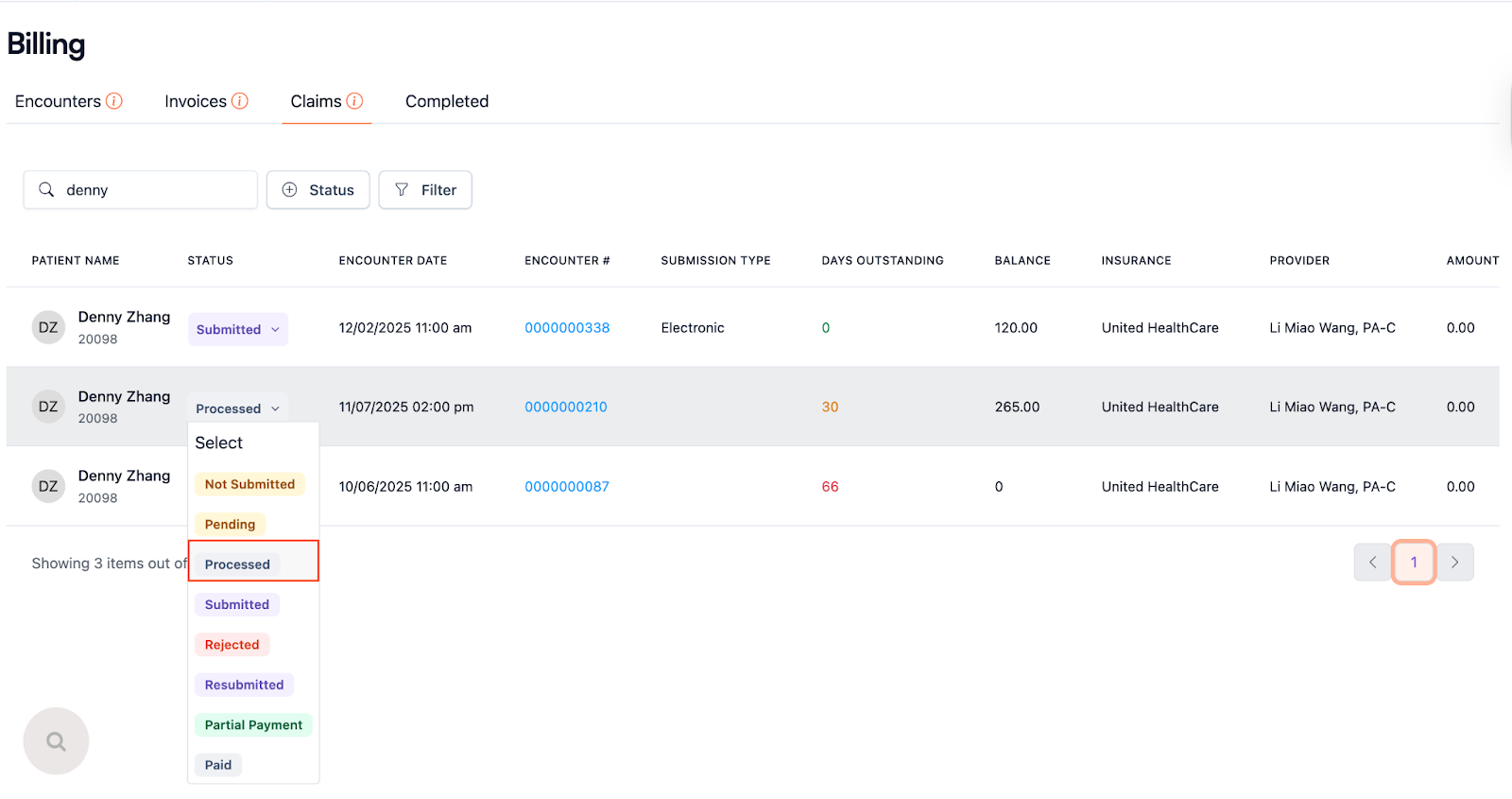
- Change the status to Processed.
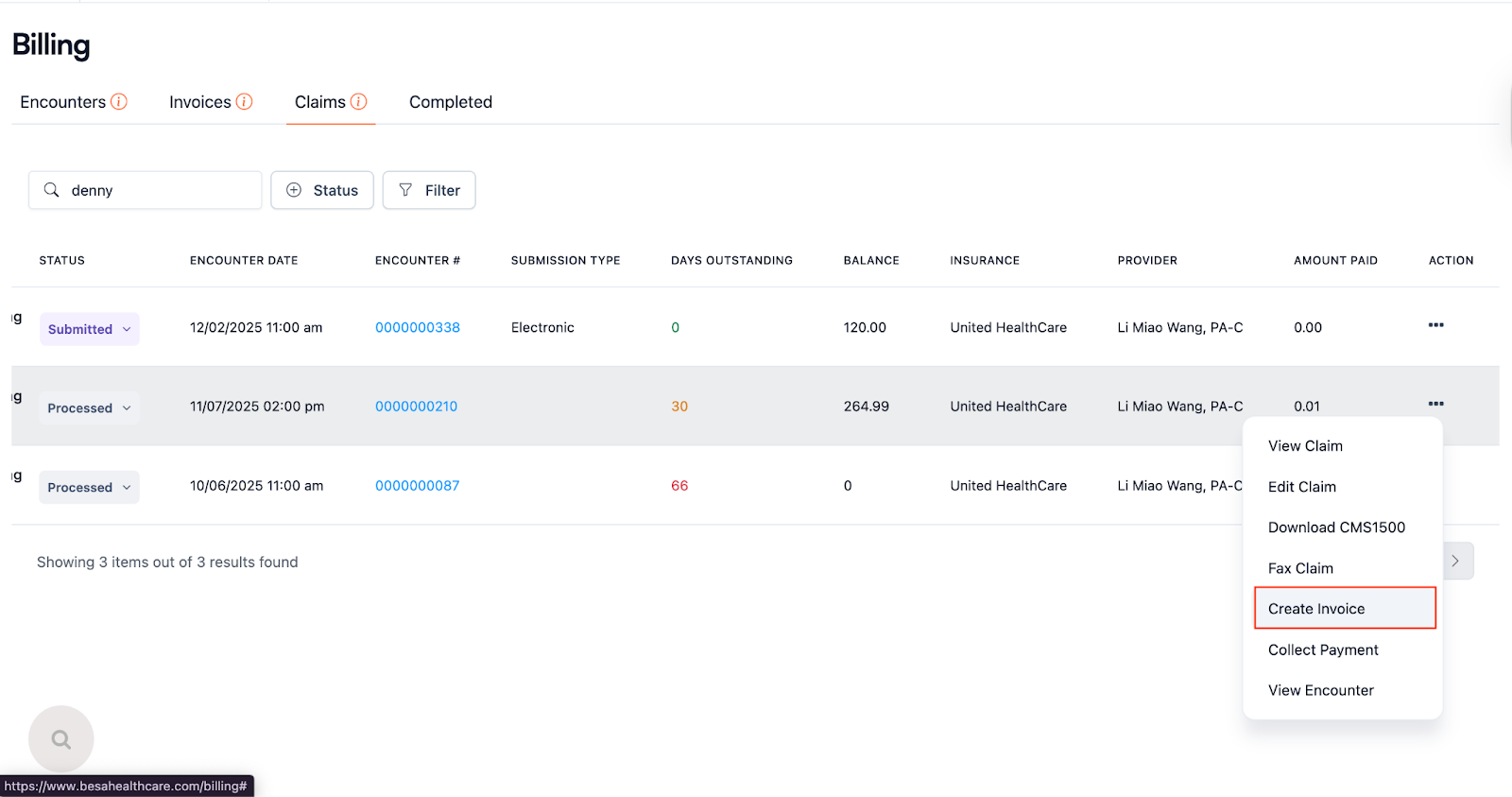
- Click on the action icon and select Create invoice
- In the Scope of work area, remove all items as they will not be applied to the invoice as per the insurance companies requirement.
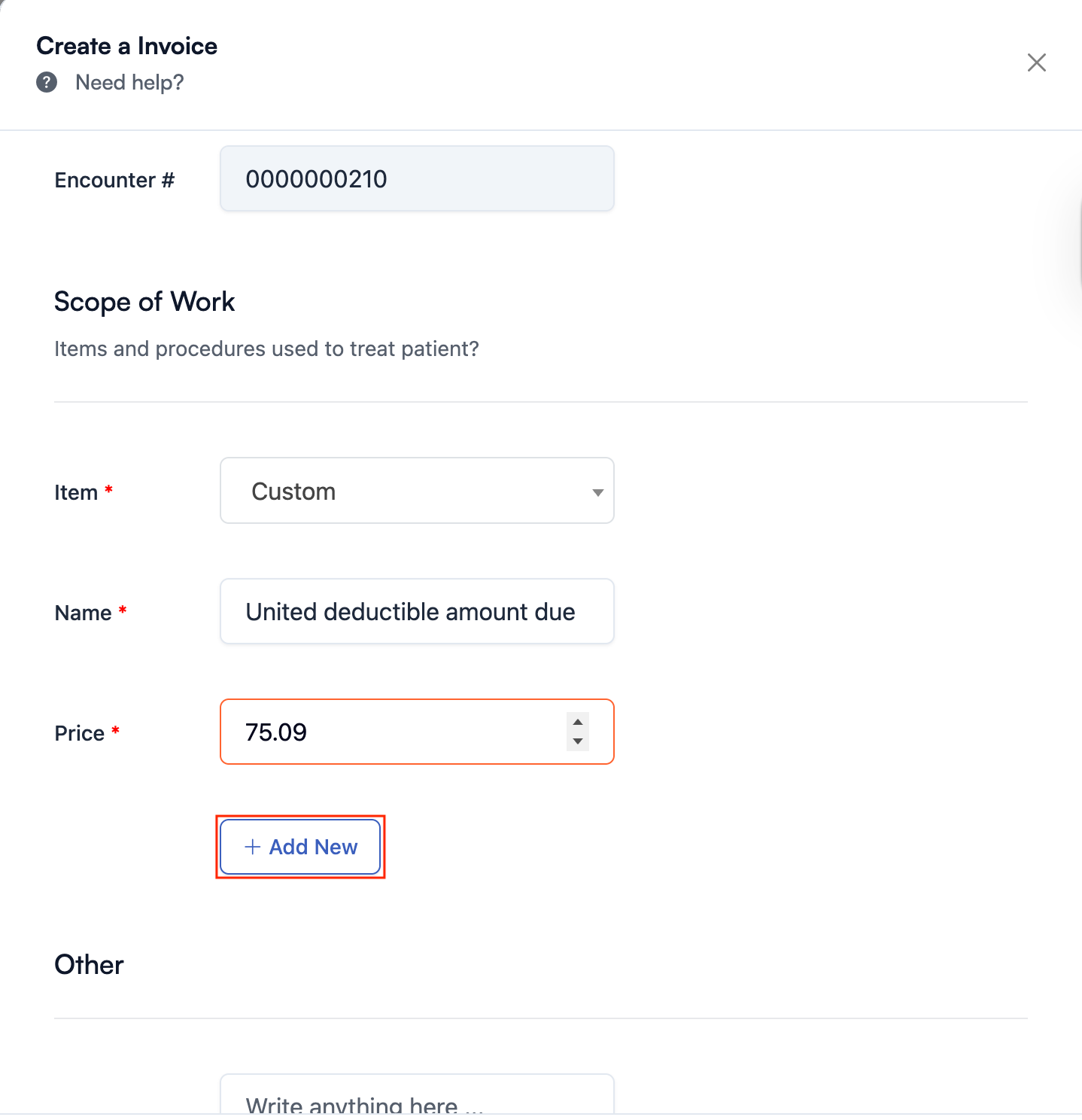
- Add a Custom item to the invoice:
- Name: United deductible amount due
- Amount: 75.09 (Whatever is listed)
- Press + Add New
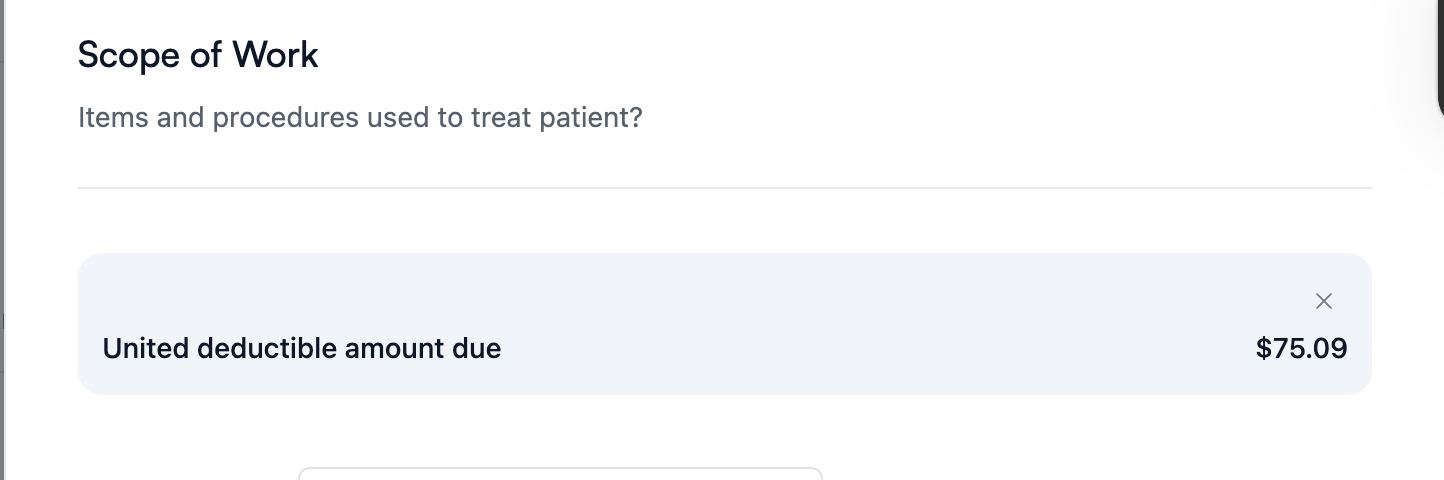
- You will now see it listed above the Add item section like this:
- Review it and press Save. This will automatically send the invoice to the Patient.
- Go back to the Patient Billing Spreadsheet and enter in the info listed. In this example:
-
Status = Invoiced/Processed

-
Status = Invoiced/Processed
- Here’s a video that goes over it.
Comments (0)