
Below are several key updates, adjustments, and reminders to help ensure the team stays aligned and informed. If you have any further questions, feel free to comment below.
AWE Protocol & Checklist
Review the AWE clinical protocol and follow the checklist. View article here
📢 Patient Notification
Inform Patient: Discuss that only services deemed ‘preventative’ by insurance are covered. Any additional labs, tests, or procedures not classified as preventative may result in out-of-pocket costs.
Weight Loss Protocol
Review the weight loss protocol and follow the checklist. View article here. Be sure to also review the weight loss tips for helping with Pre-Auth approvals. View article here.
🎯 Plan
- Schedule a second visit as a video annual wellness visit if the patient has not had an annual physical in the last 12 months.
- Review and update medical history during the annual wellness visit.
UTI Protocol
Review the UTI protocol and follow the checklist. View article here.
✍🏼 Assessment
- If classic lower urinary tract symptoms are present and no exclusion criteria, proceed with empiric treatment.
- If symptoms are atypical or exclusion criteria are met, recommend in-person evaluation and/or urinalysis/culture.
Anxiety / Depression Protocol
Review the anxiety and depression protocol and follow the checklist. View article here.
🗓️ Annual Screening
- Screen all patients at least once a year using:
- PHQ-9 (Patient Health Questionnaire-9) for depression
- GAD-7 (Generalized Anxiety Disorder-7) for anxiety
Order Status
When creating an order, the status will automatically be Draft. This is to help ensure everything has been finished before the Patient receives a notification and a task in their app (On status Pending). The draft status is to be used as a placeholder for what may still need to be done. Here are the requirements depending on the order type:
- Task - Nothing required. Tasks can be created and added to Pending status.
- Labs - Labs should be in draft until the order reference number has been added to the order note. Then it can be changed to Pending status.
- Images - Images should be in draft until the image order has been placed successfully. In the case of Radnet, make sure to select "Email patient appointment link"
- Medication - Medications should be in draft until the prescription has been sent to their local pharmacy. For South Gate Rose delivery prescriptions, the status will be Pending. Please note, we will be providing all providers with login credentials to send eRx orders.
- Referral - Referrals should always be in draft. These orders will not move to pending until the Patient has received the referred provider and the referred provider has received the Patient's info.
Follow-Up Appointments
It is important that Providers schedule the follow-up appointment while in the encounter with the Patient. Oftentimes, the provider is the only person the Patient feels comfortable with until they get used to their care manager, and in some cases, is the only person the Patient is in contact with.
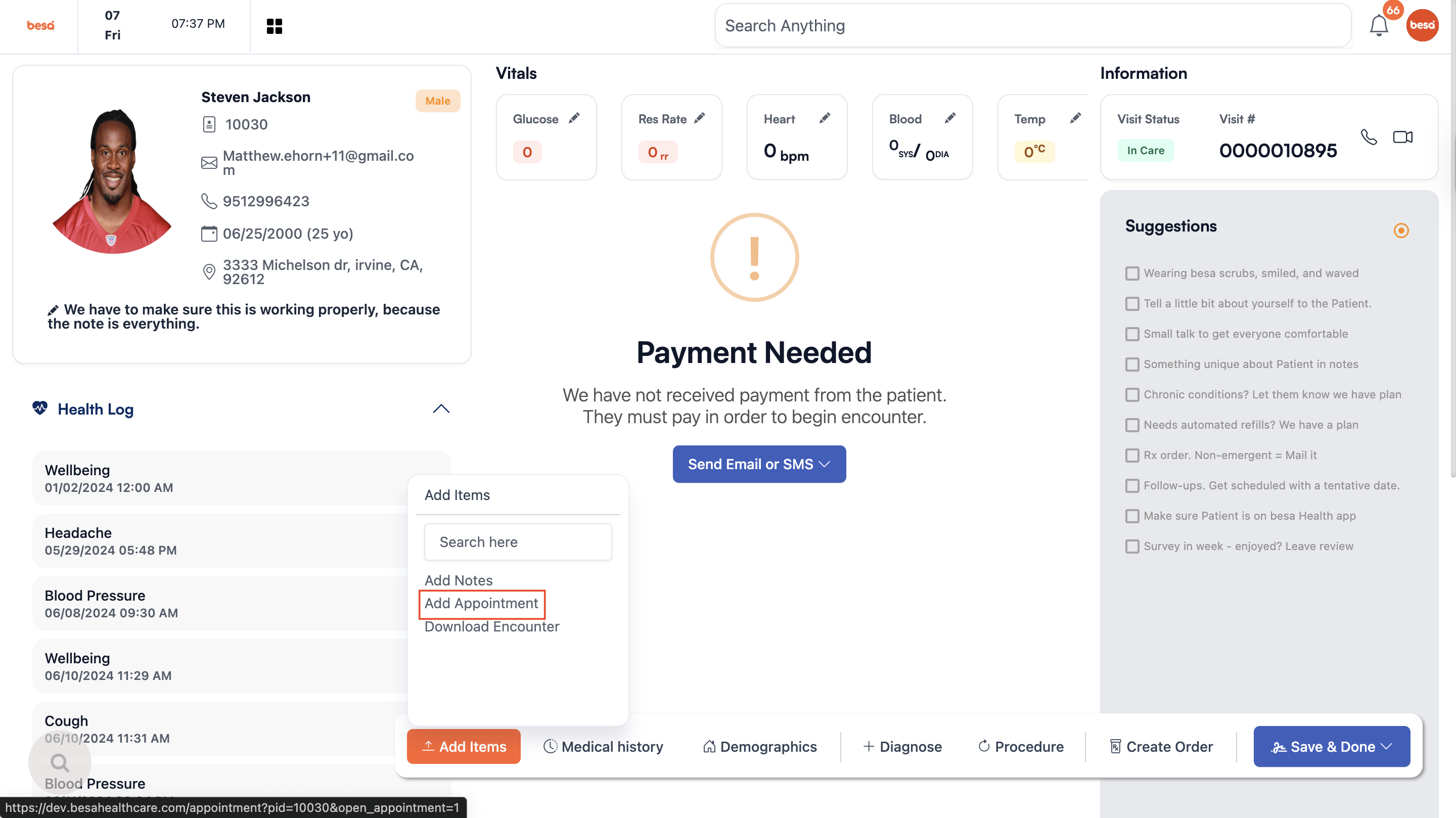
The quickest way to schedule an appointment would be to select the + Add Item button and click on Add Appointment. A new tab will open with the calendar. The follow-up appointment should be within one month.
No-show Appointments
For all Patients that no-show their appointment, we need to mark them as a no-show on the different platforms. For the besa Health EHR, we automatically change the status of the visit to No Show if they do not enter the waiting room within 10 minutes of their appointment time. For visits that come through Zocdoc, we need to manually mark them as a no-show.
To do this, open the appointment > Scroll down to the bottom > and click Mark as no show
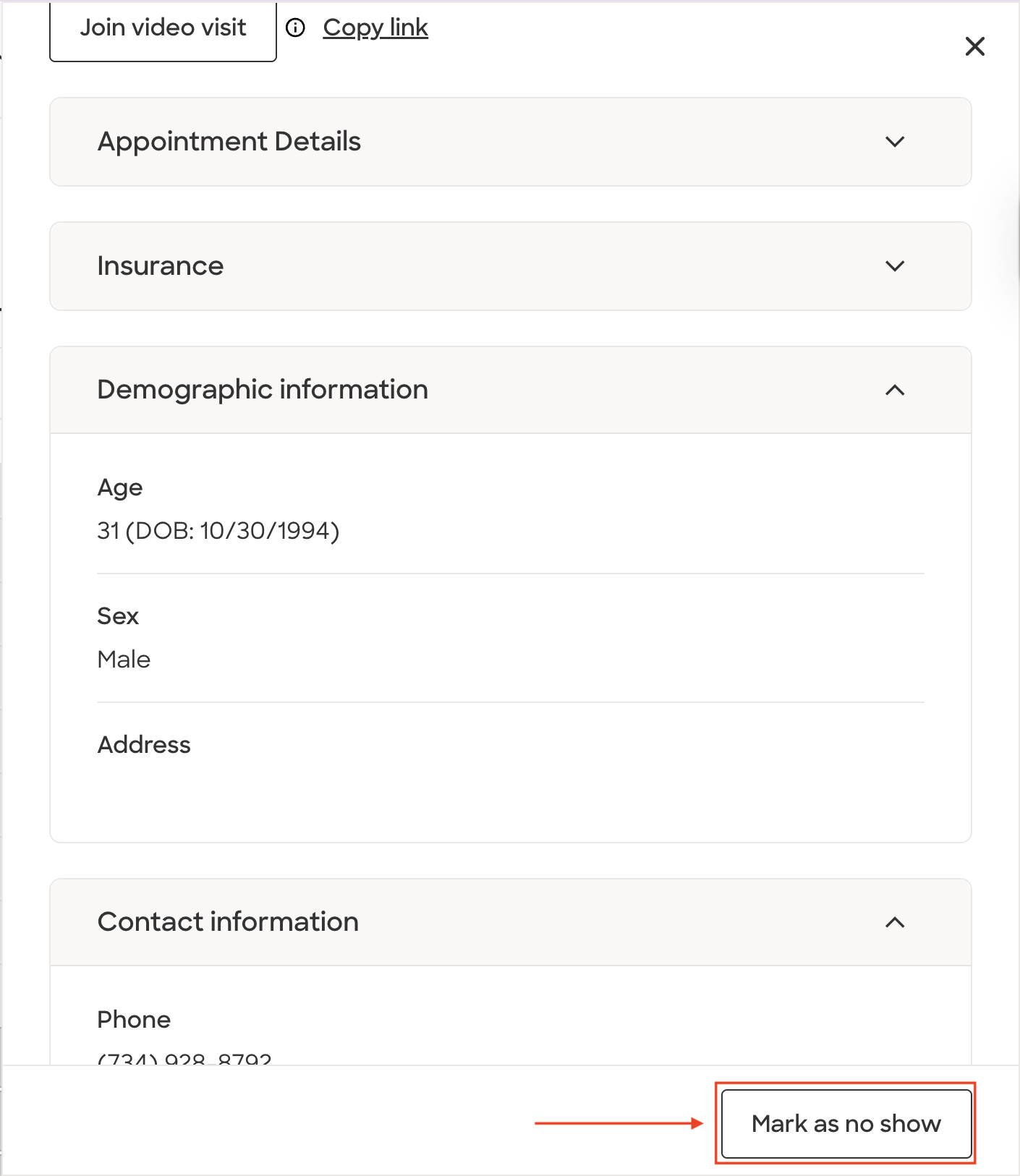
This will help us to maintain proper records of visits and listing fees.
Comments (0)