
Below are several key updates, adjustments, and reminders to help ensure the team stays aligned and informed. If you have any further questions, feel free to comment below.
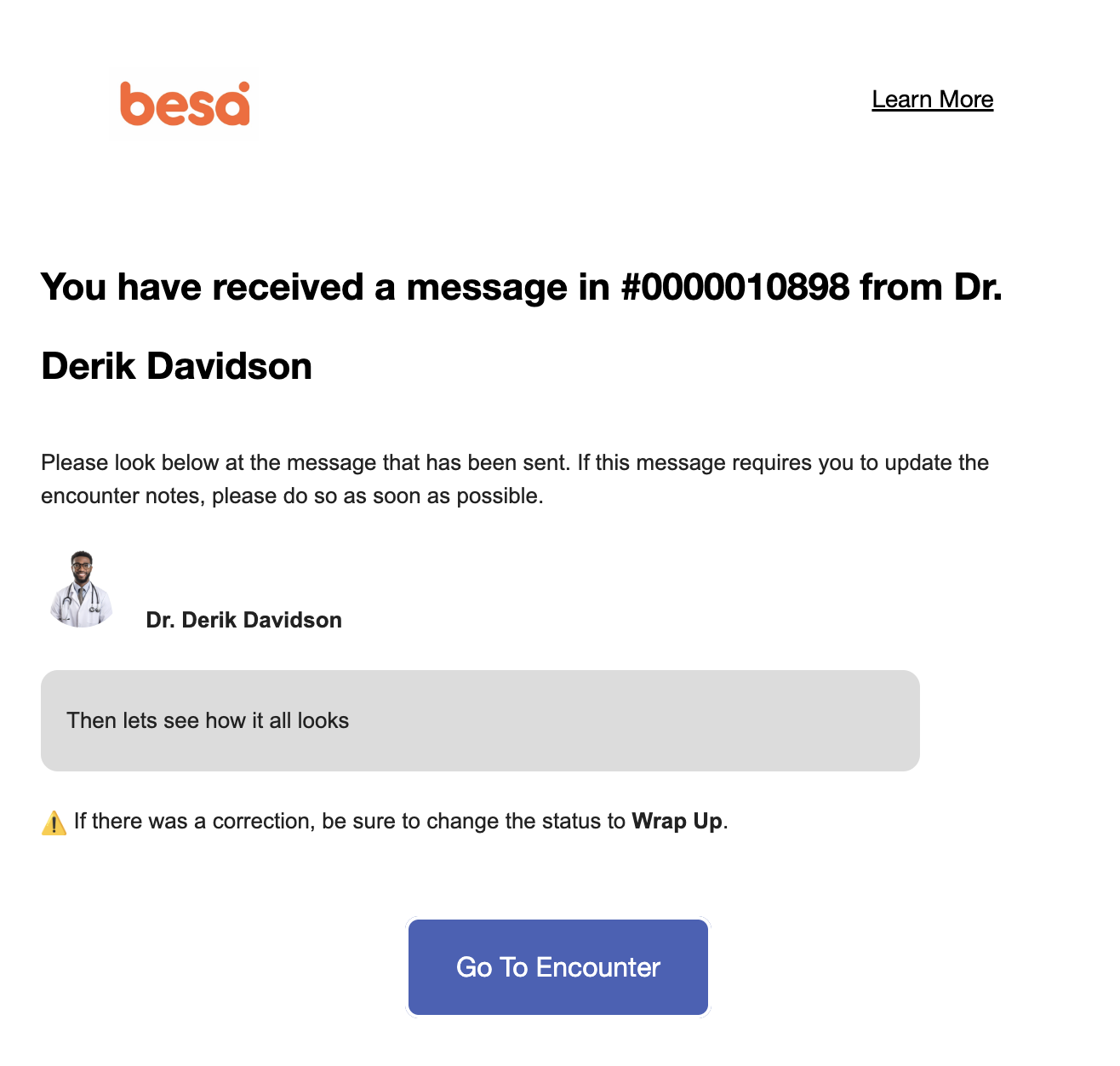
When you get an email titled:  New Encounter Note
Upon review of encounter notes, if there is something that may be missing or needs to be changed, you will receive this email.
To access the encounter quickly, click on the call-to-action button labeled Go To Encounter in the email.
When you have corrected the encounter, please save it as Wrap Up to complete the visit.
Telehealth Attestation
All telehealth visits need to have the telehealth attestation at the top of the encounter note. Here is the text needed:
"Telehealth Attestation:
This visit was conducted via a secure HIPAA-compliant telehealth platform. Patient identity was verified, and verbal consent for telehealth was obtained. Encounter limitations acknowledged due to the remote format. Patient informed that AI scribe is used for documentation and agreed to audio recording."
Patient Copay / Deductible Deposit
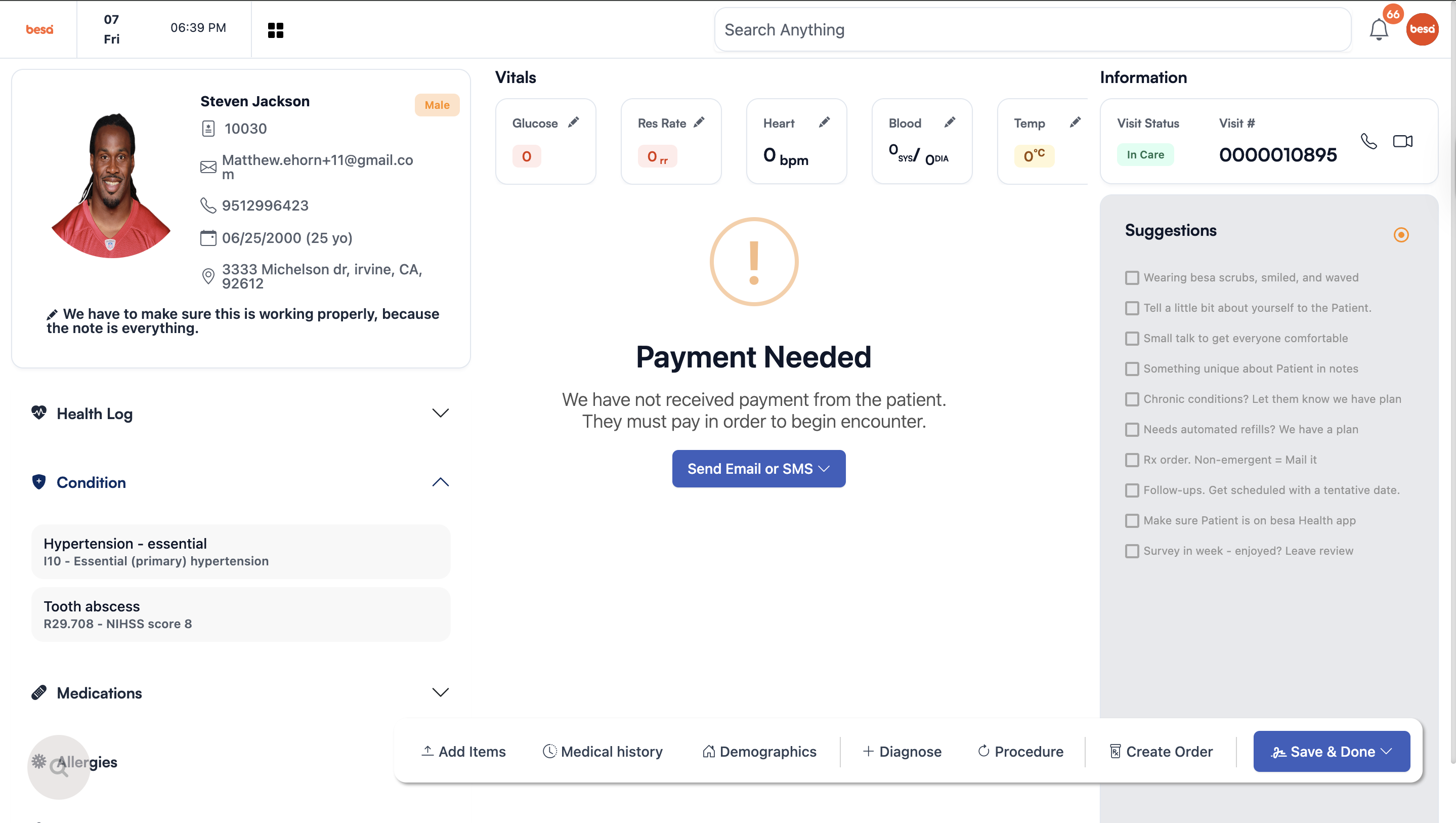
Now that we have a good sample size of Patient bookings, one area of concern is getting the Patient on the besa Health app and paying their copay or deductible deposit. In most situations, the Patient does not answer a call or respond to a text. In most cases, a patient has been contacted a minimum of 3 seperate times from the support team. That being said, though the Patient does not respond to us, they do have the visit with a provider. Here are two key points that will fall on the provider if the support team is unsuccessful in Patient onboarding.
- Tell the Patient to get set up in the Patient app and complete their onboarding task. They all have an account and only need to type in their email or phone number on the login screen.
⚠️ If the Patient has an orange dot next to their name or the Patient was seen through Zocdoc video service, they most likely are not in the app.
- If the Patient has not paid their copay or deductible deposit, providers will not be able to make any Patient notes inside of the encounter. This will need to be paid before the visit begins. There are actionable items such as send copay / deductible invoice via email or SMS. This is there in case the Patient says they don't see it. The moment it is paid, the message will disappear, and the visit can begin.
Order Status
When creating an order, the status will automatically be Draft. This is to help ensure everything has been finished before the Patient receives a notification and a task in their app (On status Pending). The draft status is to be used as a placeholder for what may still need to be done. Here are the requirements depending on the order type:
- Task - Nothing required. Tasks can be created and added to Pending status.
- Labs - Labs should be in draft until the order reference number has been added to the order note. Then it can be changed to Pending status.
- Images - Images should be in draft until the image order has been placed successfully. In the case of Radnet, make sure to select "Email patient appointment link"
- Medication - Medications should be in draft until the prescription has been sent to their local pharmacy. For South Gate Rose delivery prescriptions, the status will be Pending. Please note, we will be providing all providers with login credentials to send eRx orders.
- Referral - Referrals should always be in draft. These orders will not move to pending until the Patient has received the referred provider and the referred provider has received the Patient's info.
Follow-Up Appointments
It is important that Providers schedule the follow-up appointment while in the encounter with the Patient. Oftentimes, the provider is the only person the Patient feels comfortable with until they get used to their care manager, and in some cases, is the only person the Patient is in contact with.
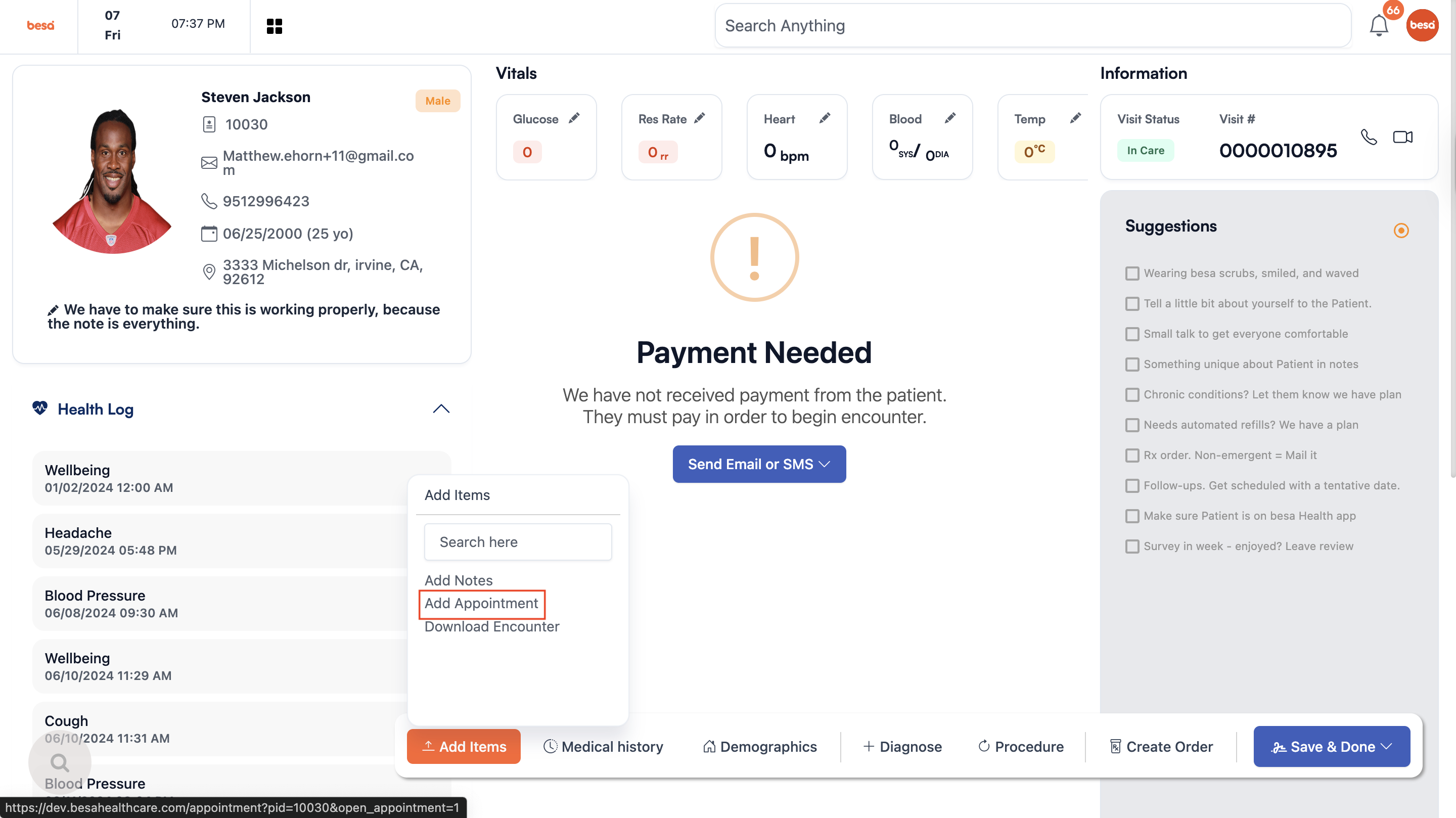
The quickest way to schedule an appointment would be to select the + Add Item button and click on Add Appointment. A new tab will open with the calendar. The follow-up appointment should be within one month.
Comments (0)