
Use this SOP when a staff member needs to enroll an existing patient in the DPC Plan or Member Plan from the patient’s EHR record. The plan is not active until the Health Plan Subscription is successfully saved and the active plan appears in the appointment detail.
📚 Resources Needed
- besa EHR Patients page
- Knowledgebase SOP
- The patient’s existing EHR account
- The patient’s approved DPC Plan or Member Plan selection
- Authorization to charge the amount displayed as Due today
- A saved payment method on the patient’s account
✅ Before You Start
- Confirm you are working in the staff EHR, not the Broker Portal.
- Search for the patient before creating anything. This workflow is for an existing patient account.
- Confirm the patient approved the plan and the charge shown on screen.
- Stop if the plan name, monthly amount, setup fee, or total due today does not match what the patient approved.
- Never enter or share full card details outside the secure Stripe payment page.
🚀 Tips & Tricks
- The Health Plan field is inside the Demographics section of the patient record.
- Selecting DPC Plan or Member Plan opens a second slide-in named Health Plan Subscription.
- A one-time Account Activation & Setup Fee may appear for a first-time member. The screen states that it is not charged again if the patient rejoins later.
- Always verify the amount beside Due today. Plan prices may change.
- A Demographics selection alone does not prove the membership is active. Appointment detail must show the paid plan name instead of None.
📘 Instructions
Step 1: Find the Existing Patient
- Sign in to the besa EHR Patients page.
- Use the Search… field in the Patients panel to find the patient by full name, email, phone number, or patient ID.
- Confirm the correct patient. Do not create a duplicate account.
- Select Review on the patient card.
Step 2: Open Demographics
- On the patient detail page, select Demographics near the lower-right side of the screen.
- The Save Demographics slide-in opens.
- Expand Demographics if it is collapsed, then scroll to Health Plan.
Step 3: Select the Approved Plan
- Open the Health Plan dropdown.
- Select DPC Plan or Member Plan, based on the patient’s approved enrollment.
- Wait for the Health Plan Subscription slide-in to open.
Step 4: Verify the Charge
- Under Plan Information, confirm the plan Name and monthly Price.
- Review each charge in the itemized summary.
- If Account Activation & Setup Fee appears, explain that it is a one-time fee for the patient’s first enrollment.
- Confirm Due today with the patient. The line below shows the recurring monthly amount.
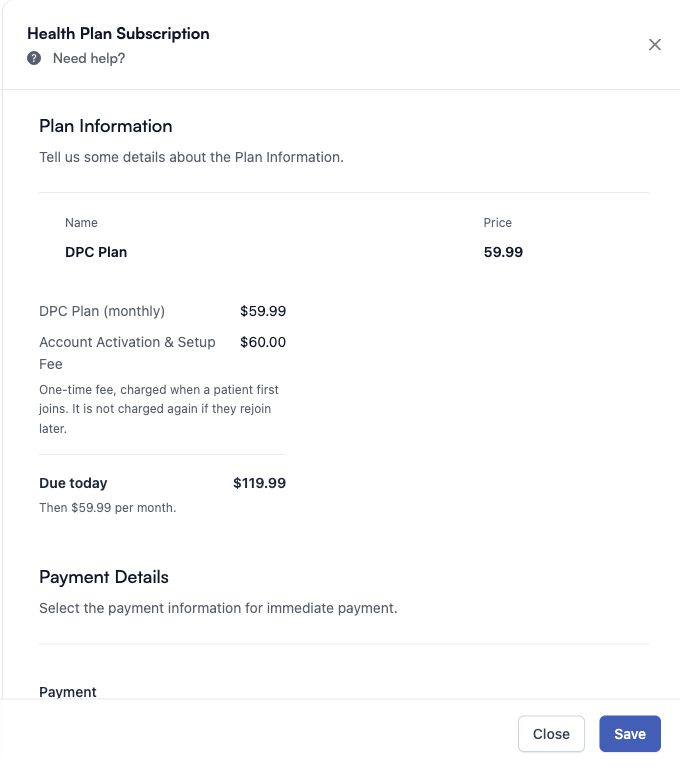
Example only. Always use the current amount displayed in the patient’s EHR.
Step 5: Select or Add a Payment Method
- Under Payment Details, select a saved card under Payment Methods *.
- Confirm Amount charged today * matches Due today.
- If no usable card appears, expand Add Payment Method and select Add Payment Method.
- Complete the secure Stripe billing page in the new tab, then return to the EHR.
- Close and reopen Health Plan Subscription by reselecting the approved plan so the new card loads. Select the new payment method.
Step 6: Create the Subscription
- Recheck the plan name, amount due today, and selected payment method.
- Select Save in Health Plan Subscription once.
- Wait for the success message and for the subscription slide-in to close. Do not click Save repeatedly while payment is processing.
- In the underlying Save Demographics slide-in, select Save so the Health Plan selection remains on the patient record.
Step 7: Verify How It Shows
- Return to Appointments and open the patient’s appointment detail.
- Under Plan, confirm the colored badge shows DPC Plan or Member Plan.
- Confirm the active member copay is $0.00.
- If Plan shows None, the paid subscription is not active even if a plan was selected in Demographics. Do not tell the patient enrollment is complete.
🛠 Troubleshooting
The plan dropdown does not open Health Plan Subscription
- Confirm a patient and plan are selected.
- Close Demographics, reopen it, and select the approved plan again.
- If the EHR says the plan is not linked to a Stripe price, stop and contact Support. Staff cannot correct that connection from the patient record.
The plan cannot be loaded
- Refresh the patient record once and retry.
- If it still fails, send Support the patient ID, plan selected, time, and visible error. Do not include full card information.
No payment method appears
- Use Add Payment Method to open the secure Stripe billing page.
- After adding the card, return to the EHR and reopen Health Plan Subscription so the saved methods refresh.
Save says a payment method is required
Select one saved payment-method card under Payment Methods * and retry once.
The Plan badge shows None after payment
- Refresh Appointments once and reopen the appointment detail.
- If it still shows None, do not charge the patient again. Send Support the patient ID, selected plan, approximate time, and payment success message.
The copay is not $0.00
- Do not collect a copay until membership is confirmed.
- Refresh once and reopen the appointment detail.
- If the active plan badge is present but the copay is not $0.00, contact Support with the patient ID and appointment ID.
✅ Completion Check
- The correct existing patient account was used.
- DPC Plan or Member Plan was selected in Demographics.
- Plan name, monthly price, any one-time fee, and Due today were reviewed.
- The approved payment method was selected.
- Health Plan Subscription and Save Demographics were saved successfully.
- Appointment detail shows the colored active plan badge and $0.00 member copay.
- No duplicate patient, subscription, or charge was created.
If anything does not match what you see, stop before charging again and contact Support.
Comments (0)