
A wise man once said - it's all about the basics.
Understanding the navigation basics helps you to better understand a system. From a technological standpoint, all actions are duplicates of an action that has already been created. What this means is, if you understand how and where to navigate adding a patient, you will also be able to understand how and where to navigate creating an order. below is a breakdown of basic actions you will need in order to use the EHR.
Help Center
Easily access all company protocols, Standard Operating Procedures, and much more through the Training tab. Just click in your image in the top right corner and select Training.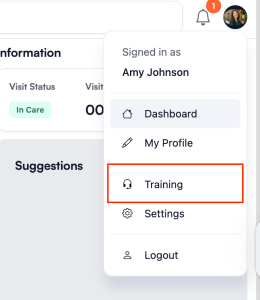
Dashboard
The dashboard has been simplified to help you focus on what matters most. Any updates or key pieces of information for that day will display here.

Main Navigation
The main navigation is where you will go to access all the most important pages. This main navigation is in the header of every page. Simply click on the 4 squares and you will be able to go to any page.

Status
All statuses in the system have premade conditions to automatically change at a reference point in the process. You are also able to manually change all statuses by clicking on the status card and selected what may be more accurate at that time.

Header Search
The header search will be your best friend. Almost all things you will need to search or view can be found in the response. Simply search something and view the results. To get the details click on the bold text which are all links to the details. Details such as patient details, Rx, etc.

Create Forms
To create anything in the EHR, you will need to get to the page needed. For example: if you need to make an order for an X-Ray, you will want to go to the orders page and click + Create Order. From there, the form will slide in from the right side. Any field that is required, you will see a red *.

Detail View
To view the details of a specific item, please click on the text within the display card. The detail view will then slide in from the right hand side.

Edit Form
You can always edit the form by clicking on the 3 dots in the detail view. Be sure to click save to submit your changes.

Page Search Filters
All pages have a search and filters within the page. When you set a filter, you will see this orange dot indicating that a filter is active and you are no longer displaying all the results.

Profile & Settings
You can access you profile and company settings by clicking on your image in the top right hand corner of your header.

Comments (0)