
Prior to treating a patient, they must be created in our system. There are several different ways to do this, with the main way being - the patient creates their own profile via our besa Health patient app. In the case you need to create a patient, be sure to follow the steps written below. Don't forget - details matter.
📚 Resources Needed
🚀 Tips & Tricks
- Anything and everything must be done with intention.
- Most patients will appear through them creating their own account in the besa Health patient app.
- Create a patient while creating an appointment, or through the Patient page.
- When you add a patient through the EHR they will recieve an SMS and an Email instructing them to download our patient app.
- Dots next to names have meaning based on onboarding status
- Orange = Patient has not submitted all required information
- Purple = We are processing the information and it is in review
- No Dot = This means we do not need to do anything and they are ready for treatment
📘 Instructions
- Login to besa EHR using your credentials.
- Click on the Patients icon

- From here, you will see all the Patients that we have in the system.
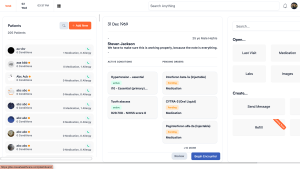
Some key navigation actions you can make are:- Search Patient
- View Patient details in file view
- Create new Patient
- To create a new Patient, click + Add New. The Patient form will slide in and you can fill everything out. Keep in mind that all fields with a red * are required.

When you add in the Patient email and phone number, they will receive an SMS and Email guiding them to download the app and complete the new patient onboarding process. - On the Patients page, you can get a quick view of key information regarding the Patient without having to go to the patient detail page.

- To view the Patient details on a single page, click Review in the patient card.
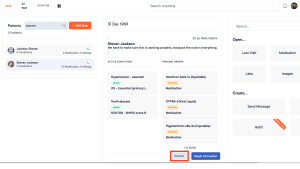
- In the patient details you will see all medical information regarding the patient.

- Due to so much information being on the patient detail page, we implore you to click around and get used to the page navigation and information placement.
Comments (0)