
🎯 Purpose
Use this procedure when the second automatic attempt to collect an existing patient invoice fails. Help the patient resolve the balance, collect payment through an approved secure process, and document the outcome against the same invoice and encounter.
📚 Resources Needed
Authorized besa EHR account with access to patient billing and invoices.
Accounting failure alert, current invoice, and encounter reference.
First and second attempt history, patient contact details, and approved secure payment link.
✅ Before You Start
Confirm the patient, encounter, invoice number, current balance, and payment status.
Review payments, credits, insurance response when applicable, and any hold, dispute, or previous arrangement.
Resolve paid, processing, disputed, held, or inconsistent balances with billing before charging.
Use the current invoice balance. The alert shows the balance when the email was sent.
🚀 Tips & Tricks
Automatic attempts stop after the second failure. Adding a card alone does not confirm payment.
Keep all payments tied to the existing invoice and encounter. Do not create a duplicate invoice.
Describe the actual result neutrally. A missing usable method is not necessarily a bank decline.
📘 Instructions
Step 1 Check the Payment Timing
First failure: the email “Invoice payment could not be captured” states the scheduled date of the final attempt.
Second attempt: the reviewed example retried three days later—November 12 2026 at about 11:40 AM PST, then November 15 at about 11:40 AM PST. Verify each invoice’s actual dates rather than assuming the schedule.
The interval from invoice delivery to the first attempt is not established by these failure alerts. Check the original invoice notice and billing history.
After the second failure, no further automatic card attempts are scheduled for that invoice. Adding a card alone does not confirm payment.
Recommended follow-up target: call by the next business day and assign an owner and dated task if unresolved.
Step 2 Identify the Second Failure Email
From: hello@besahealthcare.com
To: accounting@besahealthcare.com
Subject: Second invoice payment attempt failed #[invoice number]
Heading: Second payment attempt needs attention
Message: The second automatic payment attempt did not succeed. No further automatic card attempts are scheduled for this invoice.
The email lists Patient, Invoice, Amount due, Result, and an Open patient record button.
Result may say “The saved payment method could not be charged” or “No usable saved payment method was available.” Do not describe this as a bank decline unless confirmed in the transaction record.
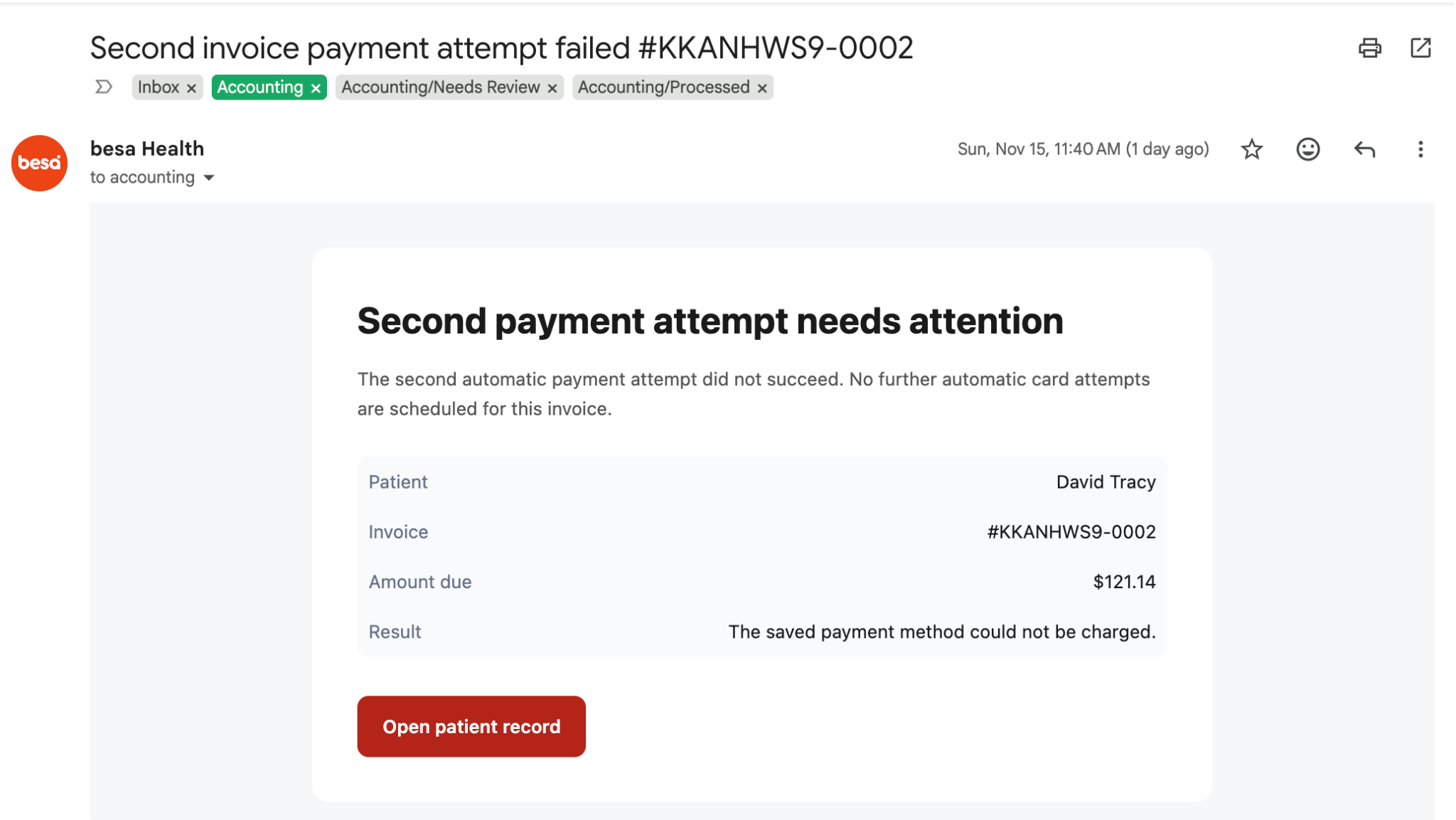
Second attempt alert: automatic card attempts have stopped. Select Open patient record to review the invoice before calling.
Step 3 Review the Record
Select Open patient record. Match the patient and invoice, then check the current balance and encounter reference. Review the actual first and second attempt dates and any payment since the alert. Do not create another invoice or an unrelated charge.
Step 4 Call and Verify Identity
Use the patient’s preferred language. Verify identity using the clinic’s approved checks before discussing billing. Confirm authority if speaking with a representative.
Opening: “Hi, may I speak with [first name]? This is [agent] calling from besa Health. Before we go over your account, can you please verify [approved identity details]?”
After verification: “I’m calling about the invoice for your visit on [date]. The balance is $[current balance]. We tried the payment method on file on [first date] and again on [second date], but the payment didn’t go through. I wanted to help you get that taken care of. Would you like help using the secure payment link, or do you have a question about the bill first?”
If no saved method was available: “We weren’t able to complete the payment because there wasn’t a usable payment method saved.”
Step 5 Respond to the Patient
Ready to pay: “We can use the secure invoice link so you can enter your payment details directly. I can stay on the phone while you complete it.”
Wants staff to charge a saved card: “Do you authorize besa Health to charge $[amount] to your [brand] ending in [last four] today for invoice [number]?” Document the response and use only the approved workflow.
Cannot pay now: “Thank you for letting me know. What date would work better for you? I’ll document that and have our billing team help with the next step.” Record the requested pause and route to billing. Do not promise an unapproved arrangement.
Disputes or questions the bill: “Let’s have our billing team review that with you before we take another payment.” Document and route the question.
Already paid: “Thank you. I’ll check the payment before we do anything else.” Verify before closing.
Prefers to call back: invite them to use the clinic’s published number.
Voicemail: “Hi [first name], this is [agent] from besa Health. Please give us a call at [clinic number]. Thank you.” Leave no balance, failure details, or visit information.
Step 6 Complete Payment Through the Secure Invoice
The patient email “We Tried Again—Your Medical Bill Payment Still Didn’t Go Through” includes Pay Invoice, which opens Stripe.
1. Confirm the patient’s contact details and locate the secure link for the same existing invoice. Resend through the approved billing workflow if needed.
2. Ask the patient to select Pay Invoice and review the amount and invoice number.
3. Have the patient enter payment details in the secure form and complete bank verification themselves.
4. If an option to save the method appears, explain it and let the patient choose. Paying once does not establish that a card was saved for future use.
5. Have the patient submit payment. Confirm the invoice shows successful payment and verify the remaining balance. A clicked button, added card, or processing status is not confirmation.
6. Provide the receipt through the approved workflow and document the result.
Step 7 Staff Assisted Payment
The exact EHR menu names and Add payment method and invoice charge controls require live verification. Until verified, use the secure invoice route or route staff-assisted requests to billing.
In the approved secure staff workflow: match the patient and billing customer; obtain permission to save a method; enter it only in the secure payment form; confirm masked details; open the existing invoice; select the intended method; obtain authorization for the exact amount; submit one attempt; verify the transaction result and remaining invoice balance.
Never put the full card number or security code in notes, email, chat, screenshots, or call recordings. If secure staff entry is unavailable, let the patient enter the details themselves.
If payment fails again, stop. Offer a different method, the secure link, or billing follow-up. If processing or unclear, check transaction history before retrying.
Step 8 Document and Close
Record call date and time, agent, identity verification completed, invoice and encounter references, current balance, both attempt dates, patient response, authorization where applicable, masked method, transaction reference and status, and next action with owner and due date.
Note template: Second failed payment follow-up | Invoice [number] | Encounter [reference] | Balance $[amount] | Attempts [dates/times] | Called [date/time] | Identity verified [yes/no] | Outcome [paid/voicemail/callback/billing review/requested pause] | Authorization [amount and masked method] | Transaction [reference/status] | Next action [owner/date].
Close as paid only after confirmed success and reconciliation. Leave a follow-up task for unresolved balances. Route holds and disputes to billing. Keep financial activity tied to the existing invoice and encounter.
🛠 Troubleshooting
Patient cannot pay now: record the requested pause, proposed date, and billing owner. Do not promise an unapproved arrangement.
Patient disputes the bill: stop payment collection and route the question to billing for review.
Patient says they already paid: verify the transaction and invoice before collecting anything else.
Payment is processing or the result is unclear: check transaction history before retrying.
Payment fails again: stop. Offer another method, the secure invoice link, or billing follow-up.
The staff payment screen differs: use the secure invoice route or refer to billing until the exact controls are verified.
✅ Completion Check
The correct patient, existing invoice, and encounter were confirmed.
The actual attempt dates and current balance were checked.
The call outcome and any payment authorization were documented.
Payment success and remaining balance were verified, or a follow-up task has an owner and due date.
Full card numbers and security codes were not recorded in notes, messages, images, or recordings.
Comments (0)