
The Accounting Portal is the financial source of record for Besa entities. It separates money owed to the business, money owed by the business, direct expenses, payment activity, bank and card accounts, review automation, and financial reports so transactions can be traced and reconciled.
📚 Resources Needed
- Accounting Portal
- Approved accounting access and the correct legal entity
- Source document, transaction date, counterparty, amount, GL account, and payment or due-date information
✅ Before You Start
- Confirm the entity in the WORKING IN selector before opening or creating a transaction.
- Determine the transaction type before entering it: invoice, customer receipt, bill, direct expense, bill payment, bank deposit, transfer, or card payment.
- Search for the customer, vendor, invoice number, bill number, or reference before creating a new record.
- Have readable supporting proof available and remove patient or clinical detail that is not required for accounting.
⚠️ The portal posts to the general ledger. A transaction entered under the wrong entity or transaction type can affect financial statements. Stop and verify before saving.
🚀 Tips & Tricks
- Use Search your finances or the page-level filters before scrolling through large lists.
- Amounts should always show two decimal places. Zero is a real amount: enter and verify $0.00 when that is the correct balance.
- Use Bills for amounts owed and paid later; use Record expense for purchases already paid.
- Attach source proof to the transaction it supports. Do not store proof only in email or chat.
- Review the accounting status after each cross-platform sync instead of assuming the record posted.
📘 Sign In and Confirm Context
- Open accounting.besahealth.org and sign in with your assigned account.
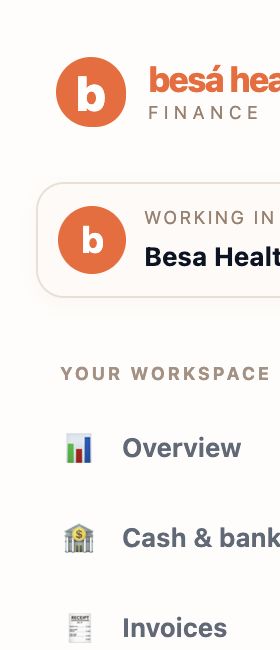
- At the top of the left navigation, open WORKING IN. Select the legal entity that owns the transaction.
- Confirm the page header and existing balances refer to that entity before continuing.
- Use Search your finances to look for the reference, vendor, customer, or amount.
- Choose the page that matches the transaction workflow below.
🧭 Navigation and Transaction Ownership
| Menu | Use It For | Do Not Use It For |
|---|---|---|
| Overview | High-level financial position and items needing attention. | Creating detailed source transactions. |
| Cash & banking | Financial accounts, bank/card feeds, payment register, transfers, card payments, deposits, and reconciliation. | Recording an unpaid vendor bill. |
| Invoices | Customer invoices, customer receipts, customer records, and A/R balances. | Vendor purchases or provider payments. |
| Review | Incoming receipts and invoices classified from Gmail or uploaded documents; approve or correct suggested posting. | Replacing source documents or bypassing transaction verification. |
| Bills & expenses | Vendor bills, direct expenses, bill payments, vendors, and provider payment runs. | Customer receivables. |
| Reports | Profit & Loss, Balance Sheet, Trial Balance, cash flow, aging, General Ledger, and audit log. | Changing a source transaction without opening its detail. |
| Settings | Accounts, integrations, and entity configuration. | Routine transaction entry by unauthorized users. |
🔄 Which Entry Should I Use?
| Scenario | Correct Action | Automatic Posting |
|---|---|---|
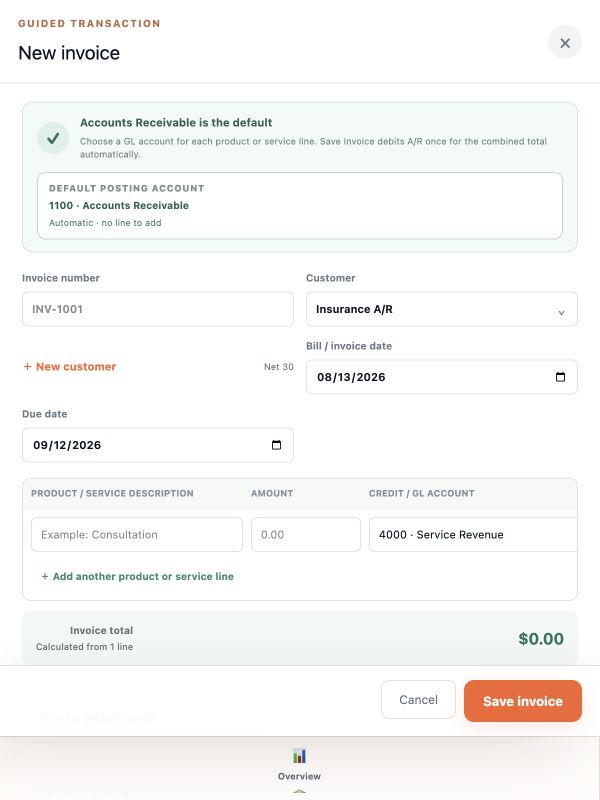
| A customer owes Besa | Invoices → New invoice | Debits Accounts Receivable and credits the selected income account. |
| A customer paid | Invoices → Receive money | Reduces A/R and records the receiving account. |
| Besa owes a vendor and will pay later | Bills & expenses → New bill | Credits Accounts Payable and debits the selected expense or asset account. |
| Besa already paid for a purchase | Bills & expenses → Record expense | Credits the selected bank/card account and debits the selected expense or asset account. |
| Money moved between Besa accounts | Cash & banking → Transfer | Posts both sides of the transfer. |
| Bank activity needs verification | Cash & banking → Reconcile | Confirms the ledger balance against the statement. |
🛠 Troubleshooting
The wrong entity is selected
Stop before saving. Change WORKING IN to the correct entity and search again. If the record was already posted, do not recreate it under the correct entity until the incorrect entry is reversed or corrected through the approved accounting workflow.
A vendor, customer, or GL account is missing
Search using a shorter name and confirm the entity. Create a new counterparty only after verifying it does not exist. Request accounting approval before adding a new posting account.
The list is too large
Use the page filter, sort selector, direction, rows per page, and pagination. Clear any active filter when comparing totals.
✅ Completion Check
- The correct entity is selected.
- The transaction type matches the real business event.
- No duplicate source reference exists.
- The amount, date, counterparty, GL account, and proof are correct.
- The saved transaction appears in its register and related report or balance as expected.
If you have any questions, something does not match what you see, or you need more information, please reach out to Support.
Comments (0)