
Support staff use this procedure to follow up on the provider’s CCM plan, work the assigned checks, and confirm that completed care work is recorded once. Finish only when the task result and any related time entry are accurate in the correct patient chart.
📚 Resources Needed
Your authorized besa EHR account at www.besahealthcare.com.
Access to Tasks and the correct patient chart.
The provider-reviewed care plan, the assigned task, and the actual date and duration of the work performed.
✅ Before You Start
Confirm the patient and the task before outreach or documentation.
Read the provider’s plan and instructions. Route clinical decisions or changes to the provider.
Check the chart and task history before repeating outreach or logging time. Some chart events and task completions already create entries.
Only record work actually performed. Do not complete a task or approve a historical suggestion solely to increase the monthly total.
🚀 Tips & Tricks
CCM enrollment starts a workflow that includes support checks. Follow the task’s actual due date and instructions.
The CCM time form supplies default minutes. Change the value to reflect the actual work when needed.
Administrative (not counted) is an available activity. A suggested or default duration is not proof that billable care occurred.
Patient communications need review before they count toward CCM. Check the Activity feed and the existing ledger to avoid recording the same contact twice.
📘 Instructions
1. Review The Assigned Check
Open Tasks. Locate the assigned CCM task and confirm the patient, due date, owner, and requested check. Open the patient chart and review the provider’s plan before acting. You should understand the expected follow-up and what result must be recorded.
2. Perform The Follow-Up
Complete the actual check or outreach described by the task. Record the outcome and any unresolved issue in the approved chart workflow. Send clinical questions to the provider. Keep incomplete work open or routed for follow-up rather than marking it complete.
3. Check Existing CCM Time
In the patient chart, scroll to Chronic Care Management. The card contains + Log Time and Details above Date, Activity, Minutes, and Logged by. Select Details to inspect enrollment, the care plan, and the monthly Time section. Check whether the event or task already recorded the work before adding another entry.

Find Chronic Care Management on the patient chart. + Log Time opens the entry form; Details opens enrollment, the plan, and monthly time.
4. Use The Time Form When A Separate Entry Is Needed
Select + Log Time on the chart card or below Time in Details. The Log care management time form opens. Select Activity and Performed by, enter Minutes and Date, and describe the completed work in Note (What was done). Activity supplies default minutes; correct the value when needed. Review the patient, activity, person, actual date, minutes, and note, then select Save once. Close exits without saving. The demonstration screenshot uses Administrative (not counted), 0 minutes, and a dummy note solely for training; do not copy these values into a real care entry.
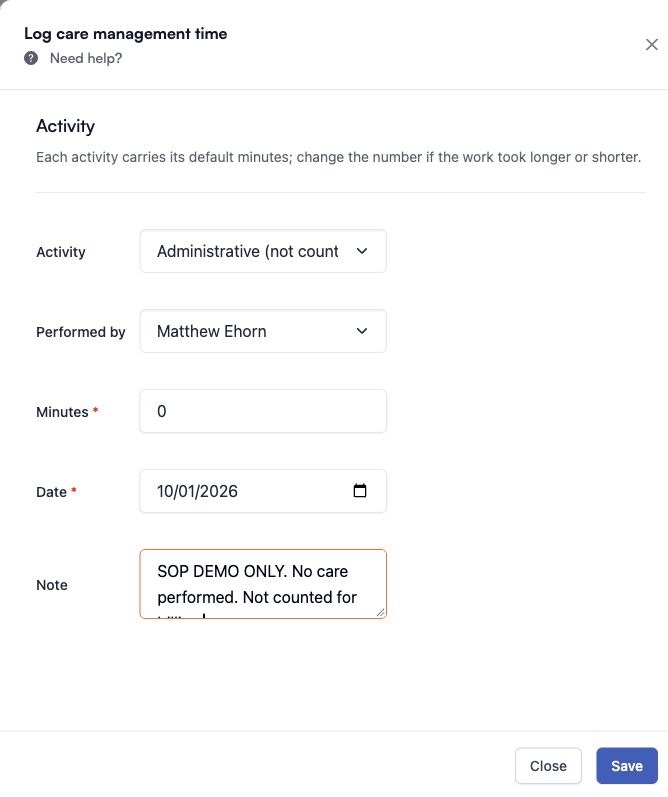
SOP demonstration only: an old-date Administrative (not counted) entry with 0 minutes and a clearly labeled dummy note. For care work, record the actual activity and time.
5. Verify The Result Before Finishing
After saving through the authorized workflow, reopen the CCM time list. Confirm that one entry shows the correct activity, date, minutes, and person. Check the task’s saved outcome and status as well. If completing the task also created time, resolve any duplicate before considering the work finished.
🛠️ Troubleshooting
Care plan is missing or awaiting review. Ask the provider to complete the plan review before using it as an approved clinical instruction. Do not invent goals or change treatment yourself.
Time may already exist. Compare the date, activity, person, and note. Do not add another entry until the earlier entry and any automatic task entry have been checked.
Save appears successful but the row is missing. Reopen Details, check the intended month, and refresh once. Check the date against the enrollment and consent information. A success message alone is not proof that a row is visible or countable. In the SOP demonstration, the old-date Administrative (not counted) entry produced a success message but was not visible in the ledger after refresh. Do not repeat Save or add another entry to compensate. Contact Support with the activity, date, minutes, time of submission, and exact message so the existing result can be investigated.
Task is blocked or the patient cannot be reached. Record the actual result and route the remaining work to the appropriate owner. Do not claim a completed check that did not occur. Escalate with the task type, time, exact error, and an anonymized screenshot; exclude patient identifiers, clinical details, and credentials.
☑️ Final Completion Check
Correct patient, task, and provider instructions reviewed.
Actual follow-up completed or unresolved work routed.
Outcome saved and task status checked.
Existing automatic entries checked for duplication.
Any separate time entry verified in the correct month with accurate fields.
Comments (0)