
Providers use My Payments to review weekly contract payment history. Administrators prepare and reconcile the underlying payment in Provider Payments. This article explains what a provider should verify, what each status means, and how to report a discrepancy without creating duplicate payment records.
📚 Resources Needed
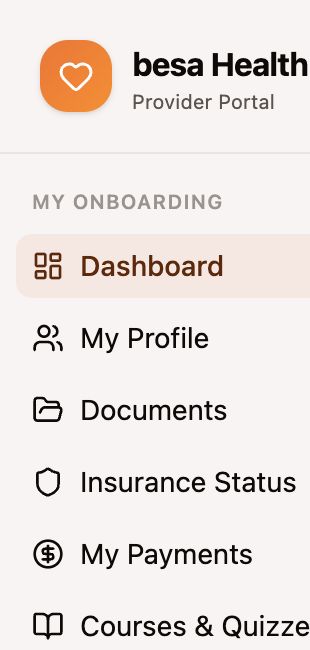
- Provider Portal — My Payments
- The Sunday–Saturday encounter week you are reviewing
- Your own encounter records and payout account status
- Provider Payments: Weekly EHR-to-Accounting SOP for administrators
✅ Before You Start
- Confirm you are signed in to your own provider profile.
- Identify the exact Sunday–Saturday service week. Do not compare payments using the payment date alone.
- Confirm your Bank payout account shows Ready. If it shows Action required, complete the secure payout-account step before expecting payment.
- Gather the encounter numbers for any visit you believe is missing. Do not include patient names or clinical detail in a payment question.
⚠️ The provider-facing payment page is a review surface. Do not create another payment, accounting bill, or support request for each missing encounter. Report one discrepancy for the provider and week.
🚀 Tips & Tricks
- Review payments by Encounter week, not by when funds reached the bank.
- The normal weekly source period is Sunday through Saturday. Eligible visits are reviewed at the configured rate shown in the portal.
- Use Messages for a routine payment question. Use Support if the page errors, a status is inconsistent, or the same issue remains unresolved.
- A Pending payment may be correct while administration completes review, accounting, or proof.
📘 Instructions
- Sign in to the Provider Portal and select My Payments.
- Review the Bank payout account card. If it is Ready, continue. If it shows Action required, open the action and complete the secure Stripe setup. Bank details are not stored in the Provider Portal.
- Review Total paid for context, then use Payment history for the exact week.
- Locate the Sunday–Saturday Encounter week.
- Compare Eligible visits with your verified encounters for that week.
- Confirm the displayed Rate, Amount, and Status.
- If the count and amount are correct, no action is required.
- If an encounter is missing or incorrect, send one Message that includes your full name, Sunday–Saturday week, missing or disputed encounter number, expected visit count, and a concise explanation. Do not include patient names or clinical notes.
- If the status is Paid but funds or payment proof do not reconcile after the expected processing window, submit one Support request referencing the same week and portal status.
📊 Payment Status Guide
| Status | What It Means | Provider Action |
|---|---|---|
| Draft | Administration is still reviewing encounters and amount. | Wait unless the encounter week or count is visibly wrong; then send one Message. |
| Pending | The payment was reviewed and is moving through accounting or final payment confirmation. | No duplicate request. Monitor the same row. |
| Paid | Payment and accounting confirmation were completed. | Confirm the amount and bank receipt. Report one discrepancy if they do not match. |
| No payment to show | No reviewed payment row is available for the selected history. | Confirm the service week and eligible encounters, then send a Message with encounter numbers. |
⚠️ Exceptions and Corrections
Eligible visit count is wrong
Send the exact encounter number and week. Administration will review the Draft or existing payment. Do not send patient identity or create a parallel invoice.
Amount differs from visit count × rate
The amount may contain an approved manual exception. Ask for clarification using the provider/week record. If no exception is documented, administration should correct the existing Draft before payment.
Paid status but funds are missing
Confirm the connected payout account and bank posting period. If still unresolved, send Support the provider, week, displayed amount, Paid date if shown, and a screenshot that excludes bank-account details.
🛠 Troubleshooting
- If My Payments is blank, confirm you are in the correct provider account and refresh once.
- If Bank payout account shows Action required, complete that action before asking administration to reissue payment.
- If the same week appears twice, stop and report both rows; do not assume both should be paid.
- If a question remains after Messages, submit Support and reference the existing message and week instead of starting over.
✅ Completion Check
- The payout account is Ready or the required setup action is documented.
- The Sunday–Saturday week is correct.
- Eligible visits, rate, amount, and status were reviewed.
- Any discrepancy includes encounter numbers but no patient identity.
- One existing payment row and one communication thread are used for follow-up.
If you have any questions, something does not match what you see, or you need more information, please reach out to Support.
Comments (0)