
The Provider Portal supports two different audiences. Providers complete their own onboarding, documents, training, messages, insurance review, and payment review. Administrators manage the provider pipeline, credentialing, weekly payments, resources, courses, revalidation, jobs, and group settings.
📚 Resources Needed
- Provider Portal
- Your assigned work email and Provider Portal password
- Required profile, credential, license, insurance, and payment information for your role
✅ Before You Start
- Confirm whether you are signing in as a Provider or Administrator. The left navigation is different for each role.
- Providers should have their legal name, contact information, NPI, CAQH ID, license, DEA information when applicable, address, and emergency contact ready.
- Prepare readable credential files before uploading. Use the correct document type so the portal can show what is still Missing.
- Do not use another provider’s account or upload one provider’s credentials to another profile.
⚠️ Provider profiles may contain Social Security numbers, identity documents, licenses, and banking setup. Never place this information in Support screenshots or ordinary chat messages.
🚀 Tips & Tricks
- Work through Dashboard onboarding steps from top to bottom. A lock means the step is not ready, a clock means the provider completed their part and it is awaiting review, and a green check means the step is complete.
- Use Messages for a question about a provider step. Use Support for access, portal errors, broken uploads, or data that cannot be corrected in the portal.
- Keep My Profile and Documents current. Credentialing and revalidation depend on accurate numbers and expiration dates.
- Providers should review My Payments but should not attempt to recreate a missing payment. Payment preparation is an administrator workflow.
📘 Sign In and Complete Initial Setup
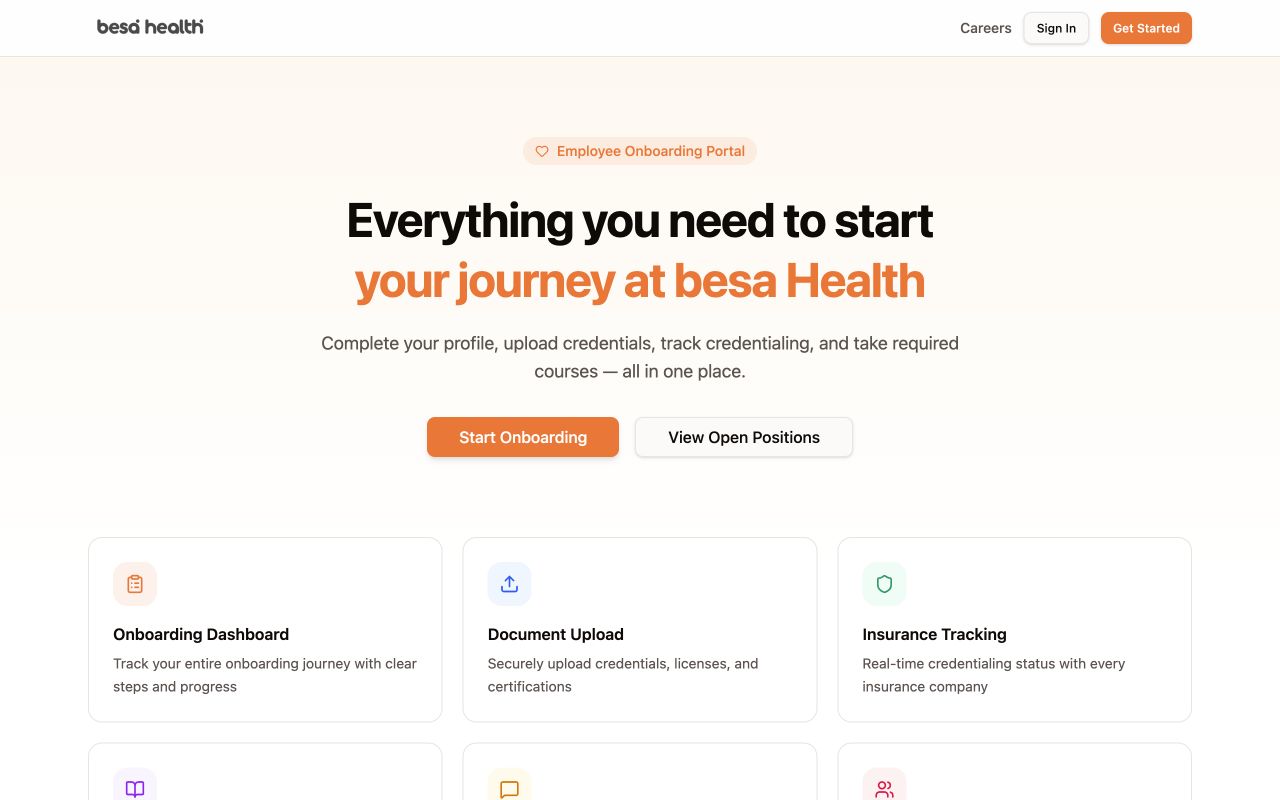
- Open providers.besahealth.org and select Sign In. New invited providers can use Get Started or the onboarding link provided by administration.
- Sign in with your assigned email. Confirm the portal shows your full name and the correct role.
- On Dashboard, review the progress summary and all onboarding steps. Open the first available incomplete step.
- Complete the Provider Questionnaire in My Profile. Required fields include legal name, email, provider type, and NPI. Add CAQH, license, DEA, address, and emergency contact information when applicable.
- Select Save All while working, then Save & Submit only after the information is complete and the background-check authorization is understood.
- Open Documents. Select the correct document type, choose the file, and select Upload. Confirm the document’s Missing indicator changes after the upload completes.
- Return to Dashboard. Confirm the step changes to awaiting review or complete. Do not mark an admin-controlled step complete yourself.
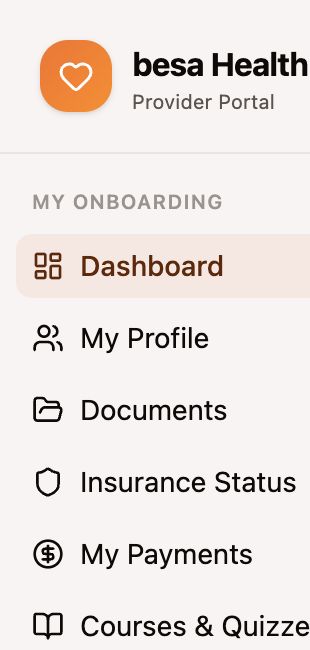
🧭 Provider Navigation
| Menu | Purpose | Expected User Action |
|---|---|---|
| Dashboard | Shows onboarding progress and the ordered onboarding steps. | Open incomplete available steps; review lock, clock, and check status. |
| My Profile | Provider Questionnaire, personal details, professional credentials, address, emergency contact, and authorization. | Keep information current and submit only after review. |
| Documents | Required credential file upload and Missing/completed indicators. | Choose the correct type, upload a readable file, and confirm it appears. |
| Insurance Status | Payer-by-payer credentialing progress. | Review status; contact Messages when the portal requests clarification. |
| My Payments | Weekly contract provider payment history and payout account status. | Review Sunday–Saturday week, visits, rate, amount, and status. |
| Courses & Quizzes | Required training links and completion tracking. | Complete each assigned course and confirm completion returns to the portal. |
| Resources | Approved onboarding links, documents, and tools. | Use current published resources rather than saved copies. |
| Messages | Direct communication with the provider administration team. | Keep the question attached to the relevant onboarding or credentialing issue. |
🧭 Administrator Navigation
| Menu | Purpose | Administrator Responsibility |
|---|---|---|
| Command Center | Summary of onboarding and administration activity. | Identify items requiring action. |
| Provider Pipeline | Search and filter providers by All, Onboarding, Processing, or Active. | Open the correct provider and maintain step ownership and evidence. |
| Insurance Tracker | Group-level payer setup and per-provider status. | Maintain dates, contacts, notes, and status changes. |
| Provider Payments | Prepare, review, send, and reconcile weekly provider payments. | Follow the full weekly payment SOP and accounting handoff. |
| HR Guide / Jobs / Resources / Courses | Operational onboarding content and provider-facing materials. | Keep requirements and published resources current. |
| Revalidation | Credential expiration and revalidation work. | Update verified dates and supporting records before deadlines. |
| Group Settings | Organization-level provider portal settings. | Restrict changes to approved administrators. |
🛠 Troubleshooting
The portal opens the wrong role
Confirm the name and role shown in the account. Sign out and verify the email. If the role is still wrong, submit Support; do not create another profile.
A document remains Missing
Confirm the correct document type was selected, the filename appears, and the upload finished. Reopen Documents after one refresh. If it still shows Missing, send Support the provider name, document type, filename, and visible error—not the sensitive document itself unless the approved support process requests it.
An onboarding step stays locked
Check whether the prior step is complete or awaiting admin review. Send a Message with the step number and what you completed. Do not skip ahead using another link.
✅ Completion Check
- Your account opens the correct provider or administrator navigation.
- Required profile fields are complete and accurate.
- Uploaded documents show under the correct type.
- Dashboard progress reflects completed and review-pending work.
- Sensitive information was kept inside the approved portal workflow.
If you have any questions, something does not match what you see, or you need more information, please reach out to Support.
Comments (0)