
Ensuring we are reviewing the proper number of encounters is very important. Because of this, we have added a section on the Reports page where you can see, and sign off of 5% of all completed encounters. Giving that extra layer of clinical oversight. Look below at how this process works.
📚Resources Needed
🚀 Tips & Tricks
- Click away from the pop up to move throughout encounter. Click back on icon to sign off.
- If you do not check the box in the encounter - it will not remove from the 5% list on reports page.
- If something is wrong, you will not check the box and can comment with the provider. That way the encounter stays queued.
📘 Instructions
Be sure to follow the steps listed below.
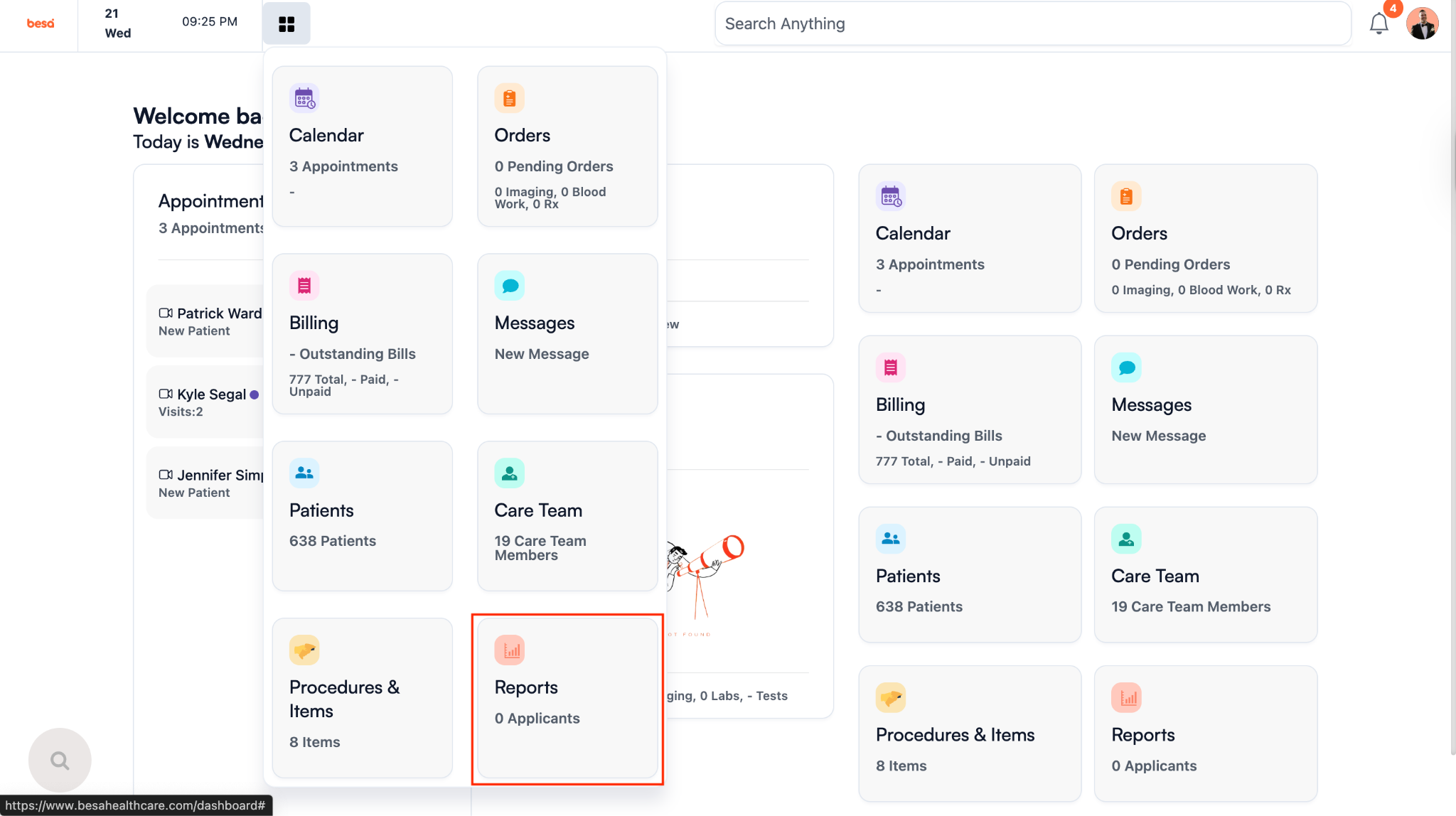
- Click on the Reports tab
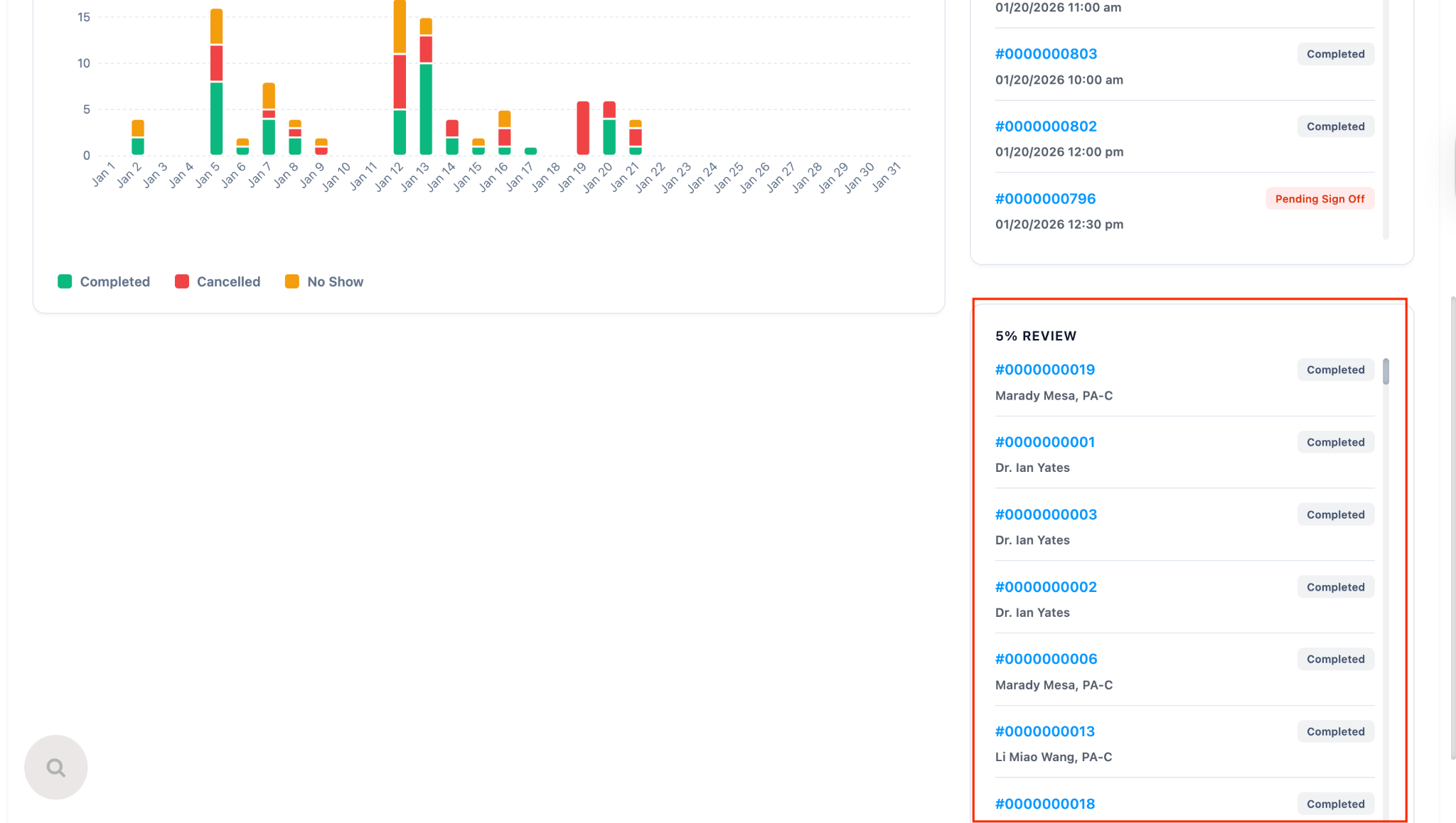
- Scroll down on the bottom right you will see a card with the title: 5% Review
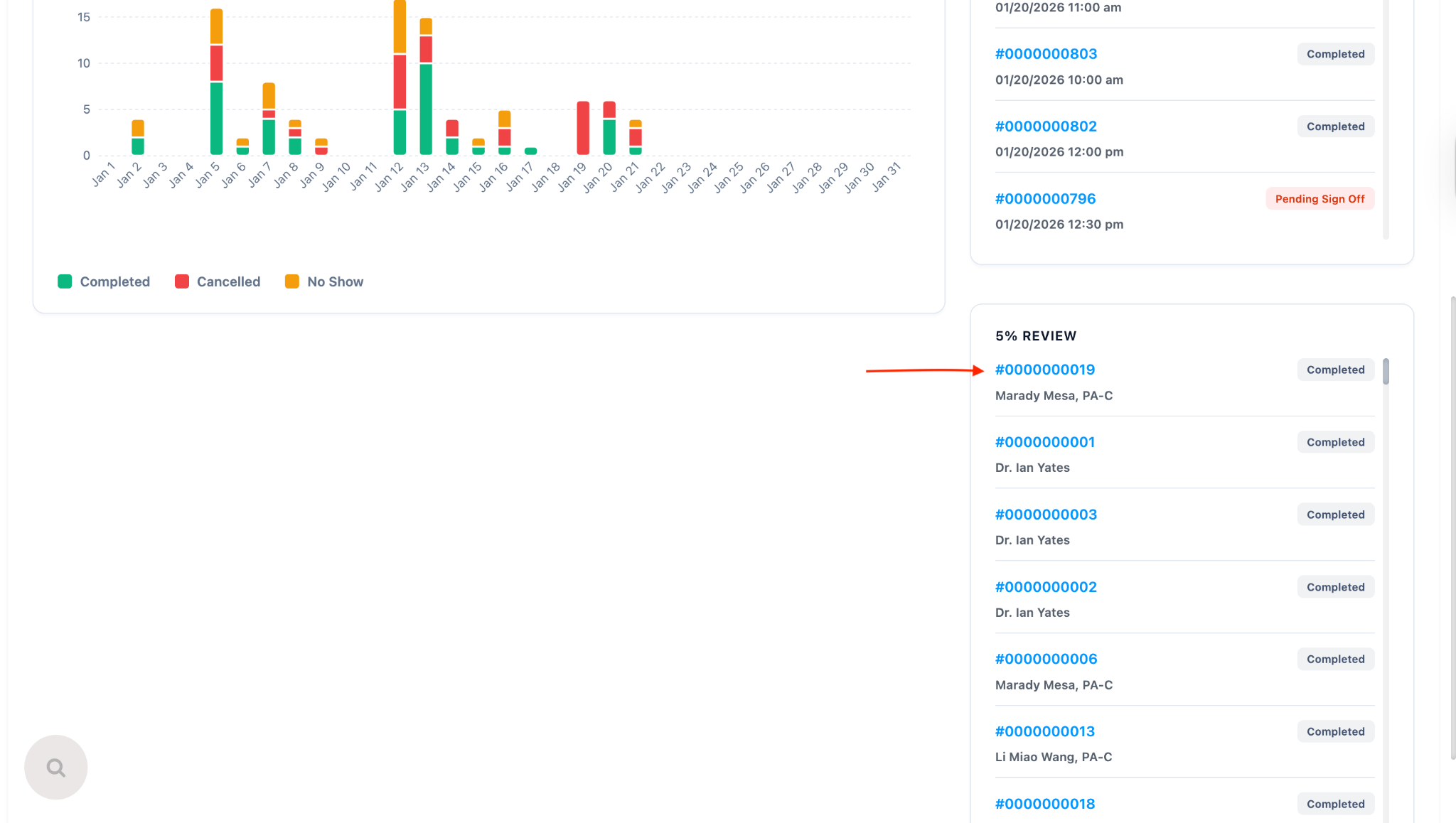
- To get to the encounter, simply click on the encounter number and it will open up in a new tab.
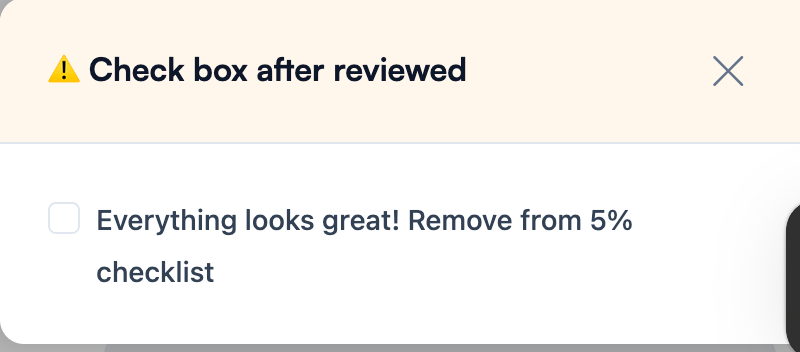
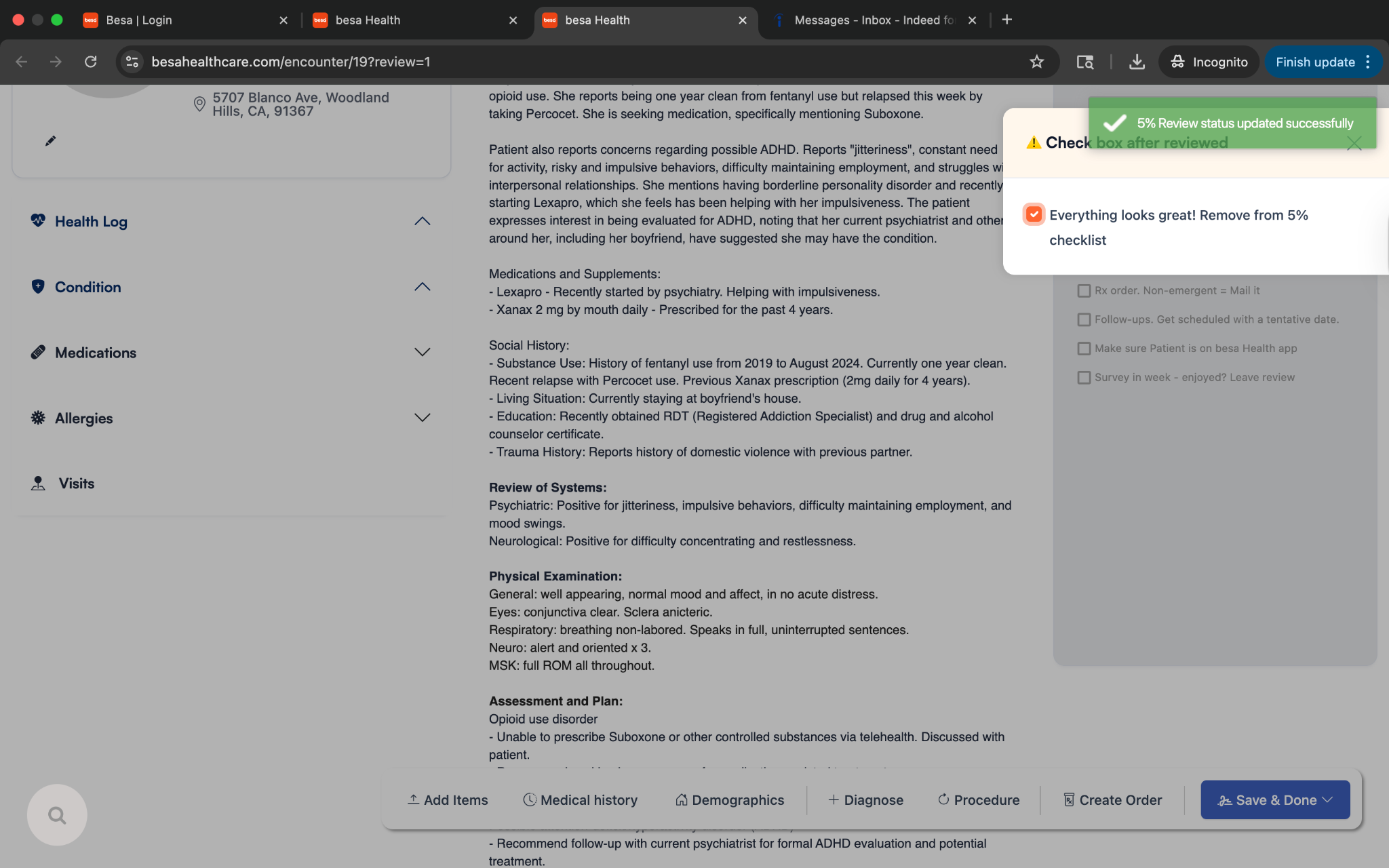
- When you enter the encounter, you will see a pop up in your top right corner with the checkbox stating you have reviewed the encounter and it is good.
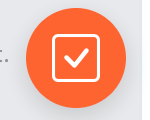
- To access the entire encounter, just click away from the pop up and it will close into the following icon.
- If there are any problems with the encounter, you can always chat with the provider by clicking + Add Item > Notes and send a message to the provider.
- If everything looks good, click on the orange icon to open up the statement and check the box.
⚠️If there is an issue that needs to be resolved, do not check the box as by not checking the box, it stays in your 5% review list.
- When you check the box, it will register that the encounter has been reviewed and can now be removed from the list.
- Done!
🎥 Video
Here is a video that goes over the process listed above:
If you have any questions or would like more information, please reach out to Matthew.
Comments (0)