
We understand that the more resources we have available to our providers, the better they are able to take care of Patients. To continue to push our belief, we have added an AI text to clinical notes. This is intended to help providers in reducing the time performing administrative tasks and increase their time with Patients. Please look below on how it works.
📚Resources Needed
🚀 Tips & Tricks
- You must always first ask the Patient if it is okay to record the conversation.
- The finalized clinical notes it should take less than one minute and show in your suggestions area.
- This AI charting is very involved and includes everything like a change in demographics, order creation, ICD-10 and CPT code additions, etc.
📘 Instructions
The more you use this feature the better it will become.
- Login to besa EHR using your credentials.
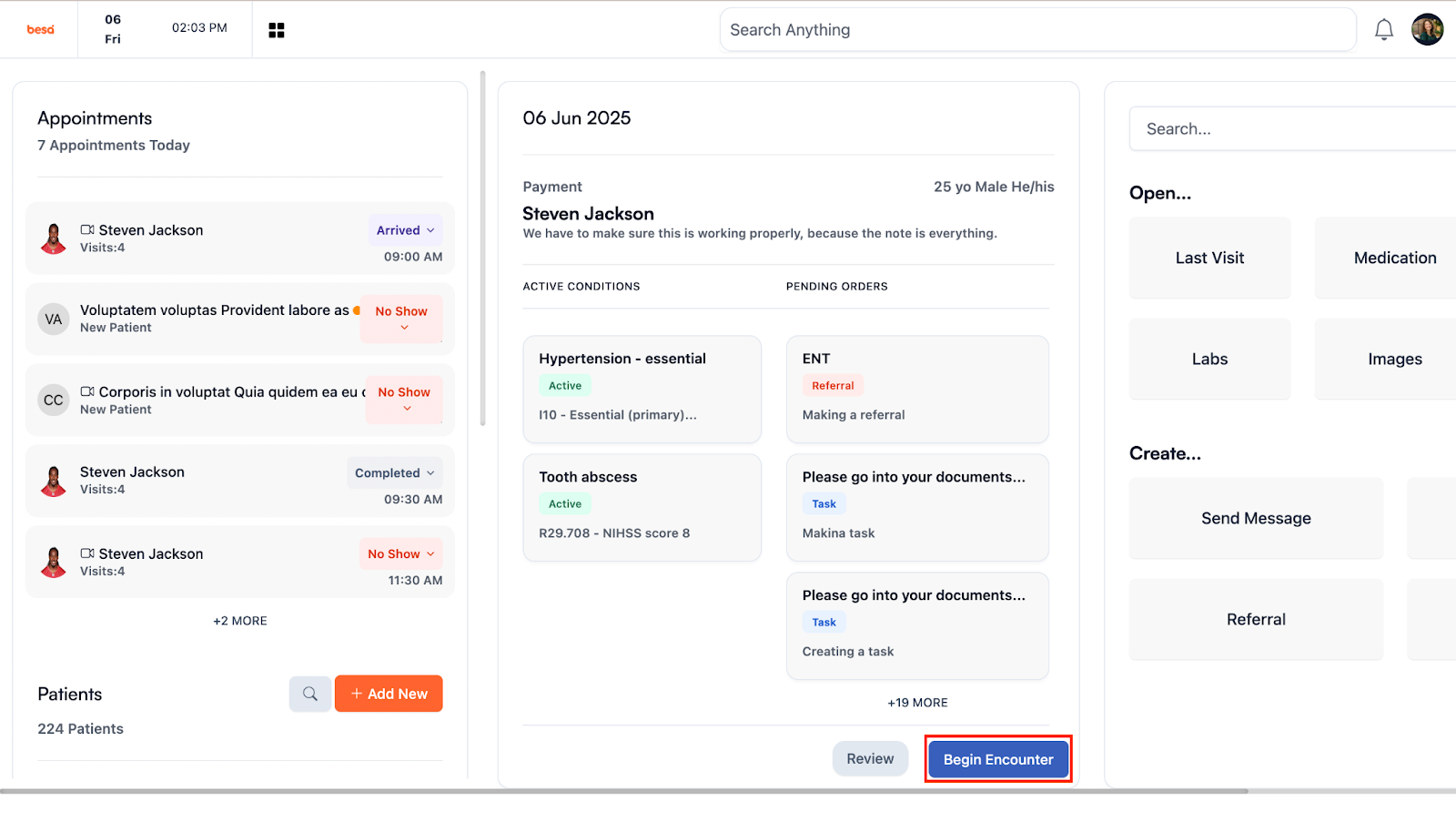
- Begin the encounter.
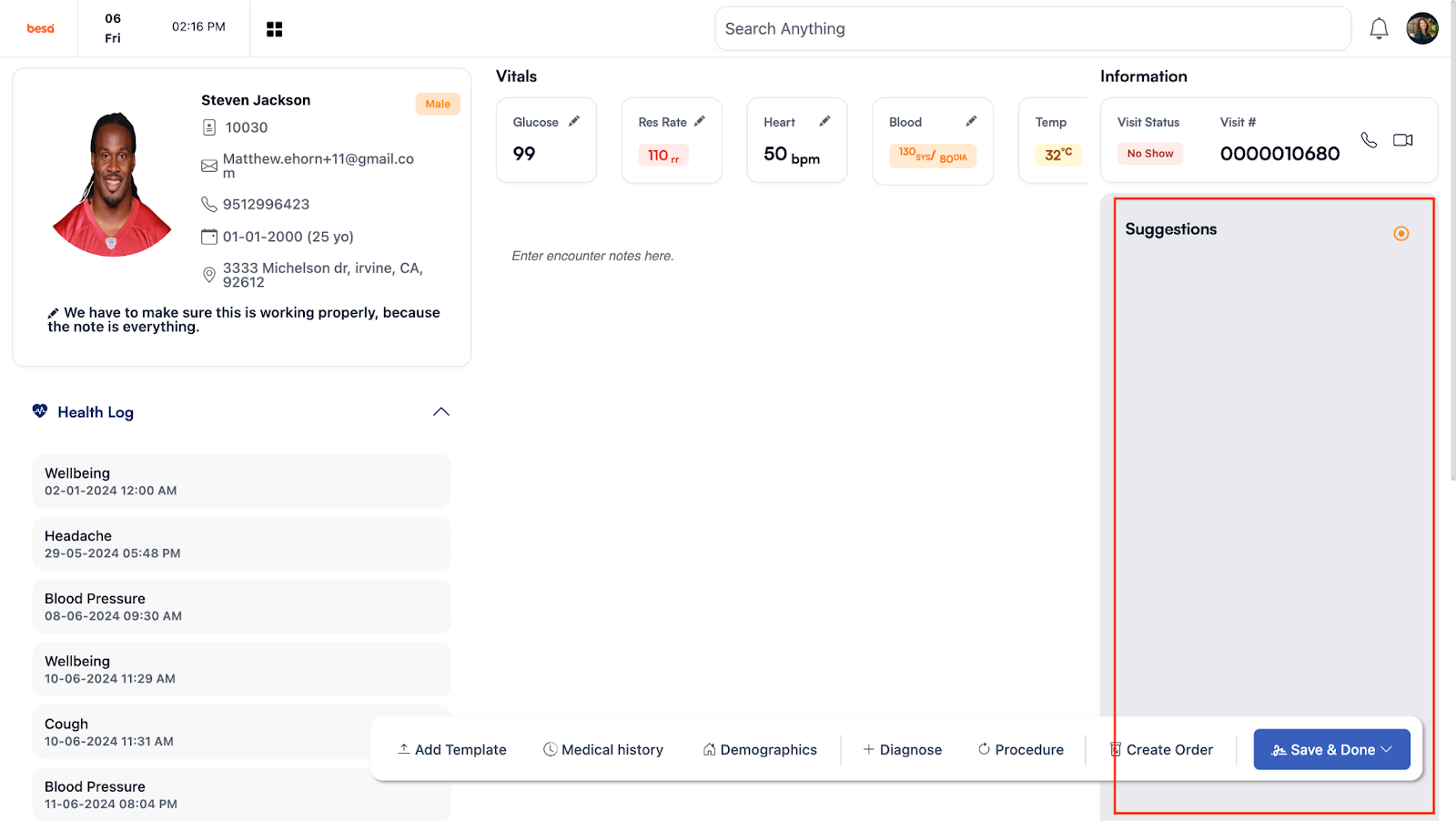
- Inside the encounter page, you will see the suggestions card. This is where all AI related information will go prior to you approving the record.
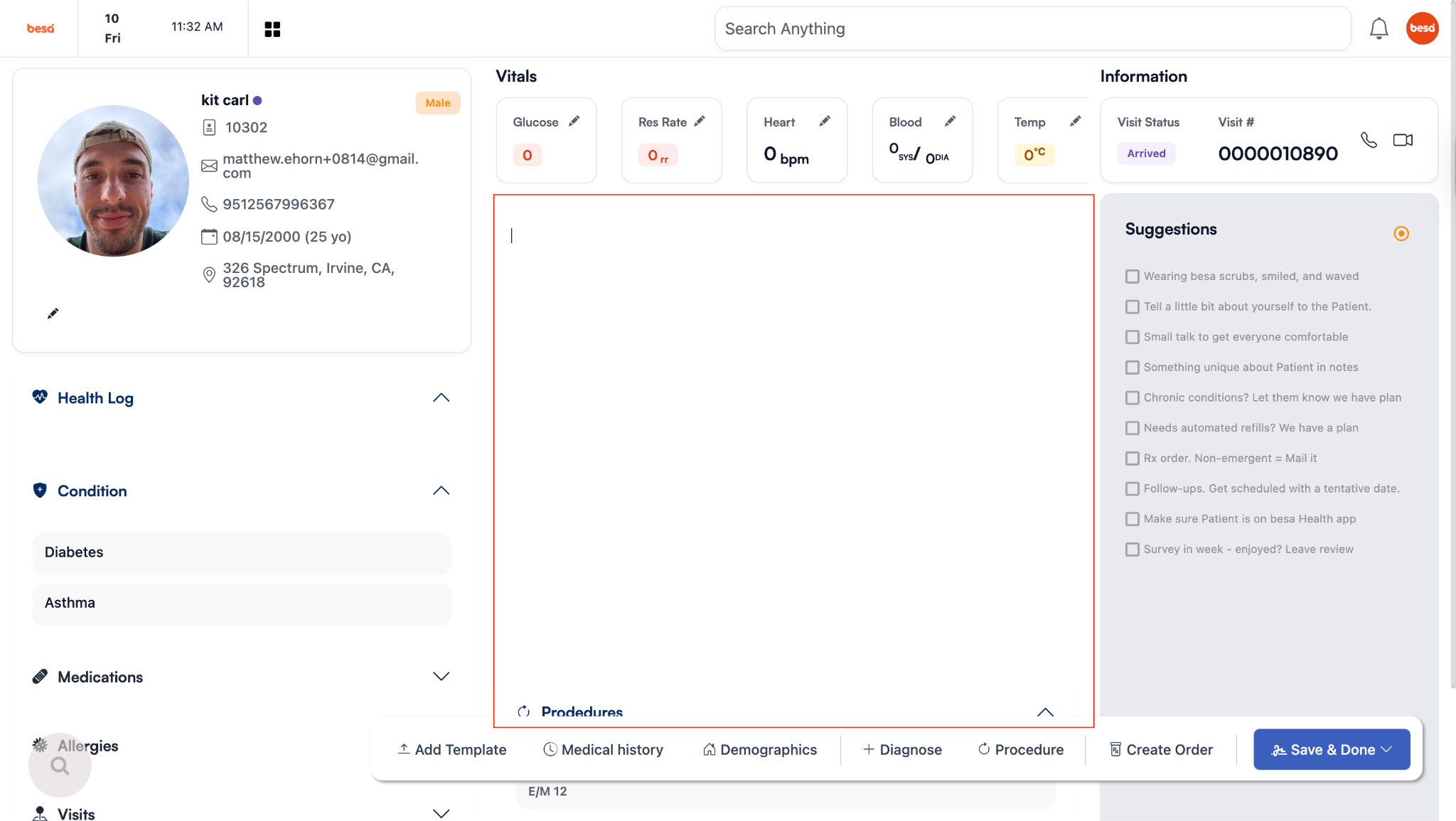
- This area is the main text canvas. This is where all your clinical notes go.
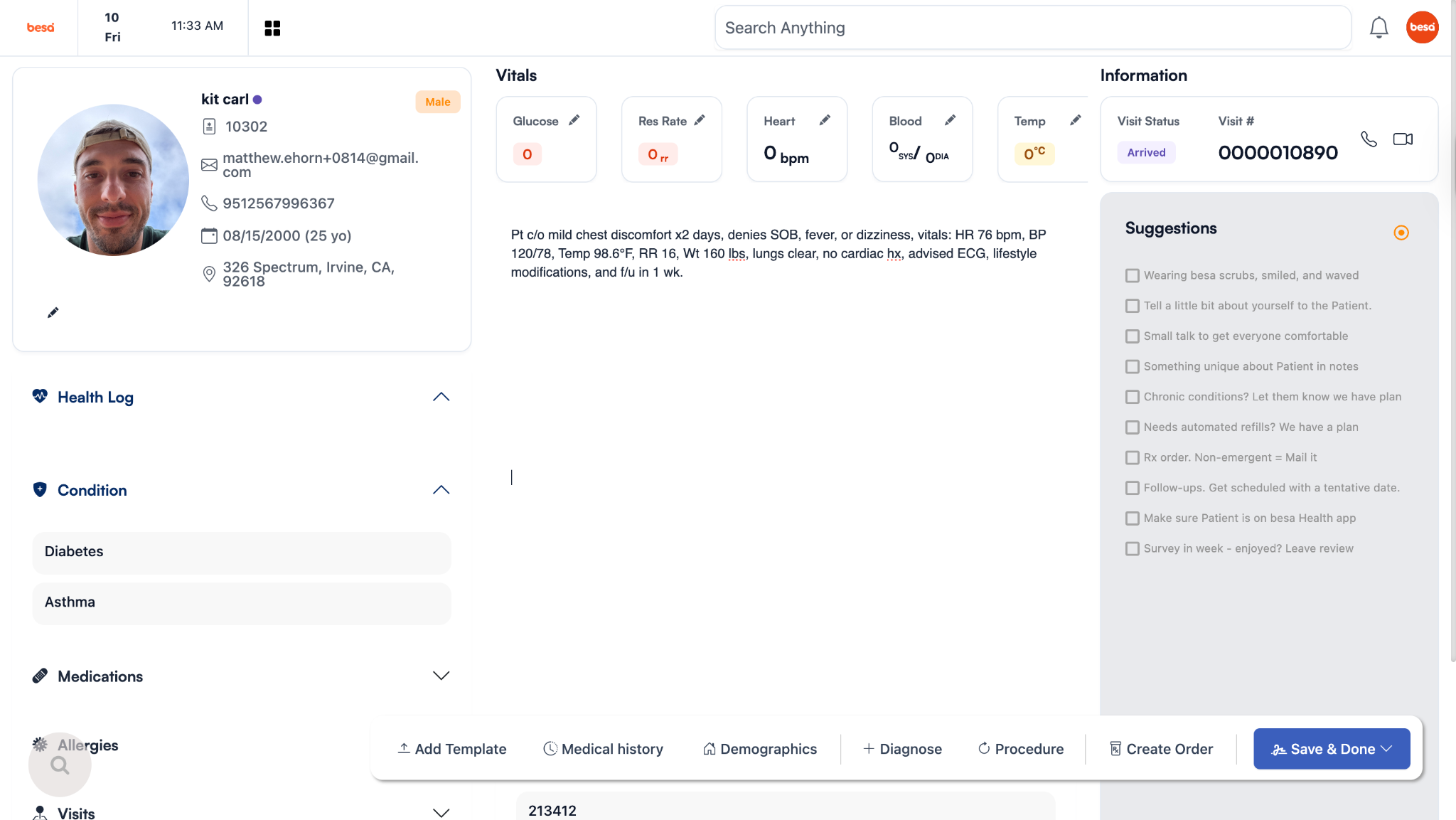
- As you ask the Patient questions and they tell you more about why they are here for the visit, make sure to write down all the major points.
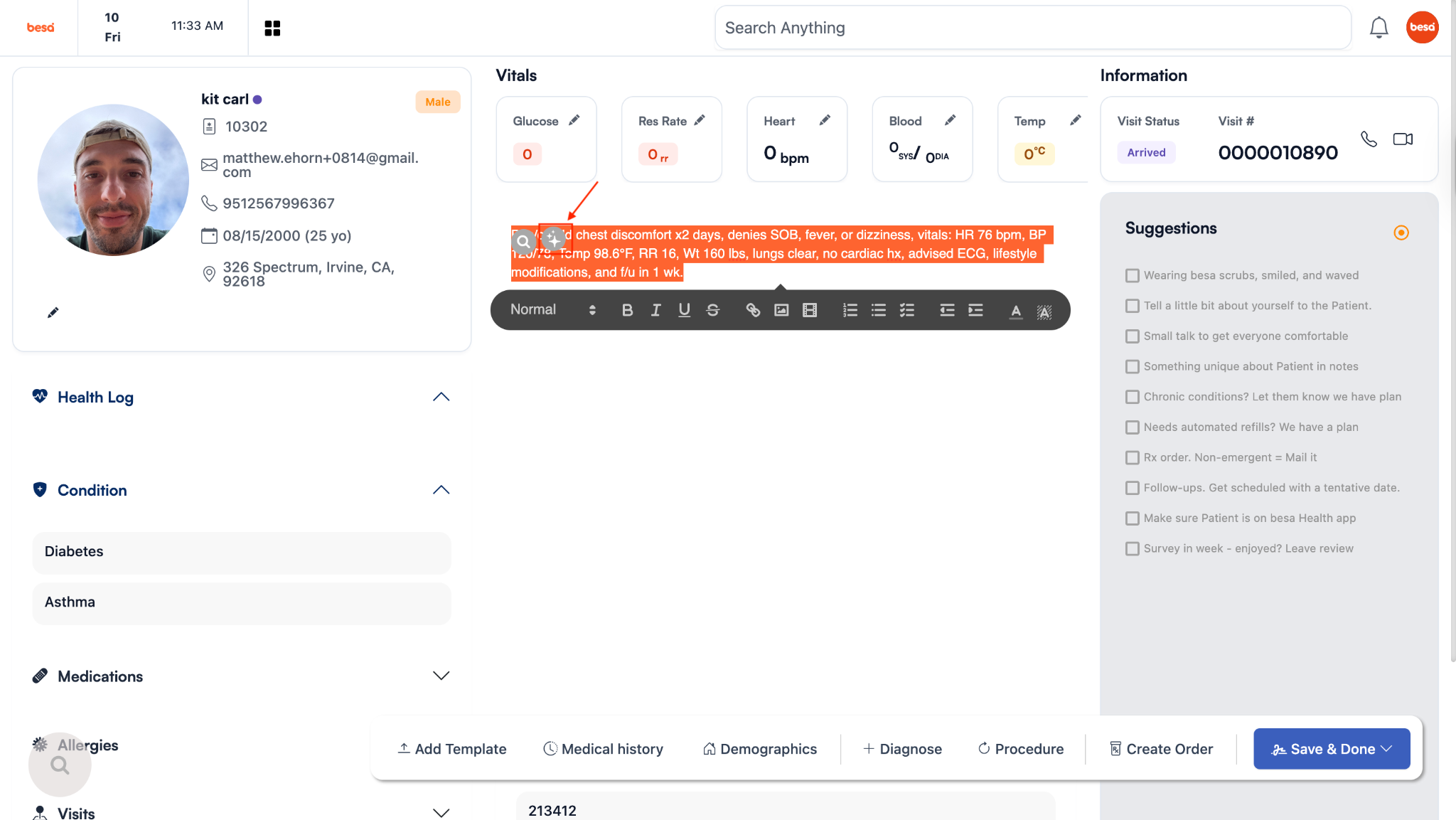
- When finished, highlight the text and click on the icon with the 3 stars.
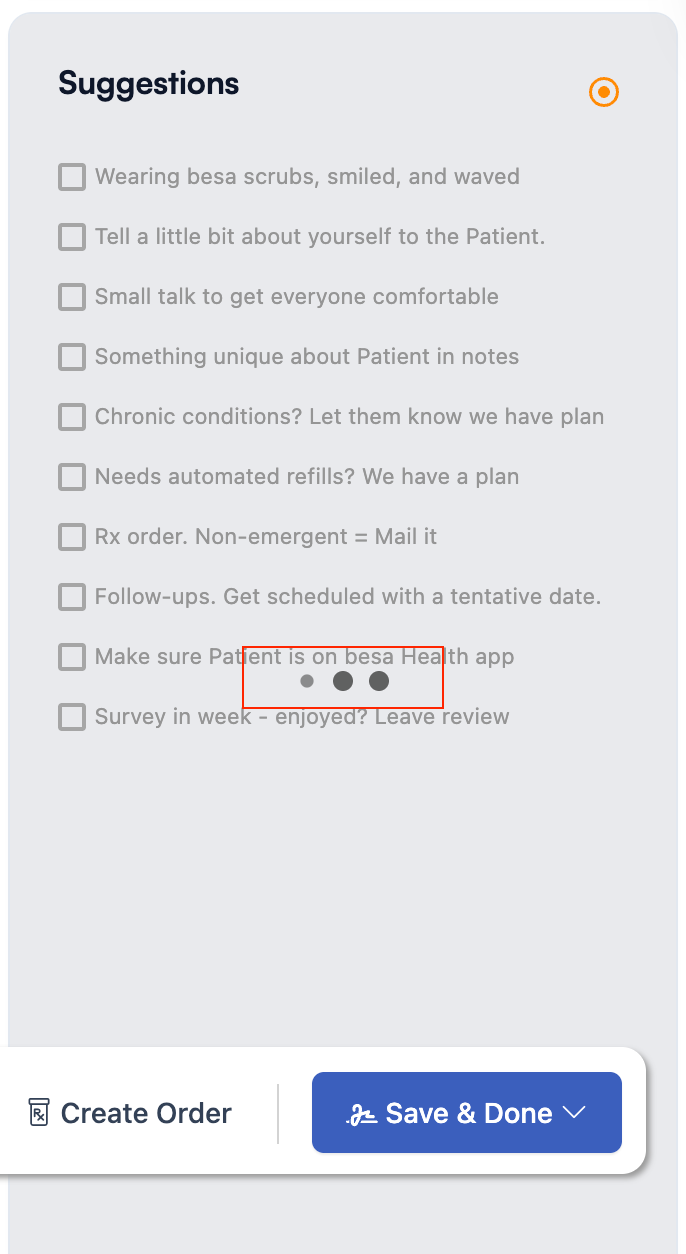
- On the right side of your screen, in the suggestions area you will see the notes being processed. This should take less than 1 minute to fully process and give you results based on Patient medical records and the clinical notes you have inputted.
- When finishing processing you will see the organized clinical notes in this section here.
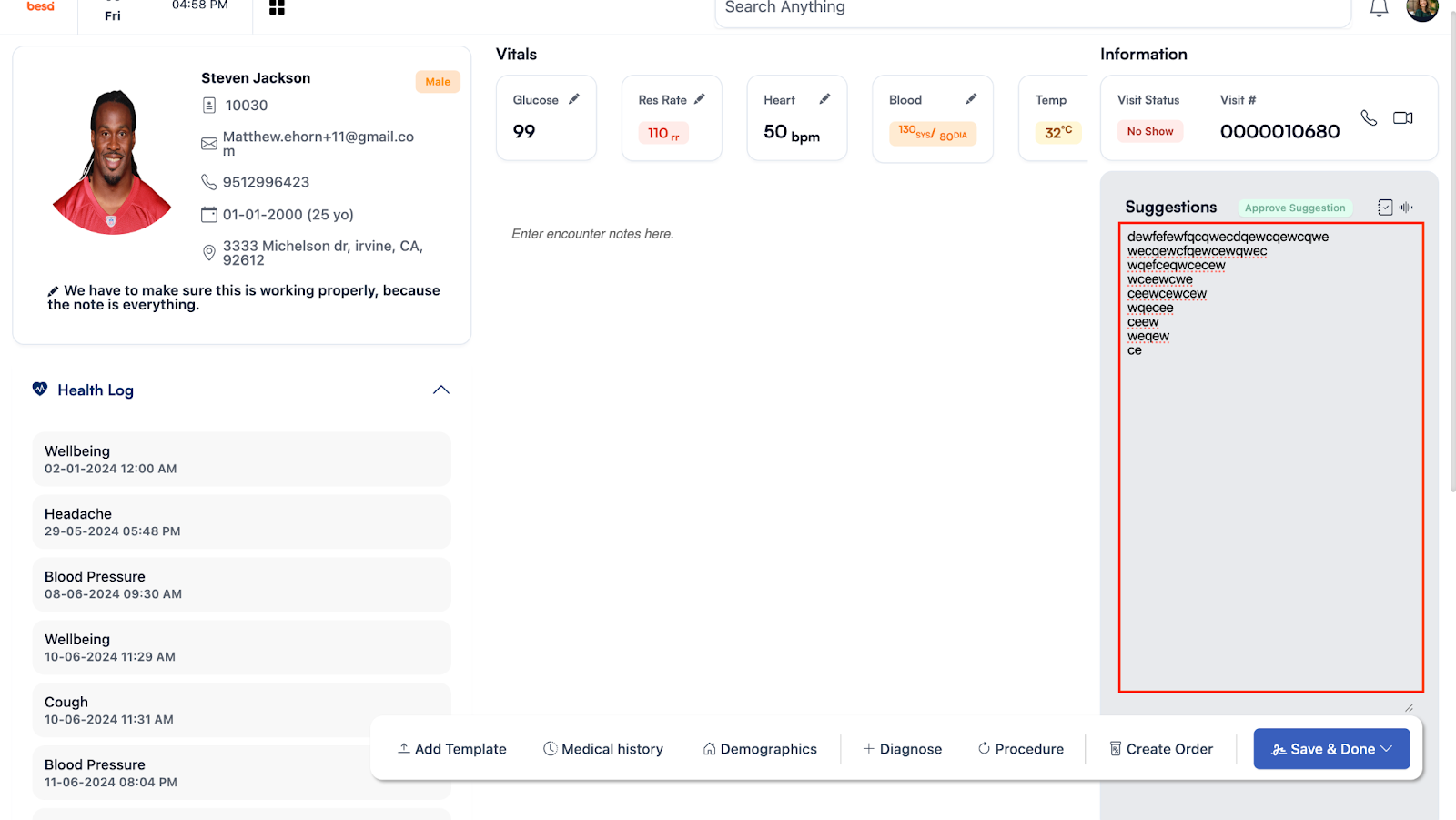
- Prior to approving the selection, you can click into the text here and change whatever it is you would like.
- When finished click the Approve Suggestion tag and it will be added to the Patient encounter notes.
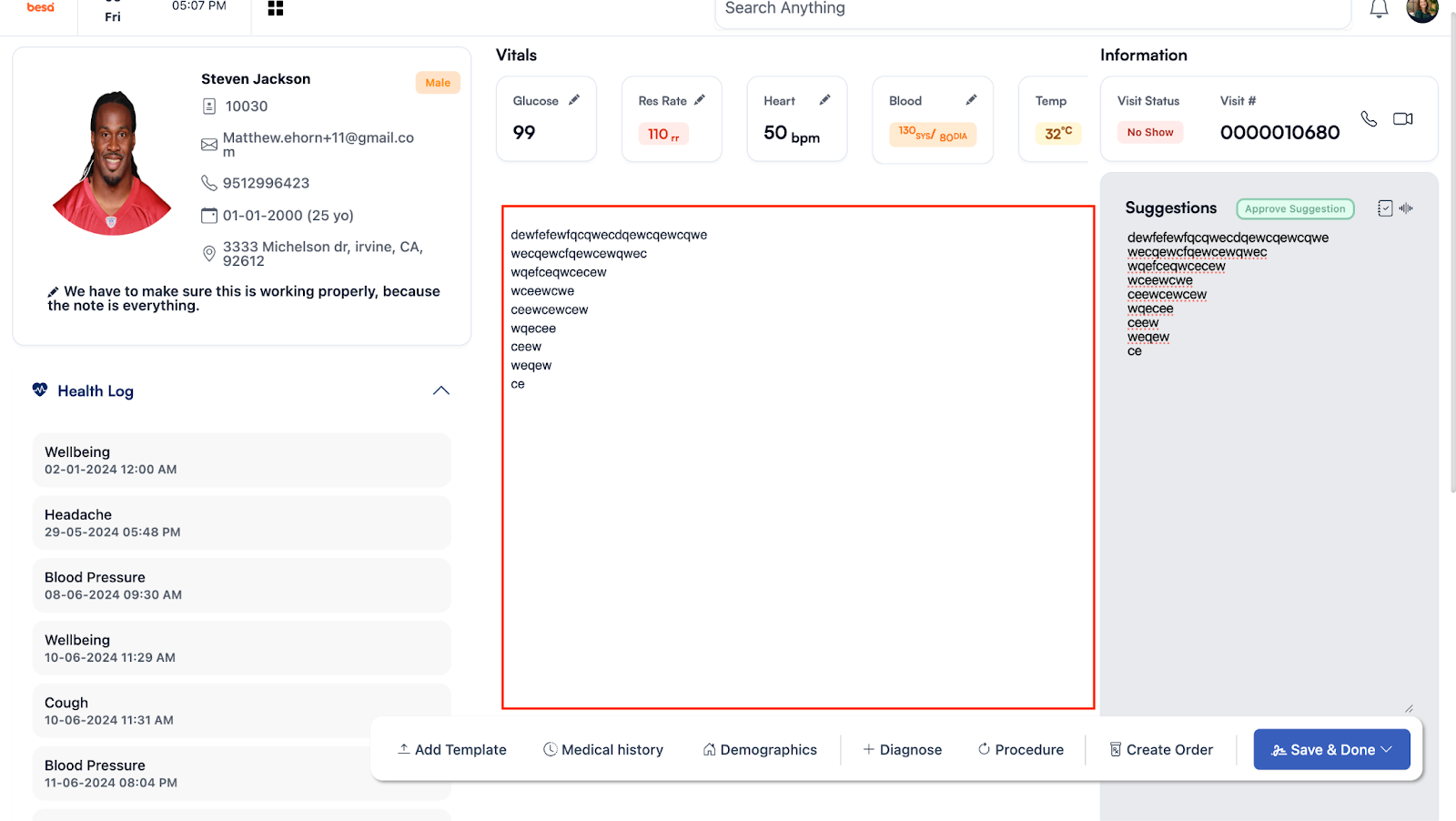
- All other fields and responses such as Orders, ICD-10’s, etc. you will approve and add to the Patient encounter.
Here is a video to help you better understand.
https://drive.google.com/file/d/1agBhbmq83FXXJs9YgrNW3sxZH6oWnJx_/view?usp=drive_link
If you have any questions or would like more information, please reach out to support.
Comments (0)