
Here at besa Health we understand that in order for Patients to receive the very best of care, providers and staff members need to have tools which allow them to focus solely on the Patient. One way we are doing this is through hands free charting. This process is intended to help all staff understand how to do certain tasks and actions within the besa EHR in relation to AI charting. Remember, everything we do is to improve the Patient experience and sometimes that means making our lives a little bit easier. Take a look below on how we use this feature.
📚Resources Needed
🚀 Tips & Tricks
-
You must always first ask the Patient if it is okay to record the conversation.
-
The finalized clinical notes may take several minutes to complete and show in your suggestions area.
- This AI charting is very involved and includes everything like a change in demographics, order creation, ICD-10 and CPT code additions, etc.
📘 Instructions
The more you use this feature the better it will become.
- Login to besa EHR using your credentials.
- Begin the encounter.

- Inside the encounter page, you will see the suggestions card. This is where all AI related information will go prior to you approving the record.
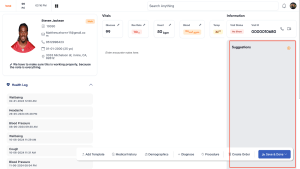
- Before you press record, you should always ask the Patient if it is okay to record the visit. Explain to them how it helps with you not needing to enter information while they are talking and discussing symptoms.
- Press the record icon to begin recording audio.

-
To stop the audio from transcribing, click on the Stop icon.
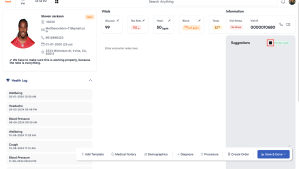
-
When finished and prior to ending the encounter, click Process Audio to being the processing of clinical notes.
- When finishing processing you will see the organized clinical notes in this section here.
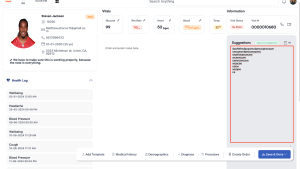
- If you would like to double check the transcription you can do that by clicking on this icon.

- If for any reason you would like to listen to the audio again, you’ll be able to do so by clicking on the audio icon.
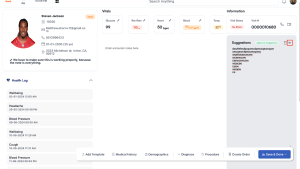
- Prior to approving the selection, you can click into the text here and change whatever it is you would like.

- When finished, click the Approve Suggestion tag and it will be added to the Patient encounter canvas.
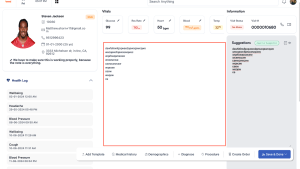
- All other fields and responses such as Orders, ICD-10’s, etc. you will approve and add to the Patient encounter.
If you have any questions or would like more information, please reach out to support.
Comments (0)