
Creating an invoice is something we do for self pay Patients that do not have insurance. This process is intended to help all staff understand how to do certain tasks and actions within the besa EHR in relation to creating an invoice. Remember, everything we do is to improve the Patient experience. Take a look below on how we create an invoice, and remember, what we do will change someone's life.
📚Resources Needed
🚀 Tips & Tricks
- It is important to first go over the Create Procedure or Items article as you will not be able to add any line item to the invoice that is not a procedure or item.
- As we add procedures or items in the Patient encounter it is automatically being added to a potential invoice. You can also directly add an item in the create invoice form.
- You can charge the card on file, or email / text the Patient the invoice for alternative forms of payment.
- In most cases we are not charging a Patient in real time when making an invoice. It is there for us to send them the bill and they pay. If they can pay right then, we will do that.
📘 Instructions
Please remember, you cannot add an item in the encounter or invoice unless it has been created in the Procedures and items page.
- Login to besa EHR using your credentials.
- Go to the billing page.

-
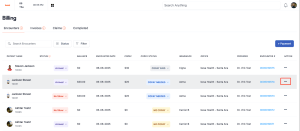
Look for the encounter that you are looking to create an invoice for. In most cases this will be for an encounter that either has status Pending Sign off, or Completed.

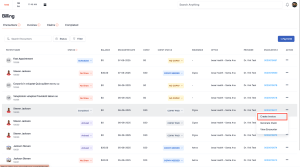
- Scroll all the way to the right and click on the action icon to see the options.
- Click Create Invoice
-
The Create invoice pop-up will slide in. Here, you can see what has been added to the patient encounter for billing as well as add anything else that may be needed.
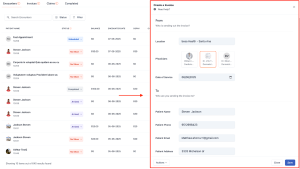
Keep in mind that any procedure or item that has been added to the Patient encounter by the provider will show here. You also have the ability to add services and items here in case something was missed.
- Most of these fields will already be filled in based on encounter and Patient data.
- You will see everything that was added to the Patient encounter through the Scope of Work section.

- To add something, click the dropdown for item and select the procedure or item you would like to add, then click + Add New. This will add the procedure or item to the invoice.
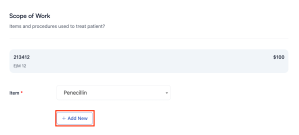
- As you add items, the Amount field will continue to increase.
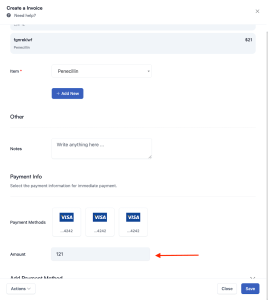
- If you need to add a payment method for payment, please click the dropdown and complete the form to add a card on file. When all information has been inputted, click + Add Payment Method. This will save the card on file.

- To apply the payment, click on the card that the Patient wants to use for payment. Please confirm with them prior to charging them if the card on file is good to charge.
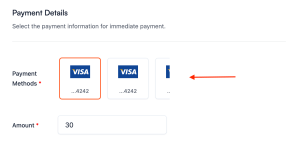
- If you are not going to charge the Patient and want to send them an email and SMS for payment, do not select any payment method and just click Save.
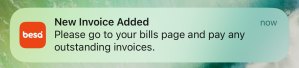
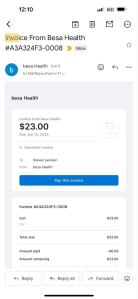
- The Patient will now receive an SMS and email letting them know they have an outstanding invoice with us. They will also receive a push notification through their Patient app.
- Here’s how it looks when we send them the invoice. Patients can pay these invoices through the following ways:
- Link in SMS
- Directly through their email
- There is a bills section in the Patient app where they can see and pay outstanding bill
- To access the invoice to resend or receive payment, go to the invoices tab of the billing page.
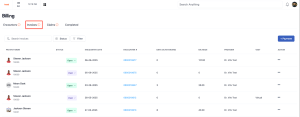
- Look for the invoice / encounter that you want to perform an action on and click on the Action Icon.
- From here, you can perform all necessary actions regarding this invoice. Actions such as resending in a variety of ways, collecting payment, etc.

- In the Status field of the Invoices tab you will see the real-time status of the invoice. This may prompt you to perform a specific action.
Here is a video to help you better understand.
If you have any questions or would like more information, please reach out to support.
Comments (0)