
It is always fun to see who we may be working with us the next day. It is also super important for team leaders to see what resources may be available to see Patients either virtually or physically. The shifts page is just for that. On this page we see who's working, when they are working, and can create or edit a shift. Look below for the page details.
📚Resources Needed
🚀 Tips & Tricks
-
You can create, view, and edit shifts from this page.
-
The camera icon next to the provider name means that they are available for virtual visits only.
- The phone icon next to a providers name means that they are on call. If they are on call, they will not show in providers that are able to receive Patient appointments. You will need to change the shift to virtual or on-site.
📘 Instructions
- Login to besa EHR using your credentials.
- Click on the Team Member card in the navigation icon or Dashboard page.
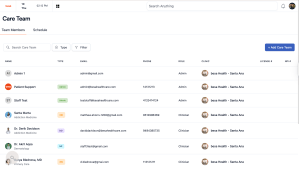
- You will see this page which lists all your team members.
-
Click on the Schedule tab to show the team member shifts.
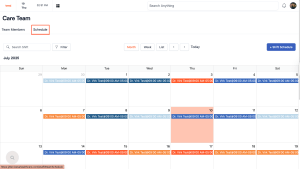
- To create a new shift click on the + Shift Schedule button

- The pop-up slide in form will appear for you to create a shift.

- All fields with a * are required fields and must be filled in.
- The form is fairly self explanatory so no need to go over those details. Be sure you fill out the form properly as there are several different actions that can and cannot happen based on what was inputted. Example: If Visit Type is Virtual, a Patient will only be able to schedule a virtual appointment with that provider.
- There are icons that we use in the calendar to determine the type of visit the provider can perform. They are
- In Clinic (Which also allows for virtual visits to be scheduled)

- Virtual Only
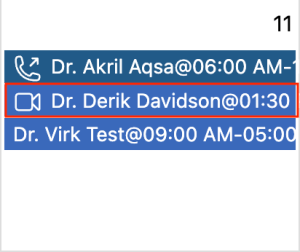
- On Call - We will need to confirm they can work and the schedule needs to be updated to match the types of appointments they can take.

- In Clinic (Which also allows for virtual visits to be scheduled)
- We will be releasing a team member app soon as well which you can view your schedule through the app.
If you have any questions or would like more information, please reach out to support.
Comments (0)