
The Broker Portal is the secure workspace for brokers and agents to manage partner onboarding, enroll individuals or employer groups, review plan information, use broker resources, communicate with the besa Health team, and view commission history.
📚 Resources Needed
- Broker Portal
- Your work email and assigned Broker Portal password
- Broker or agent license and agency information if onboarding is incomplete
✅ Before You Start
- Confirm whether you are joining as a Broker (agency owner) or an Agent (works under a broker). The role changes what you can see.
- Use your own work email. A broker owner should not create a second account for an agent.
- Have your agency name, business contact information, resident license, licensed states, years of experience, and approximate book of business available.
⚠️ Creating the wrong role can hide required menus or separate an agent from the correct agency. If the account already exists, sign in or use password recovery instead of registering again.
🚀 Tips & Tricks
- Complete the Getting Started card in order: agency profile, first patient, first agent if applicable, and broker resources.
- Dashboard totals are summaries. Use Patients or Payments when you need the detailed record.
- Broker owners can manage Agents and Settings. Agents do not see those owner-only menus.
- Use Chat for a broker-program question. Use Support when the portal is unavailable, data is wrong, or you need a tracked technical response.
📘 Create or Access Your Account
- Open broker.besahealth.org.
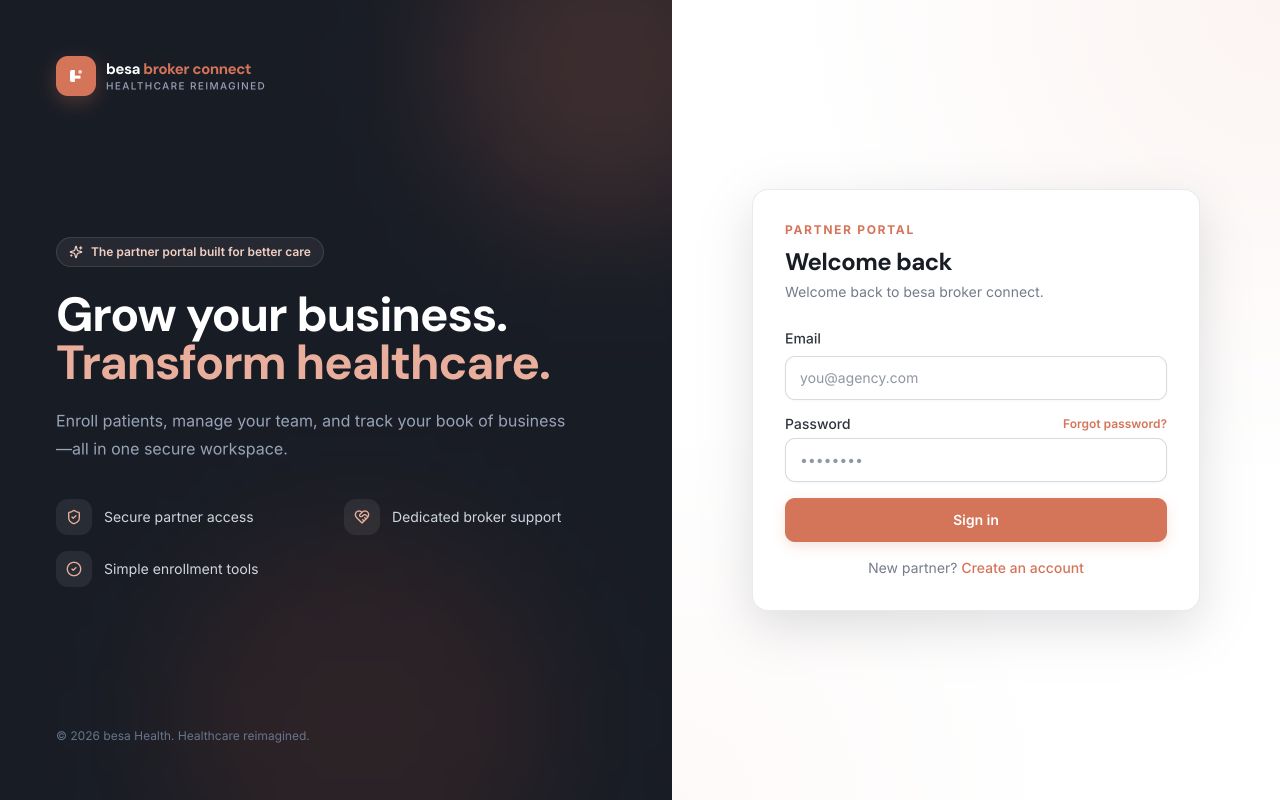
- Existing users enter Email and Password, then select Sign in. If the password is unknown, select Forgot password? and use the same email already associated with the account.
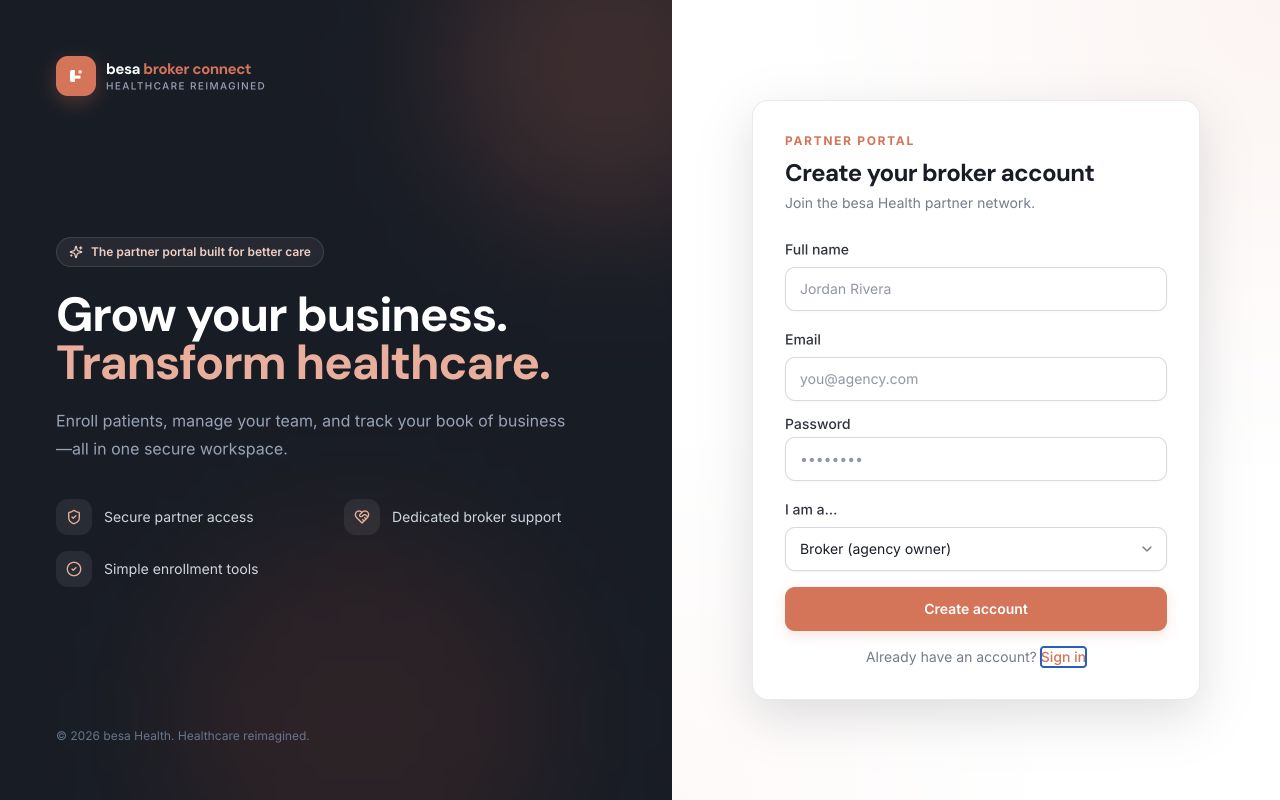
- New users select Create an account. Enter Full name, Email, and a secure Password.
- Choose Broker (agency owner) if you own or manage the agency. Choose Agent (work under a broker) only when the broker relationship already exists.
- Select Create account. Complete the onboarding sections for Your details, Agency, Licensing, and Review.
- Review every license state and agency field before acknowledging accuracy. Save the profile and return to the Dashboard.
🧭 Main Navigation
| Menu | Purpose | Who Sees It | Use It When |
|---|---|---|---|
| Dashboard | Shows total patients, active enrollments, pending deposits, commission accruing, recent enrollments, and Getting Started progress. | Broker and Agent | You need a quick operational summary. |
| Patients | Contains Individuals and Businesses and the enrollment actions. | Broker and Agent | You need to enroll or confirm a person or employer group. |
| Payments | Shows lifetime commission, paid amount, pending amount, and period-level payment history. | Broker and Agent | You need to review commission status. |
| Agents | Invites and manages agents working under the agency. | Broker owner only | You need to add or review an agency team member. |
| Compare Plans | Compares available membership plans and benefits. | Broker and Agent | You need to confirm which approved plan fits the enrollment. |
| Resources | Published brochures, guides, training, videos, and FAQs. | Broker and Agent | You need approved sales or training material. |
| Chat | Direct messages with the besa Health team or agency contacts. | Broker and Agent | You need a program or enrollment clarification. |
| Settings | Agency profile, licensing, and business details. | Broker owner only | You need to maintain owner or agency information. |
🔐 Role and Access Rules
- Broker owner: owns the agency profile and can manage Agents and Settings.
- Agent: can work with patients, plans, resources, messages, and commission visibility but does not manage the agency account.
- besa administrator: manages network-level brokers, patients, commission records, resources, and chat.
- A user should have one role-appropriate account. Access changes must be requested; they should not be solved by duplicate registration.
🛠 Troubleshooting
Sign-in fails
Confirm the email spelling and use Forgot password? once. If the reset message does not arrive, check spam and submit Support with the email address and time attempted. Never send the password.
The Getting Started card will not complete
Open the unfinished item directly. Confirm the agency profile was saved, at least one enrollment exists, an agent was invited only when applicable, and Resources was opened. Refresh the Dashboard after completing the item.
A menu is missing
Confirm the role shown by the account. Agents will not see Agents or Settings. If the assigned role is wrong, stop and request an access correction through Support.
✅ Completion Check
- You can sign in with your own account.
- Your role is correct and the expected menus are visible.
- Agency and license information is accurate.
- The Dashboard loads without an error and shows the expected Getting Started progress.
- You know whether to use Chat or Support for the next issue.
If you have any questions, something does not match what you see, or you need more information, please reach out to Support.
Comments (0)