
For any medications that the patient needs for an emergency (They need it before 2 days) we will be sending the script to the Patients local pharmacy. For this, we will be using MD Toolbox to send the eRx to the pharmacy. Please look below at how to send out the order.
📚Resources Needed
- besa EHR
- MD Toolbox
- The Patients preferred pharmacy name and address
🚀 Tips & Tricks
- You should still follow the same order process in the EHR for a medication order.
- The Patient will already be added to MD Toolbox. Based on how much we were able to communicate, we may not have the Patients desired pharmacy added.
- Once the script has been sent to the pharmacy, the status of the order in the EHR should be PENDING
📘 Instructions
You will still need to follow the same EHR order steps
- When you select Patient Local Pharmacy as the pharmacy to send the order through, a new tab will open for MD Toolbox.
- Enter the username and password that was sent to you. Our Practice # is 73476.
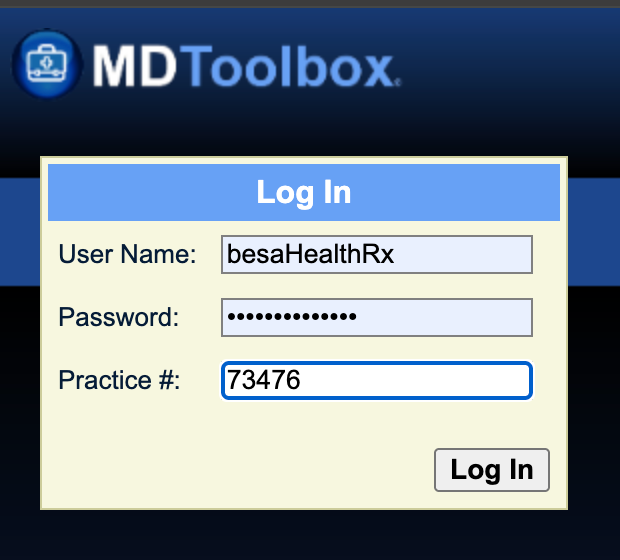
- Once logged in, click on the Find Patient tab.
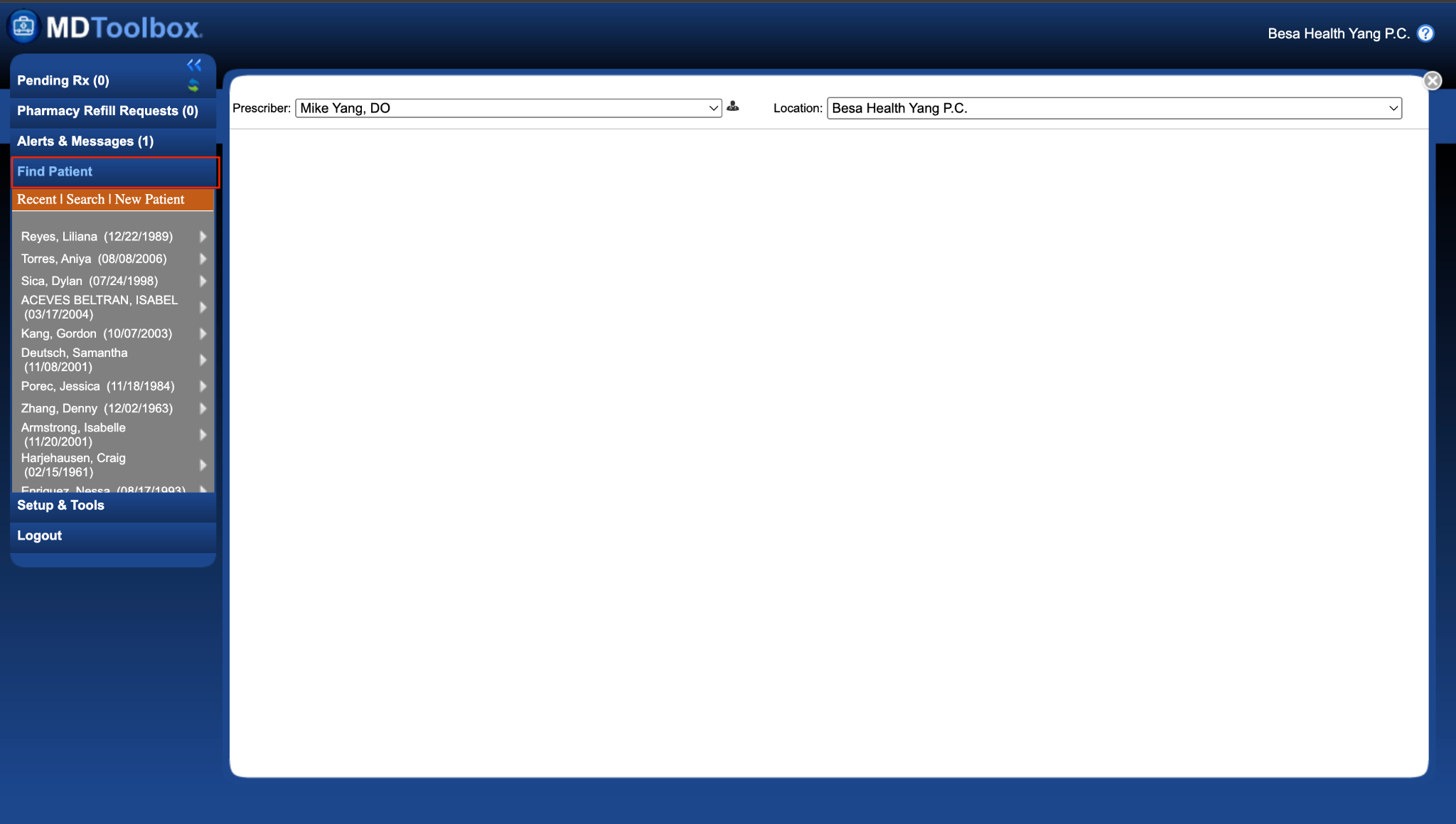
- You will want to search the Patient by their last name.
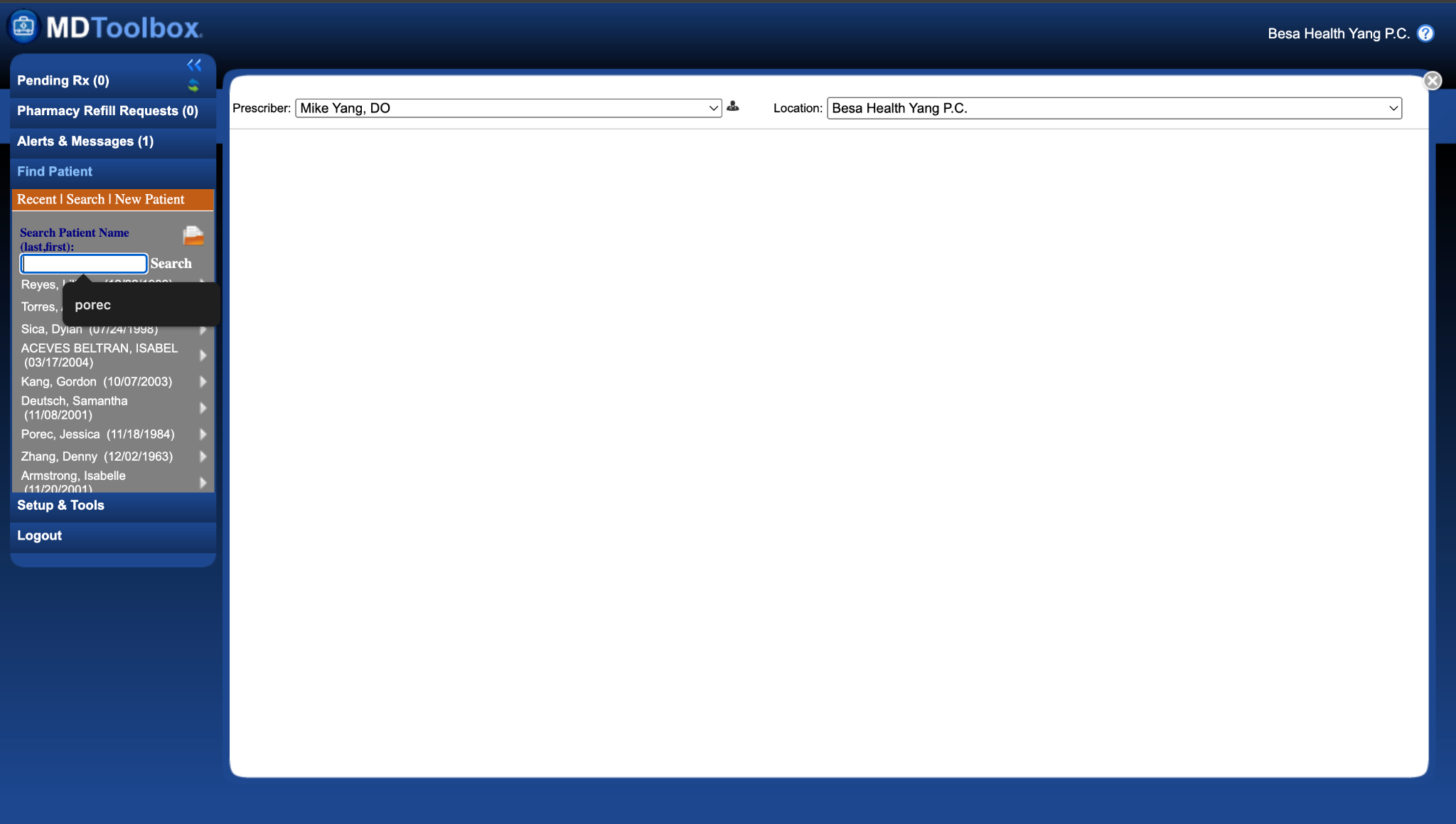
- Click on the Patient name to pull up their profile.
- Once you pull up the Patient profile, click New Rx.
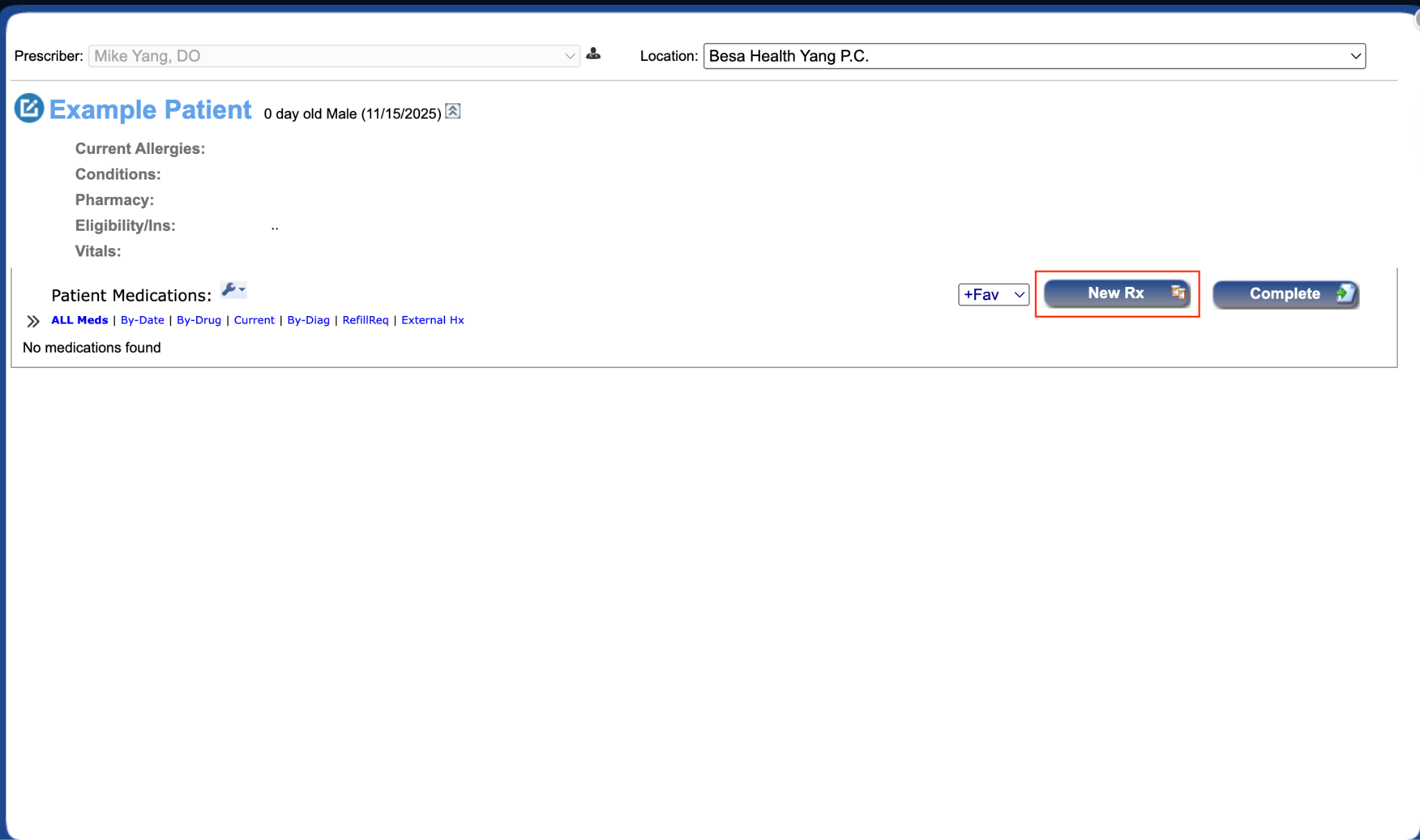
- Add the drug name and the directions.
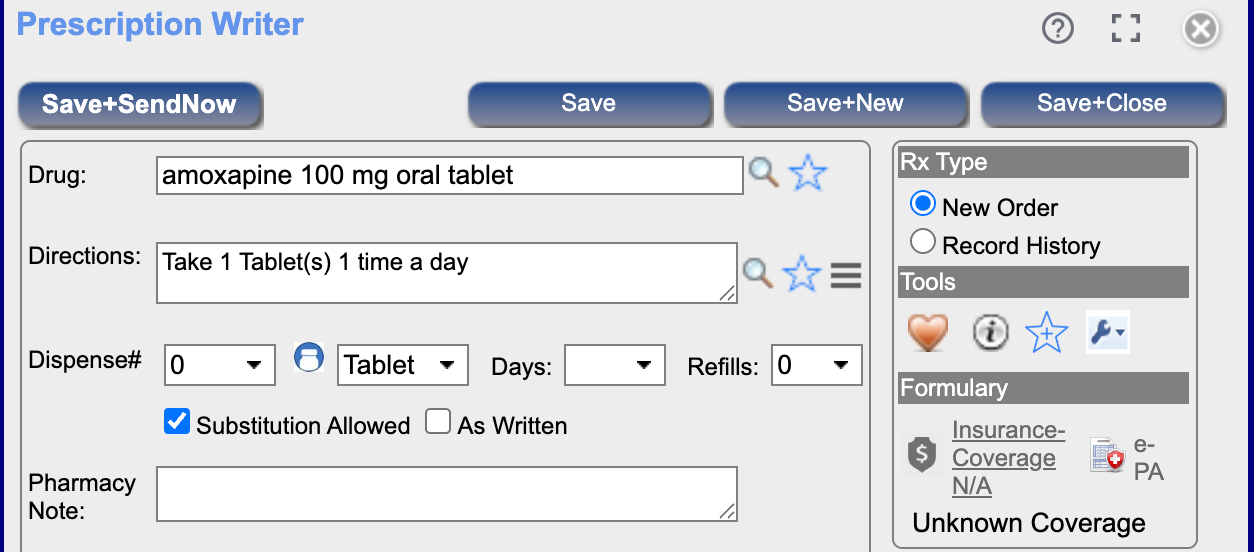
- If we already have the Patients preferred pharmacy, you will see it listed here in the Pharmacy select. If not, you will see these lines show.

- To add the Patients preferred pharmacy, click the dropdown and select Search Pharmacies.
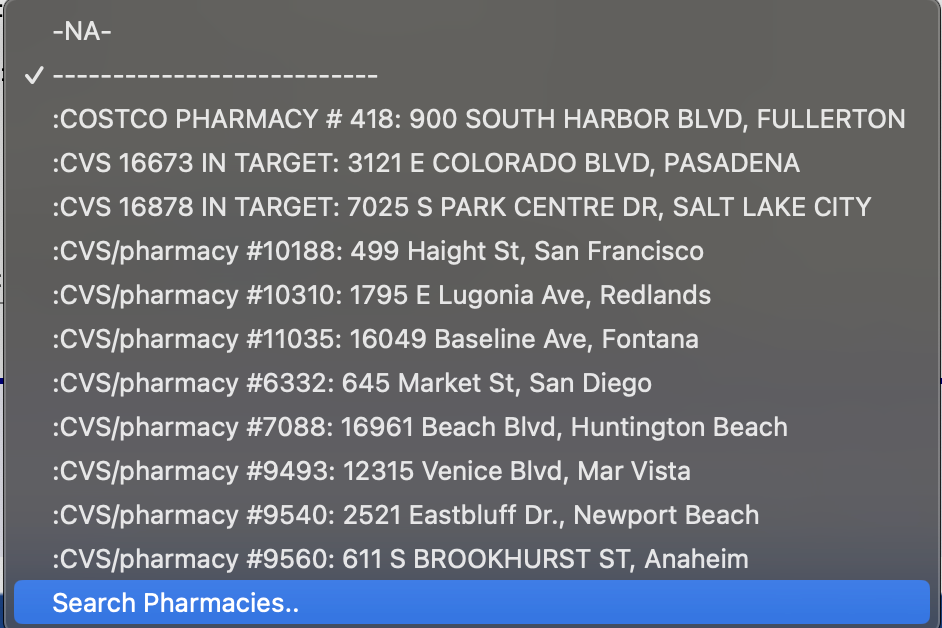
- Search the Pharmacy name and select the one that matches their preferred pharmacy. Keep in mind that sometimes it is in a different City then their address so you will need to change the city name to pull the pharmacies in that respective City.
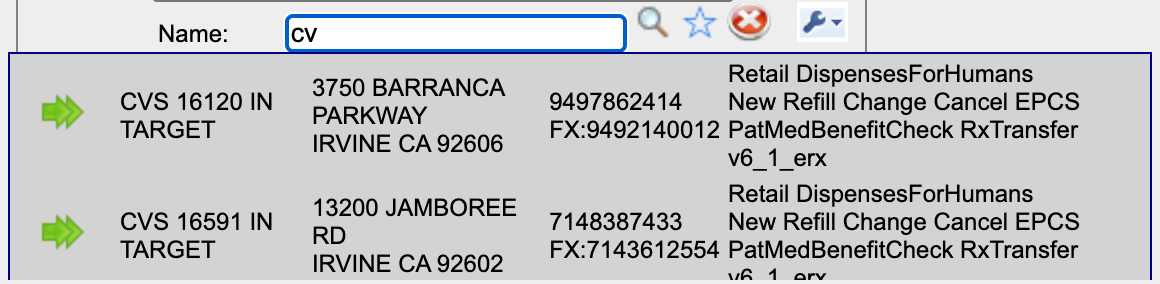
- Once the script information is complete, click Save + Send Now.
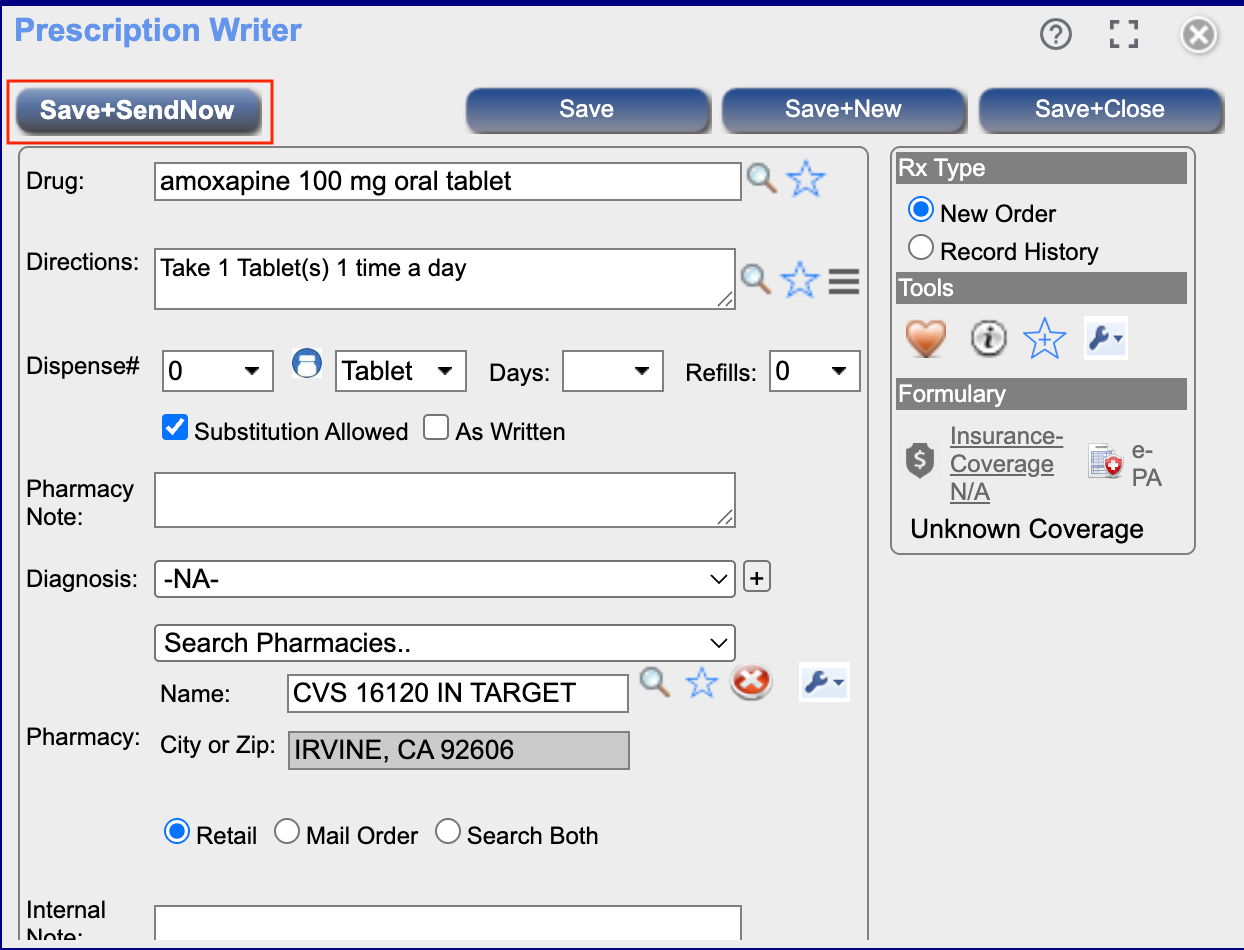
- A final confirmation page will show for you to double check the script you’re about to send. Once you have confirmed, click Send!
- Don’t forget to make the status of the order PENDING and have their pharmacy name and address listed in the notes.
If you have any questions or would like more information, please reach out to support.
Comments (0)