
On our Patients page you are able to perform all actions related to a Patient. Quick view medical records, create orders, and much more. This page has been designed to be very similar to what you would see with the old medical records via hard copy. Its like flipping through pages rather then scrolling down a screen. Take a look below at the different things you can do on this page.
📚Resources Needed
🚀 Tips & Tricks
-
View all Patients and create new Patients.
- Ideal for quick actions and quick checks in the Patients records.
📘 Instructions
- Login to besa EHR using your credentials.
- From the menu icon or dashboard, select Patients

- Here you will see all of the Patient information. Scroll down and select which Patient you will like to see records of, search, and create a new Patient.
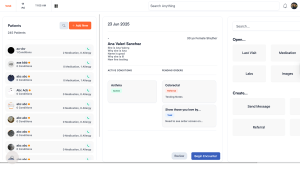
- To create a Patient, click on the + Add New button and the create Patient pop-up will slide in.
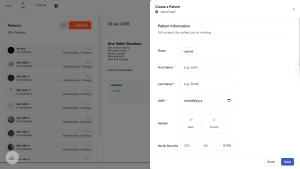
Don’t forget, When creating a Patient, they will receive an email and an SMS telling them to download the app and complete the Patient onboarding process. -
Here is a breakdown of what the different areas in the main Patient card mean
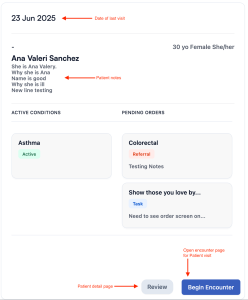
- To see record information or complete a form such as adding a medication, order, etc. move your screen to the right and click on the type or record you would like to review or create.

- Most of all quick actions for a Patient can be done here. Click around and check it out.
Here is a video to help you out.
If you have any questions or would like more information, please reach out to support.
Comments (0)